Best AI Photo Editing Tools 2026 for Every Kind of Edit

In this story
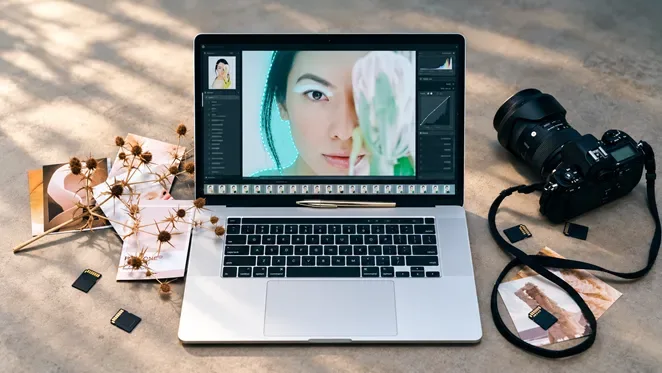
Adobe Photoshop is our pick for precise AI retouching, Lightroom for photographers managing a library, and Google Photos for free everyday fixes on compatible phones. Canva makes more sense when the finished photo belongs in a social post, while Photoroom is the specialist choice for product listings.
The best AI photo editing tools in 2026 solve different problems. Removing a stranger, correcting a noisy RAW file, and inventing a new background require different controls. Choose for the edit you repeat most often, then check what the plan lets you export.
These are recommendations based on documented capabilities and current plan terms, rather than a claim that every app has undergone the same hands-on test. Prices below were checked November 1, 2026; US prices exclude tax unless stated otherwise.
The best AI photo editors at a glance
Tool | Choose it for | Access and billing |
Photoshop | Precise retouching and composites | Paid; Photography bundle $19.99/mo, annual commitment |
Lightroom | RAW editing and photo libraries | Paid; 1TB plan $11.99/mo, annual commitment |
Canva | Photos inside social and marketing designs | Free tier; Pro $144/year per person |
Photoroom | Product images and repeat listings | Pro $7.50/mo equivalent, billed yearly |
Luminar | Guided creative enhancement | Perpetual app bundles; listed AI tools renew after one year |
Topaz Photo | Noise, sharpness and enlargement | Paid; check current subscription and commercial license |
Google Photos | Everyday phone cleanup | Free tools; device and feature eligibility apply |
Pixlr | Occasional browser-based editing | Free access; paid tiers add saves, credits and models |
The important distinction is enhancement versus generation. Enhancement aims to improve the captured image through adjustments, masking, noise reduction, or sharpening. Generative editing synthesizes content, including the background revealed after an object is removed. Neither category guarantees that every fine detail remains faithful to the original.
Read more:
10 Best AI Agents for Customer Support in 2026
Best Free AI Image Generators in 2026
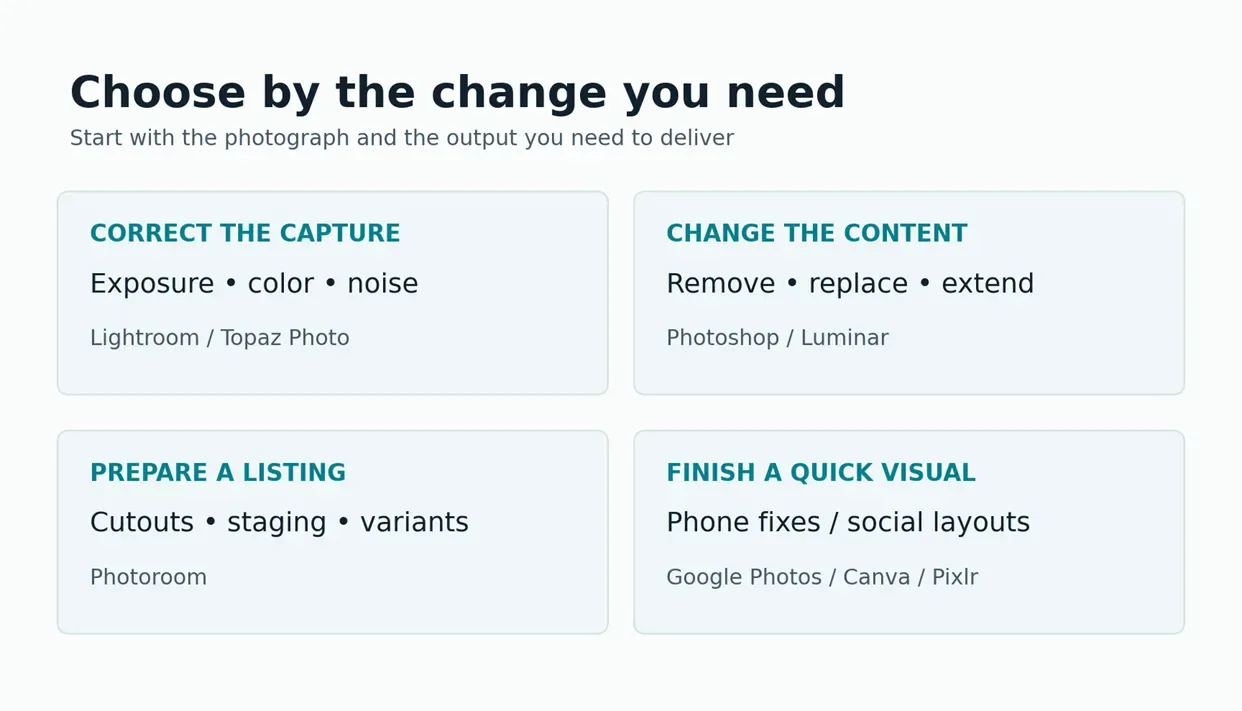
Which AI photo editing tool should you choose?
Adobe Photoshop for precise retouching and composites
Choose Photoshop when you need to control exactly where an edit appears. Generative Fill creates content on a separate layer, letting you compare variations and refine how they blend. The Remove tool can work on a blank layer with Sample All Layers enabled; Adobe says this tool does not deduct generative credits. See Adobe’s guides to Generative Fill layers and the Remove tool.
That control makes Photoshop our strongest recommendation for difficult edges, composites, and corrections that need manual cleanup afterward. It also means a learning curve: a good mask often matters more than a clever prompt.
The Photography 1TB plan lists Photoshop and Lightroom at $19.99 per month with an annual commitment billed monthly, or $239.88 over 12 months. It includes 1,000 monthly generative credits, but credit consumption depends on the feature and model. Consult Adobe’s credit rules before assuming a credit equals one completed edit.
For browser-based generative work, our Adobe Firefly guide explains the separate Firefly options. Check your existing Adobe entitlement before buying another subscription.
Adobe Lightroom for RAW photos and consistent sets
Lightroom is the better starting point when the job is a whole shoot rather than one elaborate image. Its photography workflow includes AI masking, Denoise, and Generative Remove, alongside organization and conventional adjustments. Adobe’s Lightroom comparison details differences between Lightroom and Lightroom Classic.
Use masks to adjust a subject or sky without applying the same correction everywhere. Keep Photoshop for the frames that need intricate reconstruction or compositing. This division is especially useful when most images need similar exposure and color work, but only a few need extensive retouching.
The Lightroom 1TB plan is $11.99 per month, annual billed monthly, or $143.88 over a year. The Photography bundle costs $96 more over 12 months and adds Photoshop. Both figures come from Adobe’s plan comparison.
Feature availability differs across desktop, mobile, and web. Adobe’s AI edit documentation identifies operations the web version cannot update, including Denoise. Check the platform you actually intend to use.
Canva for social posts and marketing graphics
Canva is our choice when photo editing is one step in making a finished design. Its AI photo editor includes Magic Edit for prompted changes, Magic Eraser for unwanted objects, and tools for moving elements or replacing backgrounds.
The advantage is the handoff: finish the image, add typography, and place it in a layout without changing applications. For a newsletter header or promotional post, this can be more useful than a deeper photographic toolset.
Canva Free offers limited AI access. Canva Pro lists $144 per person annually, equivalent to $12 per month when paid yearly. That is an annual payment, not a $12 rolling monthly plan. Check the specific tool’s allowance before upgrading; paid access is not a promise of unlimited AI use.
Choose Lightroom instead if RAW development and a consistent photographic set are your main needs. Choose Photoshop if you need detailed control over a complicated cutout or composite.
Photoroom for product photos and online stores
Photoroom groups background removal, product staging, shadows, and batch workflows around selling products. That makes it a more direct fit for repeat listing images than a general design app.
Its Pro plan lists $7.50 per month billed yearly, equivalent to $90 annually, with 8,000 monthly AI credits and 1,000 monthly exports. Core tools and credit-consuming features are counted differently. An image saved from the editor, Batch, or Shopify sync counts toward the export allowance; API and MCP usage have separate allowances.
Budget for retries and variants. For example, 200 products with three exported views each require 600 exports; exporting a second version of every view would take the total to 1,200. This is a planning example, not a measured production result.
Photoroom’s plan guidance says its Free Space cannot be used commercially. For store listings, confirm the paid license and current allowances. Inspect labels, stitching, dimensions, and color after every generative edit: an attractive picture still needs to show the product accurately.
Luminar for guided creative photo enhancement
Luminar, previously widely known as Luminar Neo, suits people who want dedicated photographic effects without building every adjustment manually. Skylum lists tools for sky replacement, portrait adjustments, AI masking, and generative removal or expansion in its current feature catalog.
Choose it for creative landscapes and portraits where you want to explore a look quickly. Use restraint with replacement skies, skin adjustments, and atmospheric effects when the photograph needs to represent the original scene.
The purchase detail matters more than the headline discount. Skylum’s pricing terms distinguish perpetual app access from listed AI tools that are renewable after 365 days through Luminar Prime. “Lifetime” app access therefore does not mean every AI service stays included indefinitely. Compare the actual bundle, renewal terms, and platform coverage at checkout; promotional prices change.
Topaz Photo for denoising sharpening and upscaling
Topaz Photo is our specialist pick when the problem is image quality: noise, softness, or insufficient output dimensions. Its product page focuses on enhancement rather than full design layouts or catalog management.
Try a representative image before buying. Examine eyelashes, hair, lettering, and repeated textures at 100% magnification. Strong processing can make an image look more detailed while reducing its faithfulness; do not treat a plausible reconstructed face as recovered evidence.
Topaz provides local and cloud workflows, but suitability depends on the model and hardware. Its system requirements identify local generative-model restrictions on Windows ARM and Snapdragon machines. A desktop app is not automatically an entirely offline workflow.
Check current plans and licensing rather than relying on older Photo AI perpetual-license prices. The pricing page also distinguishes limited commercial use from Pro licensing, including an organization revenue threshold. Confirm the license fits your business before purchasing.
Google Photos for free everyday phone edits
Google Photos is the first option to try if you want to improve everyday pictures without adding another paid editor. Google makes tools including Magic Eraser, Photo Unblur, and Portrait light available without a subscription on supported devices; see its AI editing availability announcement.
The qualification is device compatibility. Google’s current editing help says most Android editing features need at least 3GB RAM and Android 8 or later, while some need more memory or a Pixel. Conversational editing also has account and age eligibility requirements. Check for the tool on your phone before paying for storage to solve an editing problem.
Use Save as copy when you want an independent edited version. For quick cleanup, this is a sensible starting point; for complex masks and repeatable professional output, a dedicated desktop workflow offers more control.
Pixlr for occasional browser-based AI edits
Pixlr is worth trying when you need an online photo editor without installing a large application. Its browser tools include object and background removal, generative fill, image expansion, and conventional editing.
Free access is useful for evaluating the workflow, but check the save and AI limits before committing a project. The pricing page separates paid tiers by credits, concurrent generations, and model access. Plus includes 80 monthly AI credits; Premium includes 1,000 and adds access to all listed image, video, and audio models.
Credit balances and export access matter more than an inexpensive entry plan if you need repeated attempts. For occasional web images, start with one complete upload-to-download trial. If the output meets your requirements, then compare the paid options.
A practical workflow for natural AI photo edits
Imagine you are preparing a ceramic mug photo for a store listing and a social post. The mug has a printed logo, a cable crosses the background, and the image feels slightly dark. The goal is cleaner presentation while preserving the actual product.
1. Keep the original. Work on a duplicate and define what must remain unchanged: mug shape, logo, glaze color, handle, and any visible defects relevant to the sale.
2. Correct the photograph first. Adjust exposure and white balance conservatively. Avoid brightening until a colored glaze loses its texture. If noise is the problem, evaluate noise reduction before adding aggressive sharpening.
3. Remove only the distraction. Select the cable with enough surrounding space for blending. Protect the mug edge. Compare the result against the original and undo it if the handle, shadow, or logo changes.
4. Build the required versions. Use Photoroom for a repeatable listing workflow or Photoshop for difficult cleanup. Use Canva for the separate social layout. Add promotional wording as editable text, rather than asking a generator to redraw the printed logo.
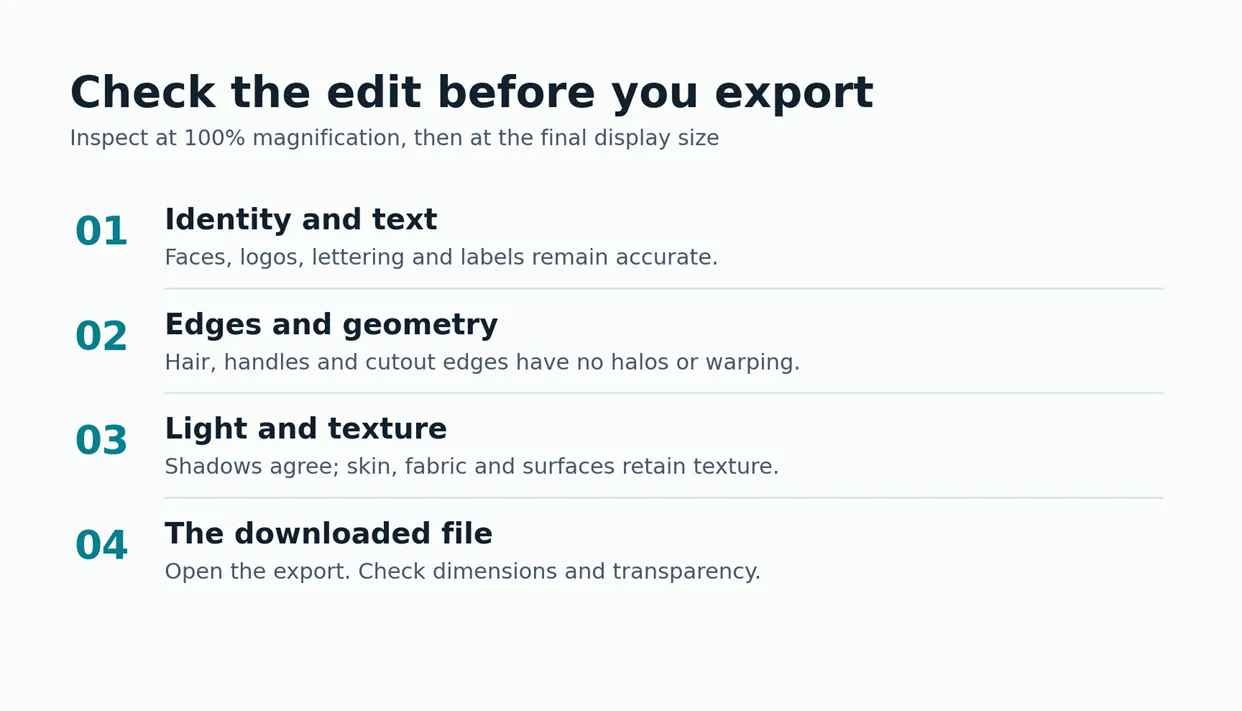
5. Inspect and export. Check at 100% and at the final display size. Confirm dimensions, background transparency if needed, and the exported file itself. A good preview is not proof of a good download.
A useful prompt for a masked background edit is: “Remove the cable behind the mug. Continue the existing tabletop texture and lighting. Preserve the mug, printed logo, handle, glaze color, and contact shadow.” Those instructions express your intent; they do not guarantee that protected details remain untouched.
If you need new artwork rather than corrections to a photograph, our Ideogram guide covers a different kind of image workflow. If the approved still will become a video, check our Runway guide before buying a second creative subscription.
Compare the real cost before you subscribe
Use the same small set of your own photos to evaluate two shortlisted editors: a portrait with fine hair, a low-light scene, a product with lettering, and an object against a complicated background. Run the same requested edit and download the result from each.
Record time spent correcting mistakes, failed attempts, accepted exports, and any credit charges. This is a more useful buying test than counting features you may never use.
For example, suppose a $15 monthly plan produces 60 usable images from 100 attempts. The subscription cost per accepted image is $15 ÷ 60 = $0.25, before labor or additional credits. This hypothetical calculation shows why a cheap plan with frequent rework can cost more than expected.
Before uploading client work or private photographs, check where processing happens, the service’s retention and training terms, and whether you have permission to upload the images. For sensitive work, verify the specific local processing path rather than assuming that every feature in a desktop app runs on your computer.
Frequently asked questions
Can AI fix a blurry photo without changing a face?
It may improve perceived sharpness, but it cannot guarantee a faithful reconstruction of missing detail. Compare facial features with the original, reduce the enhancement strength, and reject results that change identity. For evidence or documentation, preserve and use the original rather than relying on reconstructed detail.
Should I pay for a separate AI photo editor if I already have Adobe?
Check your plan first. The Photography bundle already combines Lightroom and Photoshop, covering library editing and detailed retouching. Add a specialist only for a repeated unmet need, such as product batch production or a particular enhancement workflow. Test that need with your own files before paying for overlapping subscriptions.
For most readers, the best starting point is one editor matched to the main job: Google Photos for quick phone fixes, Lightroom for a photographic library, Photoshop for precision, or Photoroom for product listings. Add Canva when the image needs a finished layout. Keep the original, inspect the exported result, and upgrade only when a specific limit gets in your way.
Keep reading


How to Get Your Business on ChatGPT
Claim or add your business in ChatGPT Business Hub, complete verification, and use Insights to see how customers discover your business.

How Quantum Dots Turn Size Into Color
Quantum dots are tiny regions of semiconductor that confine electrons in all three dimensions. In a TV, they typically take the form of nanocrystals just a few...

Organoid Intelligence Explained
Organoid intelligence is a field of research that connects lab-grown neural tissue to electronics and software. Researchers use the resulting systems to study h...