AI Video Editing Tools Compared by Editing Task

In this story
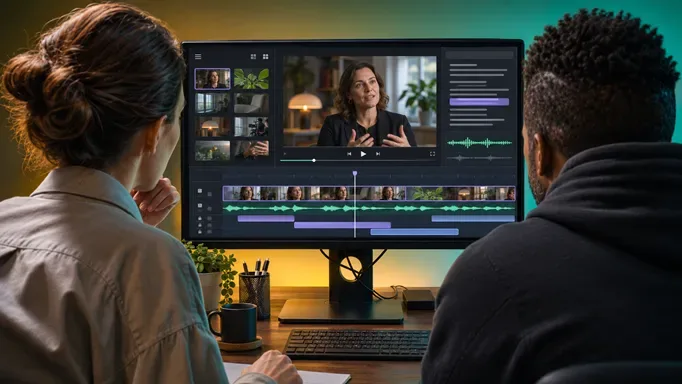
Choose Descript for editing spoken video through a transcript, OpusClip for turning long recordings into short clips, and Adobe Premiere for detailed timeline work. Clipchamp is our starting point for beginners who want free AI assistance and a clean 1080p export. DaVinci Resolve Studio suits editors who also need advanced color, audio, and finishing tools.
The best AI video editing tools remove a specific bottleneck: finding a usable moment, correcting captions, cleaning speech, or reframing a shot. Start with that job. An app that generates a new scene serves a different purpose from one that edits an interview you already recorded. Our image to video AI guide covers animating still images when you need a new shot to bring into your edit.
These recommendations are based on current product documentation and plan terms, rather than a hands-on benchmark of every app. Features and US pricing were checked November 4, 2026. Taxes, promotions, platform availability, and account-specific offers can change the price or access.
Compare AI video editing software by the job
Tool | Best fit | Price or limit to check |
Clipchamp | Simple videos and beginner workflows | Free 1080p exports with included features and assets |
Descript | Interviews and tutorials edited through text | Hobbyist $16/month billed annually or $24 monthly |
OpusClip | Long recordings into social clips | Starter $15 monthly; Free has a watermark and restrictions |
Riverside | Recording interviews and repurposing them | Free and paid tiers; check recording and export allowances |
CapCut | Social edits across phone and desktop | Free access; paid features and prices vary by account and platform |
Adobe Premiere | Precise timelines and complex productions | $22.99/month with annual commitment, billed monthly |
DaVinci Resolve | Editing plus color and audio finishing | Free editor; Studio AI features require the paid edition |
Prices are entry points for the stated plan, not a promise that every AI feature is included. The tool sections explain the main restrictions and link to the relevant documentation.
Use the same short recording to compare two candidates. Include a proper name, a number, a pause worth keeping, and a shot that needs a different crop. Those details reveal more than a polished vendor demo.
Related posts:
Best AI Photo Editing Tools 2026
10 Best AI Agents for Customer Support in 2026
AI editors for interviews tutorials and social clips
Descript for editing a recording through its transcript
Descript makes sense when spoken content carries the story. Editing the transcript changes the video, while Underlord can help with requested edits. Filler-word removal, Studio Sound, captions, and clip creation bring common cleanup tasks into the same workflow.
Its Hobbyist plan includes 10 media hours and 400 AI credits per month, with watermark-free 1080p exports. It costs $24 monthly or $16 per month billed annually, equivalent to $192 upfront for a year. Free provides 60 media minutes monthly, 100 one-time AI credits, and watermarked 720p video export.
Check media time and AI credits separately. A plan can accommodate the recording while leaving too few credits for repeated AI operations. Our Descript plan guide explains the broader plan differences.
OpusClip for finding short clips in long recordings
Choose OpusClip when you have an interview, webinar, or discussion and need candidate clips for social channels. Its clipping, captions, and automatic reframing target that production task. Review each selection against the original conversation so an attention-grabbing opening does not lose its qualification or answer.
Starter costs $15 billed monthly and includes 150 credits, an editor, and watermark removal. Free includes 60 credits monthly, watermarked clips, no editing, and a three-day window before clips stop being exportable. Treat Free as a way to assess selection quality before building a publishing workflow around it.
Its Virality Score can help sort suggestions, but it is not a guarantee of views. Approve clips for clarity, accuracy, and audience relevance before considering a score.
Riverside for recording and editing in one place
Riverside is worth shortlisting if the workflow begins with recording an interview or podcast. It supports transcript editing, audio cleanup, captions, and repurposing within the same platform, reducing the number of handoffs between recording and editing.
According to its Magic Clips documentation, clips can come from recordings or uploads. Every recording includes an automatically generated set; additional sets and customization depend on the plan. Check recording allowances, download quality, and watermark status for your account before relying on the free route.
If you already record elsewhere, compare the benefits of moving the whole workflow against simply adding a dedicated editor or clipper.
CapCut for hands-on social editing
CapCut is a useful candidate when you want a visual timeline, mobile access, and AI-assisted captions in the same workflow. It suits creators who expect to adjust cuts, text, and framing themselves rather than approve a fully automatic result.
Check the exact tools on the device you will use. CapCut’s pricing guidance says Pro prices vary by region, device, and promotion. Run a short project through export with your intended effects and caption style before assuming a tutorial’s free workflow matches your account.
AI tools inside a traditional video editor
Clipchamp for a straightforward free starting point
Clipchamp combines a familiar timeline with automatic captions, text-to-speech, auto compose, noise suppression, and pause removal. It is our first recommendation for beginners making straightforward tutorials, presentations, or short videos from existing footage.
Microsoft documents watermark-free exports up to 1080p on the personal free plan. Premium stock or features can prevent export until you have the relevant entitlement. Check an existing Microsoft 365 subscription before paying again for access.
For more free creation options, our free AI video maker guide separates editing, generated footage, and presenter videos. Clipchamp is most compelling when you already have material to assemble.
Adobe Premiere for precise control and complex projects
Premiere suits projects that need detailed timing, several camera angles, graphics, and careful sound work. AI can help locate material and build a rough cut, while the timeline remains available for precise revisions. Adobe documents transcript-driven cutting and Media Intelligence search in its editing tools.
The individual Premiere plan is $22.99 per month with an annual commitment billed monthly, or $275.88 across 12 months. That commitment differs from a cancel-any-month subscription.
Budget generative work separately from ordinary editing assistance. Adobe’s Generative Extend FAQ says credit consumption depends on resolution and frame rate. Generated extensions create new media; inspect them carefully when factual continuity matters. A longer shot is not necessarily a faithful record of what happened.
DaVinci Resolve for editing color and audio together
Resolve brings editing, color correction, visual effects, and audio postproduction into one application. Choose it if you want room to develop a more demanding workflow and are prepared to learn a professional editor.
The Studio feature list distinguishes the paid edition’s Neural Engine tools, text-based editing, Magic Mask, and advanced noise reduction from the free editor. Do not assume that downloading Resolve Free unlocks every AI feature shown in a demonstration.
Blackmagic’s US site currently advertises Studio 21 at a promotional $236, reduced from $295. Verify the current offer before purchase. Test your camera files and playback on your own computer first; format support, processing load, and a demanding effects stack can affect whether the workflow is practical.
Choose the plan around the finished file
Check source-media allowances, AI credits, export resolution, watermark rules, and whether you can revise the project later. For paid work, also check rights for stock music, templates, generated assets, and any cloned voice. A free editor does not automatically grant every asset the same commercial license.
A worked example from a webinar to three useful clips
Suppose you have a 45-minute interview and want three vertical clips of 30–60 seconds each. This is an example brief to try on your own footage, not a claim that these outputs were produced or tested here.
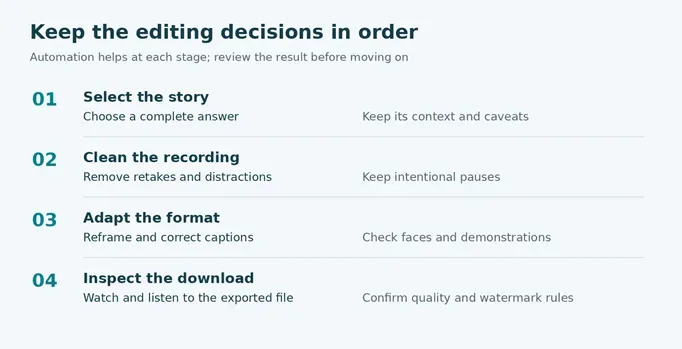
1. Define the three takeaways. Identify one audience question per clip, such as the problem, a practical fix, and a common mistake. Use our video script template to give each clip an opening, a useful answer, and a clear ending.
2. Make the first selection. Use OpusClip or Riverside to propose moments, or search and select through a transcript in Descript. Keep the surrounding conversation available. Reject a fragment that depends on a missing question, changes a speaker’s meaning, or ends before the answer.
3. Clean the edit selectively. Remove abandoned takes and distracting dead air. Preserve pauses that communicate uncertainty or emphasis. Listen across every cut, especially when two sentences have been joined from different parts of the interview.
4. Reframe and caption. Use a 9:16 sequence for this brief, keep the active speaker visible, and check moments when someone gestures or shares a screen. Correct names, numbers, technical terms, and speaker labels against the recording.
5. Export a sample before finishing all three. Download one complete clip and inspect it on a phone with sound both on and off. Then apply the approved caption and framing treatment to the remaining clips, checking each individually.
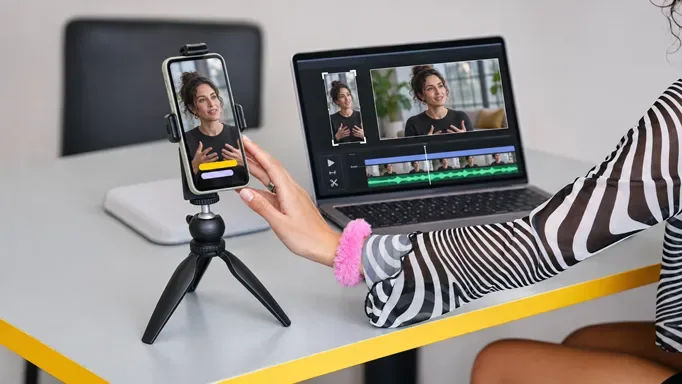
An instruction for a tool that accepts editing prompts could be: “Find three self-contained answers about reducing editing time, each 30–60 seconds. Preserve caveats and speaker meaning. Propose vertical crops and captions for review. Do not generate or replace speech.” Feature support varies, so use the instruction as an editing brief when the app cannot execute every part.
Check the export before you publish
Check | Accept the clip when | Fix or reject when |
Meaning | The excerpt preserves the original point and its qualifications | A cut changes the answer or removes essential context |
Captions | Names, numbers and timing match the recording | A correction exists only in the transcript, not the exported captions |
Picture | Faces, demonstrations and important screen details stay visible | Automatic cropping loses the speaker or necessary visual evidence |
Sound | Words are intelligible and edits sound natural | Cleanup makes speech metallic or a cut clips a word |
Delivery | The downloaded file has the required format and no unexpected watermark | The preview looked right but the export is limited, cropped or incomplete |
Keep the original recording and a version of the project before applying broad automatic cleanup. This makes it easier to restore a pause, confirm a quote, or rebuild a crop after review.
Compare the time spent correcting the AI
Measure the whole job, including upload, transcription, selection, manual fixes, and export. A tool that proposes many clips can still create more work if few survive review. Record how many clips you actually approve and how much correction each requires.
For example, a hypothetical $20 monthly plan producing 10 approved clips costs $2 per approved clip before labor. If those clips each need 15 minutes of correction, that is another 150 minutes of work. These are planning assumptions, not measured results. Compare that total effort with the editor you already use before adding another subscription.
Troubleshoot the edit in the right place
If captions are wrong, correct the language setting and transcript, then check the exported subtitles again. If a vertical crop misses a second speaker or screen demonstration, adjust framing manually or use a layout that preserves the necessary view. If silence removal makes speech feel rushed, restore the pause rather than trying to repair the rhythm with more effects.
When an export is blocked, check premium assets, resolution settings, AI allowances, and plan entitlements. Replacing a paid music track may solve the problem without changing editors.
Protect confidential client recordings
Use tools your client has approved for the material. Before uploading, check retention, training-use terms, access controls, and deletion options. Use a nonsensitive sample for trials. A desktop interface alone does not establish that every AI operation runs locally; verify the specific feature before processing confidential footage.
Keep reading


How to Get Your Business on ChatGPT
Claim or add your business in ChatGPT Business Hub, complete verification, and use Insights to see how customers discover your business.


How Quantum Dots Turn Size Into Color
Quantum dots are tiny regions of semiconductor that confine electrons in all three dimensions. In a TV, they typically take the form of nanocrystals just a few...


Organoid Intelligence Explained
Organoid intelligence is a field of research that connects lab-grown neural tissue to electronics and software. Researchers use the resulting systems to study h...