Free AI Video Maker Guide for Clips and Social Posts

In this story
The best free AI video maker depends on what you need to finish. Choose Clipchamp to turn existing footage into a downloadable video, Adobe Firefly to try generating new scenes without a visible watermark, or HeyGen for a short talking-presenter video. Magic Hour is an accessible option for trying video generation without signing up, but its free exports have substantial restrictions.
Start with the output you need, not the most impressive demo. A tool that generates a few seconds of footage solves a different problem from an editor that assembles a complete tutorial with narration and captions. Free access to one does not automatically include the other.
The limits below were checked November 1, 2026. They can change by feature, model, and account, so confirm the generation allowance and export screen before building a full project.
Compare the free plans before you start
Tool | Choose it for | What the free route includes |
Clipchamp | Existing footage and photos | Free AI editing and 1080p exports; no watermark with included assets |
Adobe Firefly | New generated scenes | Limited daily generations; no added watermark; eligible models vary |
Magic Hour | A quick no-signup experiment | Three shared daily requests; short 480p watermarked clips; noncommercial Basic use |
Runway | Testing a generative workflow | 125 one-time credits; limited models; generated videos watermarked |
HeyGen | A talking presenter | Three watermarked videos per month; up to one minute each |
Invideo | Manual editing with optional AI work | Manual Editor exports free without watermark; AI work spends limited credits |
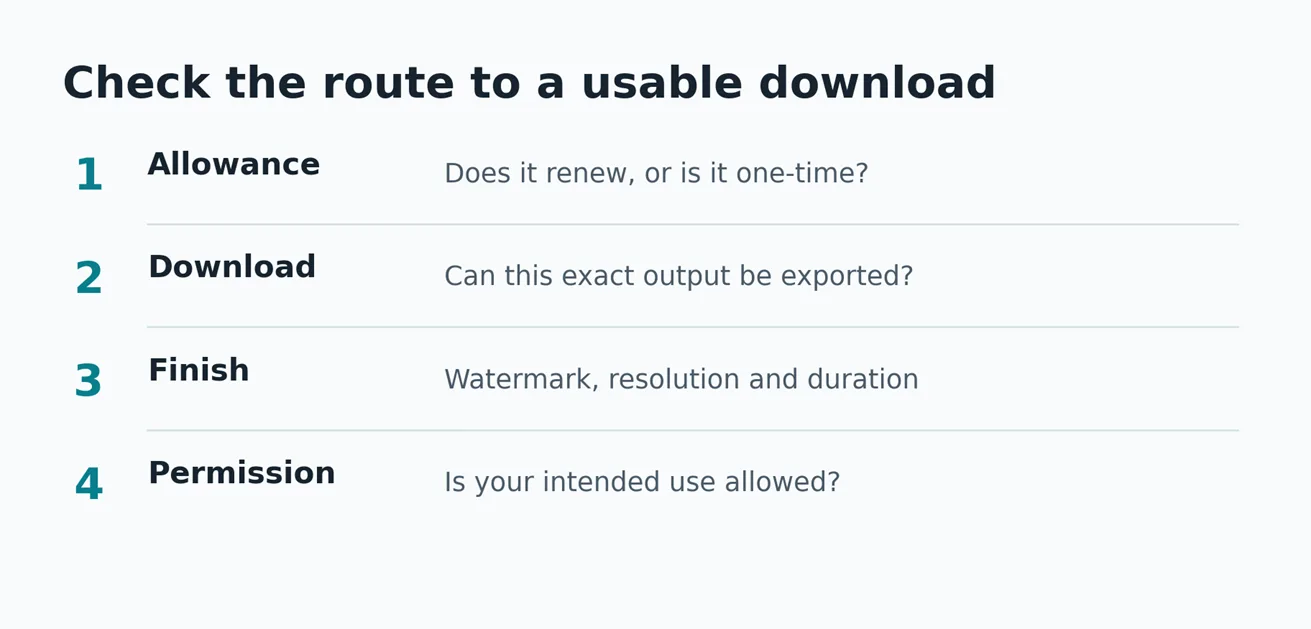
A free account, a free generation, and a free download are three separate promises. Check all three. Also check whether your allowance renews daily, weekly, or monthly, or is a one-time signup allocation.
For a reliable starting point, match your task to one of these workflows:
· Existing photos or footage: use an editor with AI-assisted assembly, captions, or voiceover.
· A scene that does not exist yet: use a text-to-video or image-to-video generator, then edit its output.
· A person delivering a script: use an avatar video maker and review pronunciation and lip synchronization.
Read more:
Best AI Photo Editing Tools 2026
Best Free AI Image Generators in 2026
Six free AI video makers worth considering
Clipchamp for finishing a video without a watermark
Clipchamp is our first recommendation when you already have usable photos or recordings. Its free plan includes AI editing tools and watermark-free exports up to 1080p, according to Microsoft’s plan comparison.
Auto compose scans uploaded photos and videos and builds a slideshow or highlight video. You can then change the result manually. Microsoft says this feature is free for personal accounts; its auto compose guide explains the workflow.
Use it for a product introduction, simple tutorial, or narrated social post. AI subtitles and text-to-speech can help you finish the presentation, but auto compose is assembling your media rather than inventing a cinematic scene from a prompt.
The main trap is premium content. Microsoft’s editor FAQ says premium stock or a feature outside your plan can block export until you upgrade. Remove or replace the premium item to keep the project free. The browser editor supports current Chrome and Chromium-based Edge.
Adobe Firefly for limited watermark-free scene generation
Firefly is a useful starting point if you need original moving imagery rather than a slideshow. It supports generating clips from text or an uploaded image. Adobe’s video generator page advertises free daily generations with an Adobe account.
Treat this as a limited allowance. Adobe’s current free-access guidance says complimentary generations are available on a curated set of models, with the number of generations, features, and models subject to change. A headline about the platform’s highest resolution or newest model is not a guarantee that your free account includes it.
Adobe says its generated animations have no added watermark, including those made with its own video model or partner models; see the animation FAQ. Make a short sample and check the downloadable file before planning a longer sequence.
Choose Firefly for an establishing shot, visual concept, or brief animation. For the wider product and plan differences, see our Adobe Firefly guide.
Magic Hour for a quick test without signing up
Magic Hour lets you try text-to-video and image-to-video in the browser without an account. Its generator page describes free three-second clips with audio, exported at 480p with a watermark.
The current FAQ says video and audio tools share three free generation requests per day, and people on the same network share that allowance. Do not budget three requests separately for every tool or assume a busy shared connection has a fresh allowance available.
This is a good route for checking whether a motion idea works before creating an account or paying. It is a poor fit for a polished client deliverable at zero cost.
There is also a licensing limit: Magic Hour’s usage-rights guidance says Basic access without a credit-pack purchase or agreed paid billing is for personal, noncommercial use. Paid subscriptions and credit packs add commercial permission and watermark-free exports, subject to applicable rights. Removing a watermark yourself would not change the license.
Runway for evaluating a generative workflow
Runway is worth trying when you want to evaluate a platform for generating and editing moving images. Its Free plan documentation specifies 125 one-time credits, 5GB of storage, and access to a limited selection of tools.
Those credits do not expire, but they do not replenish after use. Free-plan generated videos carry a Runway watermark. Model availability can change; an upgrade prompt means the selected model or tool is not included in the free tier.
Use the allowance to test one defined task with your own material. Avoid spending it on unrelated experiments if you need to judge whether the workflow fits a real project. Preview the credit charge before each generation, because model choice, duration, and resolution affect the cost.
Our Runway guide provides more context for comparing plans. The free tier is an evaluation opportunity rather than a recurring production budget.
HeyGen for a short AI presenter
HeyGen suits a different need: a presenter speaking your script. Its Free plan lists three watermarked videos per month, with a maximum of one minute each, plus access to Avatar IV and Video Agent.
Choose it for trying a short explainer, greeting, or presentation format. Draft the spoken lines first, read them aloud, and check names, numbers, abbreviations, and emphasis in the result. An avatar delivering a script is not the same output as a freely generated scene with moving characters and surroundings.
Three videos of up to one minute each do not mean you can create one three-minute video. The per-video limit still applies. If you need branding removed or higher export specifications, compare the paid terms before producing a finished presentation.
Use an authorized likeness and voice. A platform’s avatar feature does not give you permission to impersonate someone else.
Invideo for combining manual editing with AI assistance
Invideo is useful if you want manual timeline control alongside AI agents and media generation. Its Editor FAQ says manual editing and video exports are free and watermark-free, while AI agent work and generated media use credits.
That distinction matters: moving a clip yourself is free timeline work; asking an agent to review footage, select takes, or create missing media spends credits. Its free-plan guidance describes a limited credit quota that resets weekly on Monday at 12 a.m. UTC, without specifying a universal credit amount in the article.
Start with one small assignment and inspect its usage before expanding the project. Confirm the selected workflow’s allowance and export options in your account. Avoid applying an old quota from an earlier version of Invideo to every current model or agent.
Is Canva a free AI video generator
Canva can be part of a video workflow, but do not assume its cinematic generator is included with a standard free account. Canva’s Create a Video Clip FAQ lists access for Pro, Business, Enterprise, and Nonprofit users, with a limited number of clips per month.
Having access to a free video editor or an eligible organizational plan is different from receiving the same generation allowance on Canva Free. Check the exact feature and entitlement rather than relying on a “try free” button.
Make a 30 second video without buying generation credits
For a simple social post, the most dependable zero-cost approach is often your own footage plus free AI editing tools. You keep control of the subject and avoid spending scarce generations on details you can record directly.
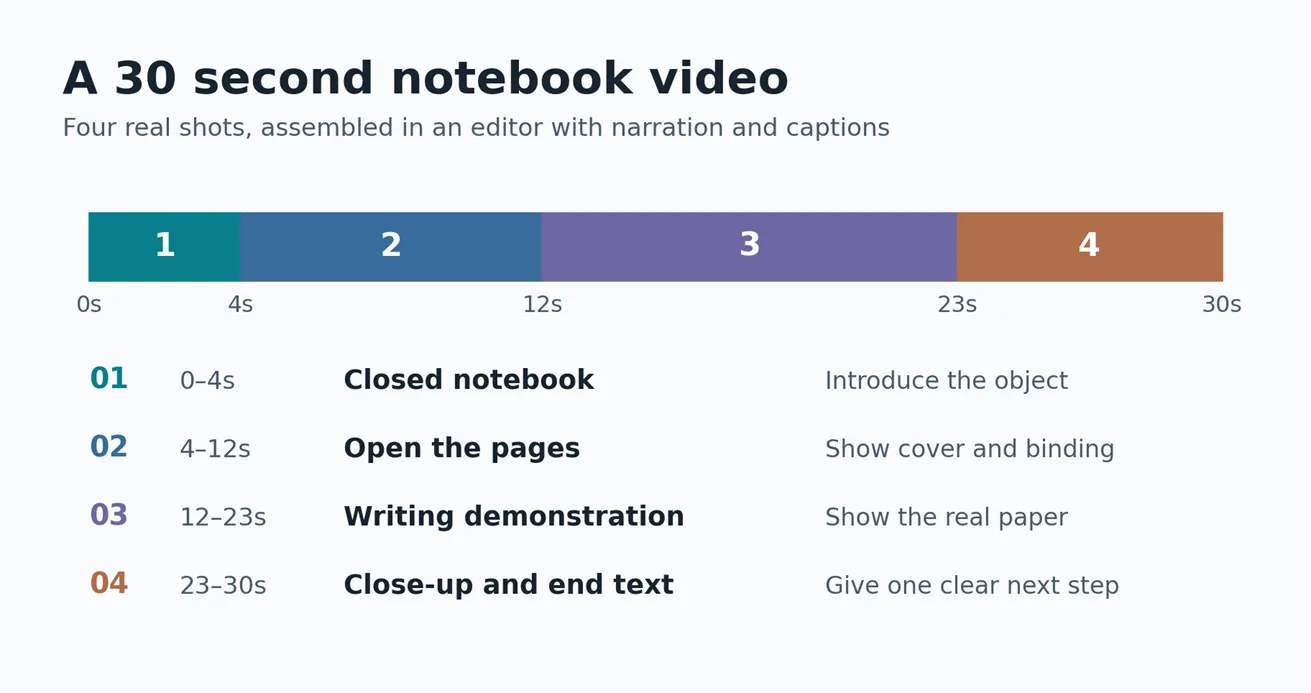
Imagine you want a vertical video introducing a handmade notebook. Record four short shots on your phone and use this illustrative 30-second edit plan.
Plan the shots and spoken lines
Use a 9:16 project for a vertical post. Record enough footage to trim comfortably, with extra time before and after each action. Keep the notebook, hands, and important details away from the extreme edges.
Pair each shot with a short line of narration:
1. 0 to 4 seconds: show the closed notebook. “Give your next idea a place to begin.”
2. 4 to 12 seconds: open it slowly. “Take a closer look at the cover, the binding, and the way the pages open.”
3. 12 to 23 seconds: record a genuine writing demonstration. “Here’s a real writing sample, filmed on the actual paper. Look closely at the pen strokes and the page texture.”
4. 23 to 30 seconds: show a final close-up and add your own editable end text. “See the available designs and choose a notebook for your next project.”
Read the narration aloud and adjust it to fit naturally. Do not speed it up just to preserve every word. Our video script template provides a structure for keeping spoken lines and visual instructions together.
Build and refine the draft
Upload the recordings to Clipchamp. Try auto compose for an initial arrangement, then open the result in the timeline and adjust the order and durations to match the plan. Automatic assembly is a draft; it does not know which product details your customer needs to see.
Record your own narration or use an available free text-to-speech voice. Add captions, correct transcription errors, and keep the text clear of the product. Use your own media and free assets throughout so premium content does not block export.
For this straightforward product introduction, four real shots can be more useful than four generated ones. The viewer sees what the notebook actually looks like, and you can reshoot a detail without consuming AI credits.
Check the downloaded video
Export at 1080p using the free workflow, then open the downloaded file. Watch once with sound and once muted. Check the first frame, caption readability, narration timing, music level, and final frame.
If you want one generated insert, make it optional. Label or frame an imagined scene appropriately, and keep it separate from footage demonstrating the real product. A generated writing sample should not stand in for evidence of how the paper performs.
Get more useful footage from limited free generations
If you do need a free text-to-video generator, spend the allowance on a single shot at a time. Describe the subject, one action, the camera behavior, and the setting. Complex sequences leave more details to go wrong.
For example: “Locked camera, close-up of a small green plant beside a bright window. The leaves move gently in a light breeze. Natural daylight. One continuous shot.”
For image-to-video, begin with a clear image and explain the motion you want. Avoid asking the model to redesign the subject and animate it at the same time unless that transformation is intentional.
Change one instruction between attempts. Inspect hands, faces, logos, repeated objects, and the beginning and end of the clip. If two attempts fail in the same way, simplify the shot or use a real recording instead of spending the remaining allowance on nearly identical prompts.
Generated duration is not usable duration. Suppose a tool lets you make six five-second attempts: that is 30 seconds generated. If only two attempts pass your checks, you have at most 10 seconds of usable footage before trimming. This hypothetical example is why a free allowance rarely translates directly into a finished video of the same length.
Frequently asked questions
Can I edit an AI video after downloading it
Yes. Import the downloaded clip into a video editor to trim it, rearrange it with other clips, or add narration and captions. However, objects generated inside the scene are part of the rendered video; they do not automatically become separately editable layers. Keep the original project and source media if you want to revise the underlying edit later.
Can I make a full minute from one prompt for free
Some tools can assemble or present a longer script, while scene generators often deliver short clips. HeyGen’s free plan permits videos up to one minute each within its monthly limit; that is a presenter workflow. For a minute-long story with multiple scenes, plan the shots and assemble them in an editor rather than assuming one prompt includes all the footage, narration, and finishing.
Choose the tool that gets your intended video all the way to a usable download. For existing footage, start with Clipchamp; for a new generated scene, try Firefly’s limited free allowance. Use Magic Hour for a quick personal experiment, HeyGen for a presenter, and Runway or Invideo to evaluate a specific workflow. Make one small export before committing the whole project.
Keep reading


How to Get Your Business on ChatGPT
Claim or add your business in ChatGPT Business Hub, complete verification, and use Insights to see how customers discover your business.

How Quantum Dots Turn Size Into Color
Quantum dots are tiny regions of semiconductor that confine electrons in all three dimensions. In a TV, they typically take the form of nanocrystals just a few...
Organoid Intelligence Explained
Organoid intelligence is a field of research that connects lab-grown neural tissue to electronics and software. Researchers use the resulting systems to study h...