What Happened to ChatGPT Agent Mode?

In this story

OpenAI retired the original ChatGPT Agent Mode and directs users to ChatGPT Work for longer tasks. To have ChatGPT check websites, analyze files or make a spreadsheet, open an eligible account, switch to Work and describe the result you want. The old /agent command and Agent Mode menu instructions belong to the retired feature. OpenAI’s help article still shows some of those instructions below its retirement notice. OpenAI’s Agent Mode notice.
What was Agent Mode in ChatGPT?
The original Agent Mode gave ChatGPT a virtual computer. It could navigate websites, click through menus and fill in forms while you followed its progress. Work now covers many of those jobs. It can also draw on files and connected apps and return a document, deck or spreadsheet for review. Which tools it can use depends on your plan, permissions and where you run the task. Original Agent launch and current Work guide.
Read More:
Best Free AI Image Generators in 2026
Best AI Agents for Customer Support in 2026
Chat, Work, deep research or Codex?
For a cited answer with explicit source controls, see deep research. For a file you can hand to someone, define the deliverable in Work.
When you need | Start with | Example |
A quick answer or short draft | Chat | Draft questions to ask three vendors. |
A cited synthesis of several sources | Deep research | Compare the findings of several studies. |
A finished file or browser workflow | Work | Check three public pages and make a spreadsheet. |
Code changes or repository work | Codex | Fix a bug and run the relevant tests. |
How to use ChatGPT Work for browser tasks
1. Open Work and choose your sources
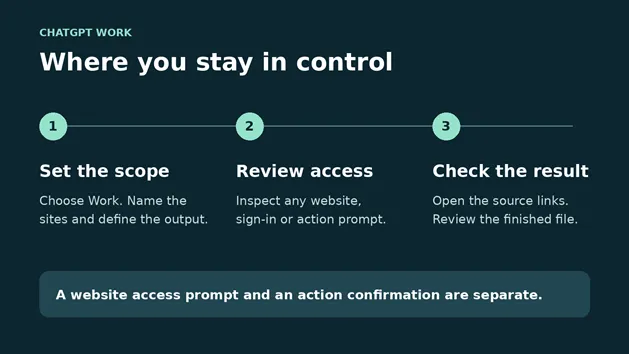
On ChatGPT web or mobile, switch to Work and start a task. In the desktop app, select ChatGPT, then Work. Give it the starting page and the expected output. For example, ask it to open three product pages and return a table with availability, the price displayed and a link to each listing. On web and mobile, Work decides when it needs the cloud browser. It may use a connected app if that app can do the job directly. Work and Codex setup and cloud browser instructions.
2. Set a stopping point before it starts
Give Work a boundary it can follow. “Compare the three listings and stop with a shortlist” leaves the purchase decision with you. For a spreadsheet task, say whether you want a new file or edits to an existing one. If the workflow has several possible paths and Plan mode is available, use it to review the steps before execution. ChatGPT Work’s Plan mode.
3. Check what you are approving
A request to open a new website is separate from a request to take a consequential action there. Check the domain before granting access. If Work pauses before a booking or payment, verify the merchant, amount, date and any terms that matter to you before confirming. A site’s own instructions can also be misleading. If a page suddenly asks for an upload or sends you to a different domain, pause and check whether that step belongs in your task. OpenAI’s browser controls.
Why a site asks you to sign in again
The cloud browser runs separately from your regular browser. It has its own cookies and sessions, so signing in on your laptop does not sign you in to the cloud browser. When a supported site asks for credentials, verify the domain and use the secure sign-in form or the browser handoff when offered. Use that flow for any verification code. To remove a saved session, open Settings, then Cloud browser and Browser data, and clear the site’s data. OpenAI’s sign-in and browser data guide.
Try a public task with a known answer
Start with a task that needs neither a login nor a purchase. This example checks opening hours for three Seattle libraries on Wednesday, November 11, 2026. The date matters because a holiday notice can override the weekly schedule. To reuse the exercise, change the date and verify the new answer from the source pages.
“Using only the Seattle Public Library website at spl.org, check whether Central Library, Ballard Branch and Capitol Hill Branch are open on November 11, 2026, Seattle local time. Open each branch page and check for holiday or temporary closure notices. Create an .xlsx file with one row per branch. Include the branch name, date, status, hours if open, and the source URL. If a date-specific notice overrides weekly hours, explain why in a Notes column. Mark any result you can’t verify. Use public pages only and stop after creating the file.”

What the finished spreadsheet should show
All three rows should say “Closed.” The Seattle Public Library’s Veterans Day notice says the closure applies to all locations on November 11. Open the links in the sheet and check that the notice covers the requested date. If a row says “Open,” ask Work to revisit that branch and cite the date-specific exception. Central Library, Ballard Branch and Capitol Hill Branch.
Open the workbook itself. Look for exactly three rows, the date on every row and a source URL that leads to the relevant page. The hours cell can be blank for a closed branch. For a larger task, spot-check the rows most likely to contain exceptions, such as a promotional price, a sold-out item or an updated policy.
If you reuse this prompt for a purchase comparison, give every row the same fields and require a link to the page that supports each price. Ask for a separate note when an advertised price depends on a membership, coupon or bundle. That way, a temporary offer can stay in the comparison without being mistaken for the regular price.
If you’re evaluating an agent for a team, run the exercise with the permissions a teammate actually has and check whether they can review the resulting file. For tools built for customer support, sales or other specialized workflows, see our guide to AI agent companies and platforms.
Why Work, the browser or a website may be missing
First identify what is missing. If you cannot see Work, check the product selector and your account. If Work opens but cannot visit websites, check browser eligibility. If one site fails while other sites work, the problem may be with that site. Changing plans would not necessarily resolve a website restriction.
What you see | What to check | What to try |
No Work option on web or mobile | Your plan and active workspace | Check whether you are in the intended account or workspace. |
Work opens but cannot browse | Browser rollout and workspace permissions | Ask a workspace admin to check Work and browser access separately. |
A single website blocks access | The site’s restrictions on automated browsers | Open the page yourself or provide an approved alternative source. |
The task stops at a form | Sign-in or an action needs your input | Read the request and use takeover when offered. |
Work on web and mobile requires an eligible paid plan. OpenAI excludes Free and Go from cloud browser access. Browser availability can also depend on region, rollout and workspace rules. Desktop Work and the built-in desktop browser have their own access paths. Check the current product details for your account. OpenAI’s cloud browser availability and our ChatGPT plan guide.
What to do when a task seems stuck
Look at the last update for a permission prompt, a sign-in request or a blocked page. If the task is waiting on a site, give Work one exact URL and ask for one row first. If a spreadsheet arrived with gaps, name the rows that need another pass. This gives you a way to check whether the problem is access, the source or the output format. If simple chats are lagging as well, use our guide to diagnosing slow ChatGPT sessions.
Usage limits and recurring tasks
Do the old Agent Mode message limits apply?
Use the Work allowance shown for your account. Work and Codex share usage, and consumption varies with the model, task complexity and tools used. If you want to see whether a workflow is worth repeating, run it once with a small set of inputs and check your usage dashboard before increasing the scope. OpenAI’s Work and Codex usage guide.
Can you schedule the same work to run again?
Work supports scheduled tasks on eligible accounts. Start with a one-time run so you can verify the sources, file structure and stopping point. For a recurring version of the library example, ask for a weekly summary of closures over the next seven days, with the date, branch and link for each confirmed exception. Specify the time zone and what should happen when a source is unavailable. Review the schedule in ChatGPT before relying on it. OpenAI’s guide to Work and scheduled tasks.
Recurring runs also benefit from an explicit rule for an empty result. Ask for “No closures found on the pages checked” when the pages load and there are no notices. Ask for “Source unavailable” when a page fails. Those outputs tell you whether the task ran successfully and save you from interpreting a blank sheet as a confirmed result.
Keep reading


How to Get Your Business on ChatGPT
Claim or add your business in ChatGPT Business Hub, complete verification, and use Insights to see how customers discover your business.


How Quantum Dots Turn Size Into Color
Quantum dots are tiny regions of semiconductor that confine electrons in all three dimensions. In a TV, they typically take the form of nanocrystals just a few...


Organoid Intelligence Explained
Organoid intelligence is a field of research that connects lab-grown neural tissue to electronics and software. Researchers use the resulting systems to study h...