AI Music Video Generators: 5 Tools Compared
In this story
Start with Neural Frames if you want music-driven visuals and a dedicated song-to-video workflow. Consider freebeat for an automated video built around an uploaded track, or Kaiber when you already have images and footage to turn into promotional cuts. OpenArt suits creators who want character generation and music-video production together; Solmi offers a clearly defined free preview.
An AI music video generator can create scenes, animate an artist, add lyrics, or assemble shots around a song. Those are different jobs. Choose the result first, then check whether the plan covers your track’s length, the required export, and enough revisions to finish it.
Begin with a short excerpt that includes the song’s most demanding vocals or movement. Download it and check the result before spending credits on a full song. Plan details below reflect US offers available November 4, 2026.
Compare AI music video generators by the result
Tool | Choose it for | Main limitation to check |
Neural Frames | Song-driven scenes and audio-reactive visuals | Entry plan includes Autopilot but is not recommended for it |
freebeat | Automated music, dance or lyric videos | Free access does not establish a full-song export allowance |
OpenArt | An AI artist and song-to-video workflow in one studio | General video estimates exclude Director |
Solmi | A short free preview before paying | Free preview is 20 seconds, 480p and watermarked |
Kaiber | Generated montages or cuts from existing media | Beat Sync requires Creator or higher after the trial |
A lyric video puts the words first. A visualizer emphasizes movement, patterns or artwork responding to sound. A narrative music video needs coherent scenes, while a performance video may also need convincing lip sync. A tool can offer several modes without delivering identical control in each.
Neural Frames for dedicated music-driven creation
Neural Frames combines Autopilot song-to-video generation with stem extraction, audio-reactive effects, and lyric and lip-sync tools. It is a sensible starting point for musicians who want the sound to drive the imagery, including abstract work that does not need a visible singer.
Read its plan comparison carefully. Neural Knight costs $39 monthly, or $312 billed yearly, and includes 2,400 monthly credits and 1080p upscaling. Although Autopilot is included, the vendor marks this tier as not recommended for Autopilot. Neural Ninja includes 7,200 credits and 4K upscaling at $99 monthly or $792 yearly, and is marked suitable for Autopilot.
The practical choice depends on the generation estimate for your song and model. Access to the feature is not the same as a budget for a complete release. Also distinguish 4K upscaling from a claim that every scene is generated natively at 4K.
freebeat for a guided song-to-video workflow
freebeat accepts music uploads and supported music links, then offers music-video, dance and lyric modes. Its FAQ describes videos from 15 seconds to approximately six minutes, making it relevant to both promotional clips and longer tracks. That is a platform capability, not a promise that every plan includes a six-minute production.
It offers a free plan; its FAQ lists Basic at $4.99 per week and Pro at $26.99 per month. Check the actual credit allowance, watermark status and export settings before subscribing. Weekly billing is easy to mistake for a monthly price. Use your own track to judge whether the automatic pacing matches the song’s phrasing.
Read More:
8 Best Free AI Image Generators in 2026
10 Best AI Agents for Customer Support in 2026
AI tools for characters and promotional cuts
OpenArt for an AI artist across generated scenes
Choose OpenArt if developing a recurring visual artist is part of the project. Its music-video workflow accepts a song and a reference image or saved character, then uses Director to build the scenes. The documented process includes setting the style and aspect ratio, reviewing scenes or the timeline, and giving revision notes.
This makes it a candidate for a release campaign that needs related artwork and video. Character consistency and lip sync are features the vendor advertises; inspect faces, clothing and mouth movement across your own sequence before committing to a full song.
There is a consequential qualification on the pricing page: Starter includes 4,000 monthly credits, but its estimate of about 50 videos excludes Director. Do not read that number as 50 complete music videos. Get a Director estimate for the intended song length, model and export, then allow for rejected shots.
Solmi for a defined free music video preview
Solmi’s free offer is specific: a new web account gets 100 one-time music-video credits, enough for one 20-second, 480p preview with a watermark and no card required. Paid plans start at $35 per month, with full-song rendering, watermark removal, and 720p or 1080p output.
It supports audio uploads, optional lyric overlays, and reference photos for a singer. Projects can be reopened to change descriptions or regenerate individual shots. A description change itself does not use credits, while new images and shots do. This is useful when you want to assess one short section before paying for a longer version.
For a Suno or Udio track, upload the audio file you are entitled to use. Solmi says Udio links cannot be imported, and Suno link imports depend on a publicly accessible file. A share link is not a universal substitute for an audio upload.
Kaiber for montages and reusing your own media
Kaiber has two relevant routes. Music Video Montage 2.0 generates a visually related montage from a track and description, optionally guided by an image. It offers lengths from 30 seconds to three minutes and resolutions up to 1080p. Its Max mode uses unique clips; Turbo and Lite repeat some clips to reduce credit use.
Montage is designed around one subject and setting, rather than a precisely timed chain of story events. Its guide specifically discourages timestamp instructions, lyric overlays and lip-sync requests in that workflow. Choose the appropriate lyric or performance tool instead of trying to force those jobs into a montage prompt.
Beat Sync is the other route: upload images or clips and a track, then create rhythmic variations. It is especially relevant when you already have a shoot, cover artwork or approved clips to repurpose.
Kaiber’s plan guide lists Creator at $29 monthly with 1,500 credits and Beat Sync access; the $10 monthly Starter tier excludes Beat Sync. The five-day trial costs $5, includes 500 credits, and converts to Creator Monthly after five days unless canceled. It is a paid trial, not a free plan.
How to make a music video with AI from your song
Start with a short, representative section before generating the whole track. Use this hypothetical teaser brief to compare two tools with the same song. Our song-and-music-video project planner maps the broader process from concept to the final cut.
A worked 30-second teaser at 120 BPM
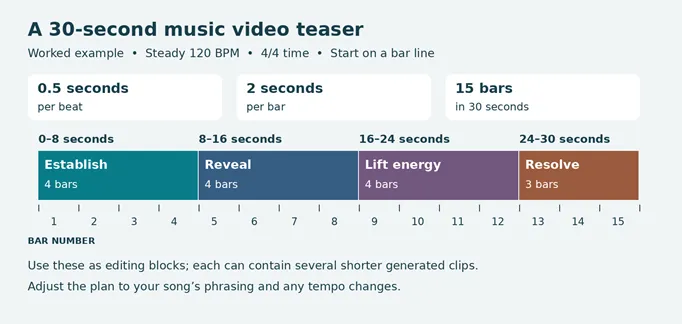
Assume a steady 120 beats per minute, 4/4 time, and a section beginning on a bar line. Each beat lasts 0.5 seconds; each four-beat bar lasts two seconds. A 30-second excerpt therefore contains 60 beats, or 15 bars. Divide it into four editing blocks of four, four, four and three bars.
1. Lock the audio and delivery format. Choose the final mix, exact start and end points, and either a wide 16:9 video or a vertical 9:16 teaser. Select the excerpt by listening to its musical meaning; the arithmetic does not guarantee a complete phrase.
2. Write one consistent visual brief. For example: “A lone singer in a burgundy jacket walks along a rain-wet neon street at night. Magenta and cyan lighting, restrained performance, realistic film look. Keep the same face, jacket and location.” Use a reference image you have permission to upload. Our image to video AI guide explains how to turn an approved still into an individual moving shot.
3. Build the four blocks. Establish the street, reveal the artist, increase movement with the chorus, then resolve on a strong image. These are editing intentions: each block may need several shorter clips, and not every generator accepts timestamped instructions. For a single-setting montage, keep the prompt within that tool’s documented controls and arrange the sequence afterward.
4. Review before spending more credits. Approve the visual identity and one usable sequence, then generate replacements only where needed. Adjust cuts to the actual downbeats, vocal entrances and section changes. A video does not need a cut on every beat to feel connected to the music.
Budget for a finished music video
The cheapest subscription is not necessarily the cheapest way to complete your song. Credits can cover different operations: reference images, motion, lip sync, replacement shots, or upscaling. A stated number of generic videos may describe short clips rather than complete music videos.
Before paying | What to confirm |
Full-song coverage | Your track’s exact duration is supported in the selected workflow and plan |
Generation budget | The estimate includes the chosen model, motion, lip sync and expected revisions |
Export | Resolution, aspect ratio, watermark removal and download access meet the brief |
Reusable project | You can reopen the project and replace a failed shot without rebuilding everything |
Billing | Monthly versus annual commitment, trial conversion and any weekly charges are clear |
For a hypothetical budget, a $30 plan yielding six approved 30-second teasers costs $5 per teaser before editing labor. If only three survive review, the effective cost is $10 each. These figures illustrate the calculation; they are not measured prices or success rates for any tool. Compare usable output, including correction time, rather than the number of generation attempts.
If you only need readable lyrics or a looping visual, start with that simpler brief. Our free AI video maker guide separates generated footage from editing and other creation workflows, helping you avoid paying for capabilities the project does not need.
Check commercial rights before publishing
Check three separate layers: permission to use the song and any samples, permission to upload reference photos or use someone’s likeness, and the generator’s license for your plan and output. A paid subscription or a supported Spotify link does not clear someone else’s recording or composition. For an AI-generated song, check the music service’s terms as well as the video tool’s terms.
Commercial permission also differs from copyright protection. The US Copyright Office’s AI report says sufficient human authorship can support protection, including creative arrangements or modifications; prompts alone do not establish it. Keep your original song files, shot choices and editing project so the human creative work remains documented.
For YouTube, review its AI disclosure requirements during upload. Realistic generated scenes, making a real person appear to do something they did not do, and AI-generated music can require disclosure. Stylized fantasy imagery and minor production assistance are treated differently. Apply the rules to the actual video and audio, rather than assuming every AI-assisted edit needs the same label.
Inspect the downloaded music video before release
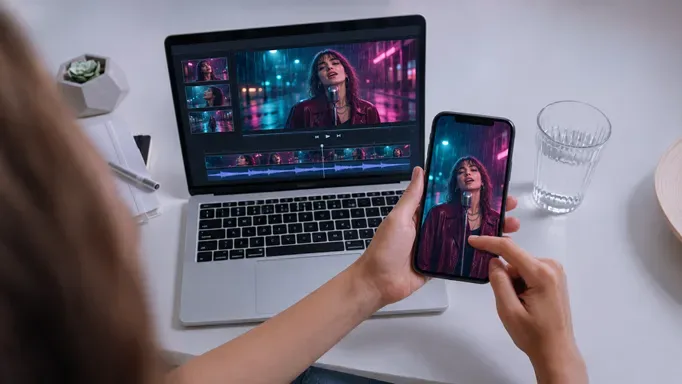
Watch the downloaded file from beginning to end, not just the browser preview. Listen on headphones, then check the vertical version on a phone. A successful preview does not establish that the final export has the same framing, timing or watermark status.
Check | What to inspect |
Rhythm | Cuts and motion support the song’s phrasing; timing does not drift later in the file |
Identity | The artist’s face, clothing, props and setting stay coherent across cuts |
Performance | Mouth movement matches the vocal; hands, instruments and body motion look plausible |
Lyrics | Words, punctuation and timing match the approved lyrics, including names and repeated lines |
Delivery | The complete song, crop, resolution and watermark status match the release brief |
Fix the failed element before regenerating everything
If cuts drift, confirm that the editor uses the same audio version and starting point as the generated sequence, then retime the affected cuts. If a face or outfit changes, reuse the approved reference and replace that shot. If lyrics are wrong, correct the text or overlay rather than regenerate otherwise usable scenery.
For a weak lip-sync shot, try a shorter performance segment or replace it with a cutaway. When a vertical crop loses an important gesture or another character, reframe manually or generate that shot for the intended format. Save the approved audio, references, clips and editable project alongside the final file for future release versions.
Keep reading


How to Get Your Business on ChatGPT
Claim or add your business in ChatGPT Business Hub, complete verification, and use Insights to see how customers discover your business.

How Quantum Dots Turn Size Into Color
Quantum dots are tiny regions of semiconductor that confine electrons in all three dimensions. In a TV, they typically take the form of nanocrystals just a few...
Organoid Intelligence Explained
Organoid intelligence is a field of research that connects lab-grown neural tissue to electronics and software. Researchers use the resulting systems to study h...