VPN for Android How to Choose and Set Up the Right App
For a free VPN for Android, Proton VPN is a sensible starting point for everyday browsing because it has no data cap. Choose Mullvad if you want straightforward...

In this story
For a free VPN for Android, Proton VPN is a sensible starting point for everyday browsing because it has no data cap. Choose Mullvad if you want straightforward monthly pricing, or compare NordVPN and Surfshark if you need a paid service across several devices. Eligible Pixel owners should check their included Google VPN before buying anything.
The right choice also depends on setup. Android’s always-on setting, connection blocking, and split tunneling do different jobs. Understanding those differences matters more than installing whichever app promises the fastest connection.
What an Android VPN can and cannot protect
A VPN encrypts traffic routed between your phone and a VPN server. Websites receiving that traffic generally see the server’s public IP address instead of your home or mobile IP. It can reduce what your local network or internet provider learns about your browsing, but it shifts trust toward the VPN operator. The Electronic Frontier Foundation explains this tradeoff.
A VPN does not make you anonymous. Signing into an account still identifies you to that service, and cookies or device fingerprinting can connect activity across visits. Changing your IP address also does not automatically change your phone’s GPS location.
Public Wi-Fi is not automatically unsafe without a VPN. The FTC notes that widespread HTTPS encryption makes public Wi-Fi usually safe. Keep HTTPS, software updates, strong passwords, and two-factor authentication in place. A VPN adds a different layer; it cannot make a scam website trustworthy.
If you only want protection for ordinary HTTPS browsing and are comfortable with your network provider, you may not need another subscription.
Read more:
Which VPN for Android should you choose
Start with the problem you want to solve. These options address different budgets and requirements, rather than forming a universal performance ranking.
Option | A good fit when | Cost and main tradeoff |
Proton VPN Free | You want everyday browsing without a data allowance | $0; limited control over server location and paid-only features |
Mullvad | You want predictable monthly billing | €5 per month through its website; up to five devices |
NordVPN | You want one subscription for several devices | Paid subscription; up to 10 simultaneous connections |
Surfshark | You need many devices connected at once | Paid subscription; unlimited simultaneous connections |
VPN by Google | You already own an eligible Pixel | No extra cost; device and country restrictions, without country switching for content access |
Plan details checked October 25, 2026. Promotional prices, taxes, renewal terms, and app-store billing can differ. The linked provider pages below explain the relevant terms.
Proton VPN Free for browsing without a data cap
Proton’s free Android plan offers unlimited data without ads. Its Android instructions also document a guest mode, so you can use the free features without creating a Proton account.
The important limitation is control. Proton initially chooses a free server automatically; subsequent server changes are random and subject to a cooldown. Its free-server rules explain why this is a poor fit if you need a particular country every time.
Do not assume every feature shown in the app is free. Split tunneling requires a paid Proton plan. Proton also reserves its streaming support promise for paid plans; free connections may work with some services, but that is not assured.
Mullvad for straightforward monthly pricing
Mullvad’s website price is €5 per month, including VAT, with the same monthly rate whether you buy one month or a longer period. Its account supports up to five devices. For a US buyer, the dollar amount depends on currency conversion and payment terms.
Mullvad uses an account number rather than requiring an email address, and its Android guide documents split tunneling and connection-blocking settings.
Choose it for that combination of account simplicity and billing flexibility. For streaming, be more cautious: RTINGS’ evaluation warns that popular services may block Mullvad. RTINGS says its testing generally runs on Windows, so its results should not be treated as a measurement of your Android phone.
NordVPN and Surfshark for multiple devices
NordVPN’s Android page documents support for up to 10 devices on one account, automatic connection options, and a kill switch. Check the current Android requirement before subscribing, particularly for an older phone.
Surfshark’s Android app offers unlimited simultaneous connections and Bypasser, its split-tunneling feature for excluding selected apps or websites. That can be useful when one banking app refuses a VPN connection.
For either service, compare the total amount charged now, the period it covers, the renewal charge, and the refund conditions. A low monthly equivalent may require a substantial upfront payment. Our broader VPN services comparison explains the differences across desktop and mobile use.
Check your Pixel before paying
Google provides VPN by Google on eligible Pixel 7 and later phones at no extra cost, with availability in the US and other supported countries. Account eligibility, software, and travel restrictions apply.
It is worth checking if your goal is everyday network privacy. Google says it cannot change your IP location to access content unavailable in your region, so choose another option if selecting a different country is essential.
How to set up a VPN on Android
For most personal use, install the provider’s official app rather than entering server details manually. Work VPNs are different: follow your employer’s instructions and avoid changing managed settings yourself.
1. Check compatibility and the developer. Follow the download link from the provider’s official website to Google Play. Confirm the developer matches. If you need an APK, get it directly from the provider rather than an unknown download mirror.
2. Sign in or choose the available free mode. Read the billing screen carefully. A trial with automatic renewal is different from a permanent free tier.
3. Accept Android’s VPN connection request. This allows the app to route network traffic. Android documents this system permission prompt; it is not a request to read all your messages or files.
4. Connect using the automatic recommendation. If your plan allows location choice, start nearby unless you specifically need another country. Leave the protocol on its recommended automatic setting initially.
5. Find the system VPN controls. Usually, open Settings → Network & internet → VPN, then the gear beside your provider. If the path differs, search Settings for “VPN,” as Google’s Android instructions recommend.
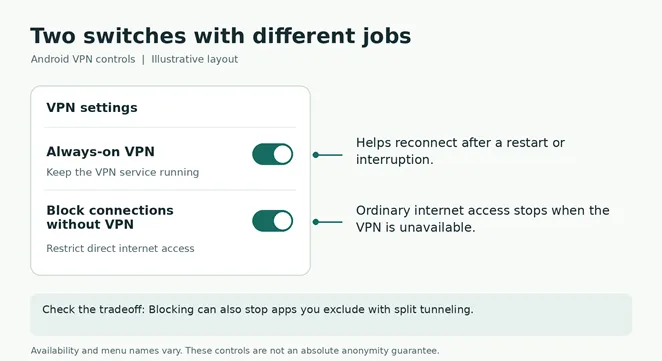
6. Choose how to handle disconnections. Enable Always-on VPN if supported. If you want ordinary app traffic blocked whenever the VPN is unavailable, also enable Block connections without VPN.
Always on and connection blocking do different jobs
Always-on VPN helps keep the VPN service running, including after a restart. Block connections without VPN is the stricter control: it is designed to prevent ordinary network traffic from falling back to a direct connection. Proton’s always-on guide shows how to reach these controls from its app.
If connection blocking is enabled and the VPN cannot connect, losing internet access may be the intended behavior. Reconnect the VPN before assuming your Wi-Fi or mobile service is broken.
These controls are not an absolute anonymity guarantee. An independent researcher demonstrated an Android 16 VPN bypass on a Pixel 8 even with both settings enabled; Proton also documents the issue. Whether a particular phone is affected depends on its software build. Keep the OS updated and review current provider advisories if IP exposure would have serious consequences.
Use split tunneling only when you need an exception
Split tunneling lets selected apps use your regular connection while others use the VPN. It can resolve a banking or local-device problem, but the excluded app uses your normal public IP address.
There is an important Android conflict: system connection blocking can leave excluded apps without internet access. Turning both features on does not necessarily give you a protected connection plus working exceptions.
For example, if your bank app only works outside the tunnel, first try a different VPN server. If exclusion is still necessary, follow your provider’s split-tunneling instructions and check whether system blocking must be disabled. That gives up the system-wide fallback block; evaluate whether that tradeoff suits you. Reconnect and retest after changing the setting.
Check the VPN on your own phone before relying on it
An app showing “Connected” is a starting point. Use this acceptance check before committing to a long subscription or depending on the VPN while traveling. These are checks you can perform, not a laboratory certification.
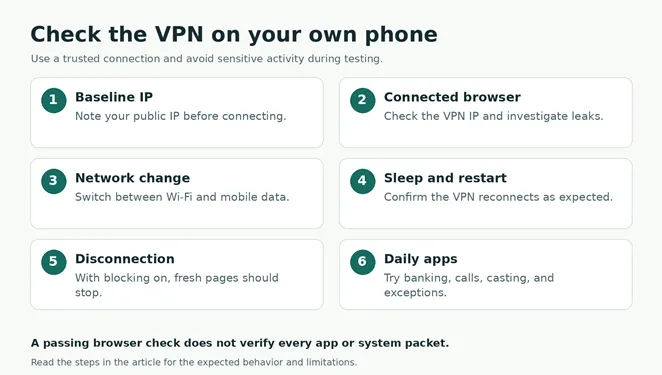
1. Record your baseline. On a trusted connection, note your public IP before connecting. Avoid sensitive browsing while deliberately testing without the VPN.
2. Check the connected browser. Connect, then use a reputable IP and leak checker. Confirm the browser shows the VPN address, and investigate unexpected ISP DNS or public IP exposure. A provider’s own connection indicator may only recognize its own service.
3. Change networks. Switch between Wi-Fi and mobile data, wait for reconnection, and repeat the browser check. Confirm your chosen app still works.
4. Check sleep and restart behavior. Lock the phone for several minutes, then check again. Restart it and confirm the expected VPN settings remain active.
5. Check intentional disconnection. With system blocking enabled, disconnect the VPN and try loading a fresh page. Ordinary internet access should stop until you reconnect or deliberately disable blocking.
6. Try your essential tasks. Test banking, messaging, video calls, Android Auto, and casting where relevant. Confirm that any excluded app behaves as you intended.
A passing browser check cannot prove that every app or system packet stays in the tunnel. Android has documented exceptions; for example, Mullvad notes that some system connectivity checks can bypass the tunnel. For high-risk privacy needs, a consumer VPN and a browser check are insufficient evidence of complete protection.
Fix common Android VPN problems without guessing
Change one setting at a time, then repeat the relevant check. That makes it easier to identify what actually helped.
Connected but no internet: Try another server and reconnect. Check whether Block connections without VPN is stopping access while the tunnel is unavailable. If you temporarily disable blocking to isolate the cause, do so on a trusted network without sensitive activity, then restore your intended settings.
Hotel or airport Wi-Fi will not connect: Complete the network’s sign-in page first. If the VPN prevents that page from loading, temporarily disconnect it and, if necessary, disable connection blocking for the sign-in. Avoid unrelated browsing and reconnect afterward.
The VPN disconnects when the screen turns off: Review battery restrictions for that app. Mullvad’s Android troubleshooting guide explains that some phones stop background VPN apps and suggests allowing background activity. Changing this may increase battery use.
A local firewall or ad blocker stops working: Check whether it creates its own VPN connection. Android permits only one active VPN service per user or profile, so two such apps can replace or conflict with each other. Use compatible filtering inside your VPN app when appropriate.
It works on mobile data but fails on home Wi-Fi: Compare another Wi-Fi network and follow the provider’s protocol troubleshooting instructions. Before changing router settings, read our VPN passthrough guide to establish whether that setting is relevant to your connection.
Mobile data fails even with the VPN off: Investigate coverage, your data allowance, and SIM or eSIM service first. A VPN needs a working internet connection; it does not supply one. Our guide to what a SIM card does explains the cellular side of the connection.
Frequently asked questions
Can I leave my Android VPN on all the time
Yes, if the app and phone support it and it works with your daily tasks. Monitor battery use and reconnection behavior. If you enable connection blocking, remember that some tasks may stop working whenever the VPN is unavailable.
Does Android have a free VPN built in
Android includes VPN configuration controls, which do not themselves provide a free VPN service. Eligible Pixel devices have Google’s included service. Other phones generally need a VPN provider, an employer’s configuration, or a server you operate.
Will a VPN make my mobile internet faster
Do not buy one expecting a general speed upgrade. Results depend on your network, the route, server load, and protocol. Compare the same task on the same connection with and without the VPN. For games and calls, latency and stability matter alongside download speed.
Start with the free or short-term option that meets your actual needs, run the checks above, and pay for a longer plan only after it works reliably on your phone.
Keep reading

VPN for iPhone How to Choose and Set It Up
For a free VPN for iPhone, Proton VPN Free is a sensible starting point for everyday browsing because it has no data cap. Consider NordVPN if you want a paid se...

WireGuard vs OpenVPN Which Protocol Should You Use
Start with WireGuard for everyday browsing, streaming, and mobile use. Choose OpenVPN when you need TCP fallback, compatibility with an existing setup, or more...

Best VPN for Mac: Free and Paid Options
Compare four free and paid Mac VPN options, check macOS compatibility and renewal costs, and follow practical setup and connection checks.