How to Find Your Router IP Address and Access Router Settings

In this story
Your router IP address is usually listed as the default gateway or router in your device’s network settings. Connect to the Wi-Fi network you want to manage, find that address, and enter it in your browser’s address bar. Then sign in with the router’s administrator credentials.
The address often looks like 192.168.1.1 or 192.168.0.1, but yours may differ. Check the gateway on your own device instead of assuming either address will work.
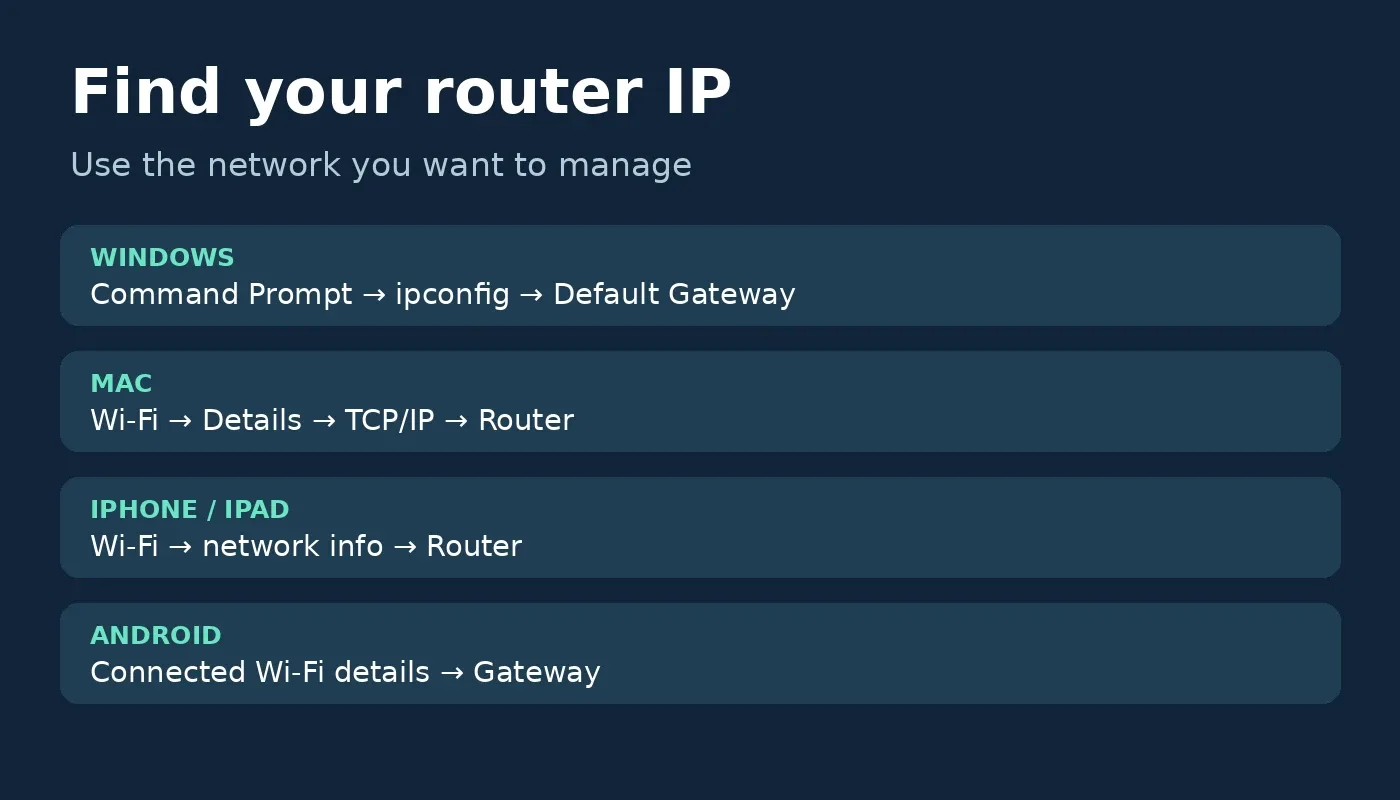
Find your router IP address quickly
| Device | Where to look |
|---|---|
| Windows 10 or 11 | Run ipconfig in Command Prompt and find Default
Gateway under the active adapter. |
| Mac | Open System Settings → Wi-Fi → Details → TCP/IP and find Router. |
| iPhone or iPad | Open Settings → Wi-Fi, tap the information button beside your network, and find Router under IPv4. |
| Android | Open the connected Wi-Fi network’s details and look for Gateway. Labels vary by device. |
If you see both IPv4 and IPv6 gateways, try the IPv4 address first for a typical router admin page.
How to find your router IP address on Windows
Connect your PC to the network you want to manage.
Open Start, type Command Prompt, and open it.
Type
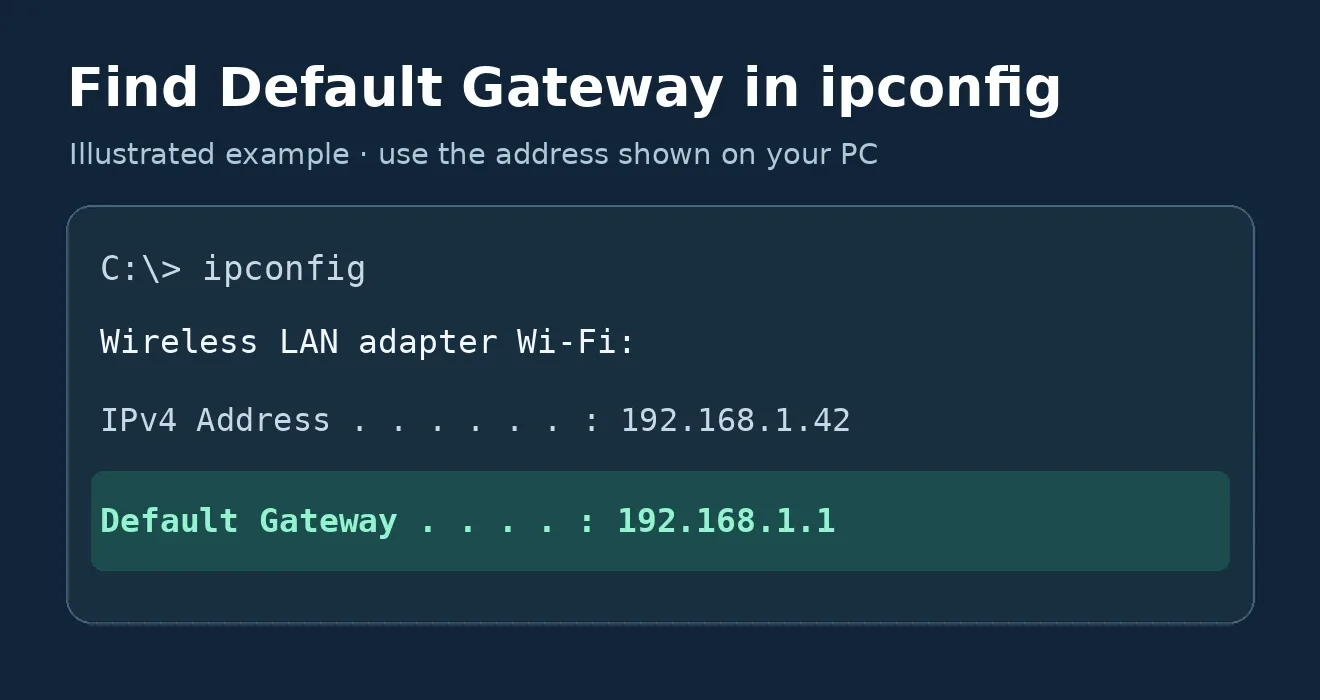
ipconfigand press Enter.Find the Wireless LAN adapter Wi-Fi section if you use Wi-Fi, or the active Ethernet adapter if you use a cable.
Look for Default Gateway. Note the IPv4 address, such as 192.168.1.1.
Open the browser and enter the gateway address in its address bar. Use the login address and protocol recommended in your router’s manual. TP-Link’s web login troubleshooting guide.
If several adapters appear, focus on the connection you are using. A disconnected Ethernet adapter or a VPN adapter may show a different value. Microsoft also uses the Default Gateway field when diagnosing Wi-Fi problems. Microsoft’s Windows connection guide.
In this example, 192.168.1.1 is the router address to try. The 192.168.1.42 address belongs to the PC.
No default gateway appears
Check that your computer is connected to the intended Wi-Fi or Ethernet network. A computer can connect to Wi-Fi yet fail to receive a normal network configuration. If you see an address beginning with 169.254, Windows may not have obtained an address from the network. Reconnect and consult the router or ISP instructions before changing network settings.
How to find your router IP address on a Mac
Connect your Mac to your home Wi-Fi.
Open the Apple menu → System Settings → Wi-Fi.
Next to the connected network, select Details.
Select TCP/IP and find the address beside Router.
Enter that address in your browser.
On older macOS versions, open System Preferences → Network, select your connection, then look under Advanced → TCP/IP. Menu names vary by version. Apple documents the router address in the Wi-Fi connection details. Apple’s Wi-Fi settings guide.
For Ethernet, select the active wired connection in Network and inspect its TCP/IP details. A Mac connected to both Wi-Fi and Ethernet can show different gateways for each connection.
How to find your router IP address on an iPhone or iPad
Open Settings → Wi-Fi.
Confirm that you are connected to the right network.
Tap the ⓘ beside its name.
Under IPv4 Address, find Router.
Type the address into Safari’s address bar.
The nearby IP Address field identifies the iPhone or iPad on that network. The Router field normally gives the gateway address you need for router management.
How to find your router IP address on Android
Open the details for your connected Wi-Fi network. If the screen shows Gateway or Router, use that address. A field called IP address normally identifies the phone itself.
Samsung Galaxy
Open Settings → Connections → Wi-Fi.
Tap the gear beside the connected network.
If you see Manage router, tap it. On the Galaxy example in the Linksys guide, this opens the router in a browser. If the browser shows an IP address, copy it from the address bar.
Some Galaxy versions show different options. See the illustrated Linksys guide for Samsung Galaxy and iPhone.
Google Pixel and other Android phones
On a Pixel, open Settings → Network & internet → Internet or Wi-Fi, depending on your Android version. Tap the gear beside the connected network. Look for Gateway or Router in its details. Many phones show only the device IP address. See Google’s Pixel Wi-Fi instructions and TP-Link’s Android gateway example.
What if Android does not show the gateway?
Check your router maker’s or internet provider’s official app or manual for the local management address. If you have a Windows PC, Mac, or iPhone on the same Wi-Fi network, look up its gateway instead. Keep the phone’s IP assignment on its current setting while you check.
How to access router settings after finding the IP address
Stay connected to the router. Use its main Wi-Fi network or an Ethernet connection. Guest Wi-Fi may restrict access to local devices.
Open a browser. Enter the complete gateway address in the address bar, not the search box. If the manufacturer provides a local address, use its official instructions.
Sign in. Look for the admin password you created during setup, the router label, a password manager, or your ISP’s instructions.
Make one change at a time. Note the original value before saving. Check the manufacturer’s guide if the setting affects your connection.
Sign out when finished. Keep your router firmware and admin credentials current.
Your router’s administrator password may differ from the password you use to join Wi-Fi. On some ISP or mesh equipment, the supported route is an app or account rather than a local admin page.
Where to find VPN passthrough
If you opened the settings because a work VPN fails on your home network, first identify which VPN protocol it uses. Then look for VPN Passthrough, NAT Passthrough, or the protocol name in the router’s documented menus.
Our VPN passthrough guide explains when to turn it on, how IPsec and NAT traversal differ, and what to test if a connection fails. A passthrough setting helps certain device VPN connections cross the router. It does not start the VPN by itself.
If the same work VPN profile connects on a phone hotspot but fails on your home network, mention that result to IT. If it fails on both networks, check the app error with IT before changing router settings.
Router IP address vs. device IP vs. public IP
| Address | What it identifies | Typical use |
|---|---|---|
| Router or default gateway IP | The gateway your device uses on the local network | Open the appropriate local router settings, if supported. |
| Device’s private IP | Your phone or computer on that local network | Identify the device when troubleshooting locally. |
| Public IP | The internet-facing address used by a connection or VPN exit | Identify the address a public service sees. |
For example, your laptop might have a private address of 192.168.1.20 while its gateway is 192.168.1.1. Those are examples, not values every network uses. Your ISP may also use shared addressing upstream, so the gateway’s WAN address and the public address seen by a website are not always identical.
A VPN can change the address a website sees for traffic routed through its tunnel. It does not automatically change the local gateway shown in your Wi-Fi settings. For the difference between a VPN and a proxy, see our proxy vs. VPN guide.
Router login page not opening? Try these fixes
| What you see | First thing to check |
|---|---|
| The browser searches the address. | Paste the full address from your router’s manual into the browser address bar. |
| The page times out. | Try the main Wi-Fi or Ethernet and recheck the gateway for that connection. |
| You reach a sign-in page, but the password fails. | Confirm it is the right router and use its admin credentials or recovery process. |
| The wrong router dashboard opens. | Check whether an ISP gateway and mesh router both manage parts of your network. |
1. Check the active connection and address
Confirm your phone or computer is connected to the intended network. Recheck the gateway for that connection and type it in the browser’s address bar. A typo, an address from an old router, or a search-engine results page can send you in the wrong direction.
2. Check whether your router uses an app
Some routers and mesh systems use a manufacturer or ISP app for setup. If an address leads nowhere, read the manual for your exact model rather than assuming that every router has a browser dashboard.
3. Switch from guest Wi-Fi
A guest network can isolate local devices, including the admin interface. If you manage the router, try the main network or an Ethernet cable. Follow your organization’s instructions on a shared network.
4. Check HTTPS and the address
Some local admin pages use a device certificate your browser does not recognize. Verify that you are on your own network and that the exact address matches your manufacturer’s instructions before entering credentials. If you cannot verify the destination, close the page and use the official management app or support instructions.
5. Check for two routers or a mesh setup
Imagine an ISP gateway connects to a separate mesh router. Your laptop may show the mesh device’s gateway address, while the ISP gateway has a different local management address. The address you need depends on which device owns the setting.
Check the app or manual for each device. You may need to connect to the ISP gateway directly to manage it. Don’t change bridge mode or disable either firewall simply to reach the login screen.
In access point or bridge mode, your Wi-Fi device may show the upstream router as its gateway. To manage the access point itself, check its app or the upstream router’s connected-device list for its management address. See Google’s explanation of two-router setups.
6. Consider a VPN or network profile
A VPN, work policy, or local firewall can affect access to local network devices. If you are using a personal VPN, check its local-network access setting or provider instructions. On a work device, ask IT before changing a managed connection. If you’re choosing a mobile VPN, our Android VPN setup guide covers connection and routing controls.
Forgot your router admin password?
Start with the password manager or setup notes you used when configuring the router. If the device came from your ISP, check its app and official support instructions. Some models have a unique initial password on the label; others require you to create one during setup.
If you changed the password and cannot recover it, the manufacturer may offer a recovery procedure. A factory reset is a last resort. It can erase your Wi-Fi name, password, ISP configuration, and other settings, temporarily disconnecting your devices. Check the manual and record any required setup details first.
Is 192.168.1.1 always the router IP?
No. It is a common private address, but routers can use other addresses and owners can change them. Some networks use 192.168.0.1 or another private range. Find the gateway assigned to your device and verify it against your router’s instructions.
Be careful with similar-looking text. An IPv4 address uses digits and
dots, so 192.168.1.1 uses the number 1,
not the letter l. A browser search for a guessed
address can also show third-party sites. Type your verified address
directly into the address bar.
Can you change a router’s IP address?
Many routers allow the local address to be changed in their LAN settings. Most people do not need to change it. A network administrator may do so to resolve an address conflict or configure a particular network.
Changing it can disconnect devices or alter how you reach the admin page. Follow the exact model’s instructions, note the new address, and avoid making changes on a work or shared network without permission.
Frequently Asked Questions
What is my router IP address?
Your router IP address is usually the default gateway shown in the network settings for your active connection. Find it in your device’s Wi-Fi or Ethernet details.
Can I access router settings from my phone?
Yes, if your router supports a browser interface or management app. Connect to the relevant network, find its gateway address, and follow the manufacturer’s login instructions.
Is 192.168.1.1 always the router IP address?
No. It is a common private address, but your router may use another address. Check the gateway shown for your active connection.
What if the router login page does not open?
Check your network connection and gateway address, then consult your router’s manual. Guest Wi-Fi, app-only management, and multiple routers can also affect access.
Is the router password the same as the Wi-Fi password?
They may be different. The Wi-Fi password connects devices to the network, while administrator credentials give access to router settings.
Will resetting my router erase its settings?
A factory reset can erase the Wi-Fi name, password, ISP configuration, and other changes. Check the manufacturer’s instructions before resetting.
Keep reading


Best NordVPN Alternatives in 2026: 5 VPNs Compared
Compare five NordVPN alternatives for free browsing, unlimited devices, privacy, and monthly pricing. See upfront costs, renewal terms, and switching tips.


How to Get Your Business on ChatGPT
Claim or add your business in ChatGPT Business Hub, complete verification, and use Insights to see how customers discover your business.


How Quantum Dots Turn Size Into Color
Quantum dots are tiny regions of semiconductor that confine electrons in all three dimensions. In a TV, they typically take the form of nanocrystals just a few...