How to Make a GIF in ChatGPT From One Product Photo

In this story
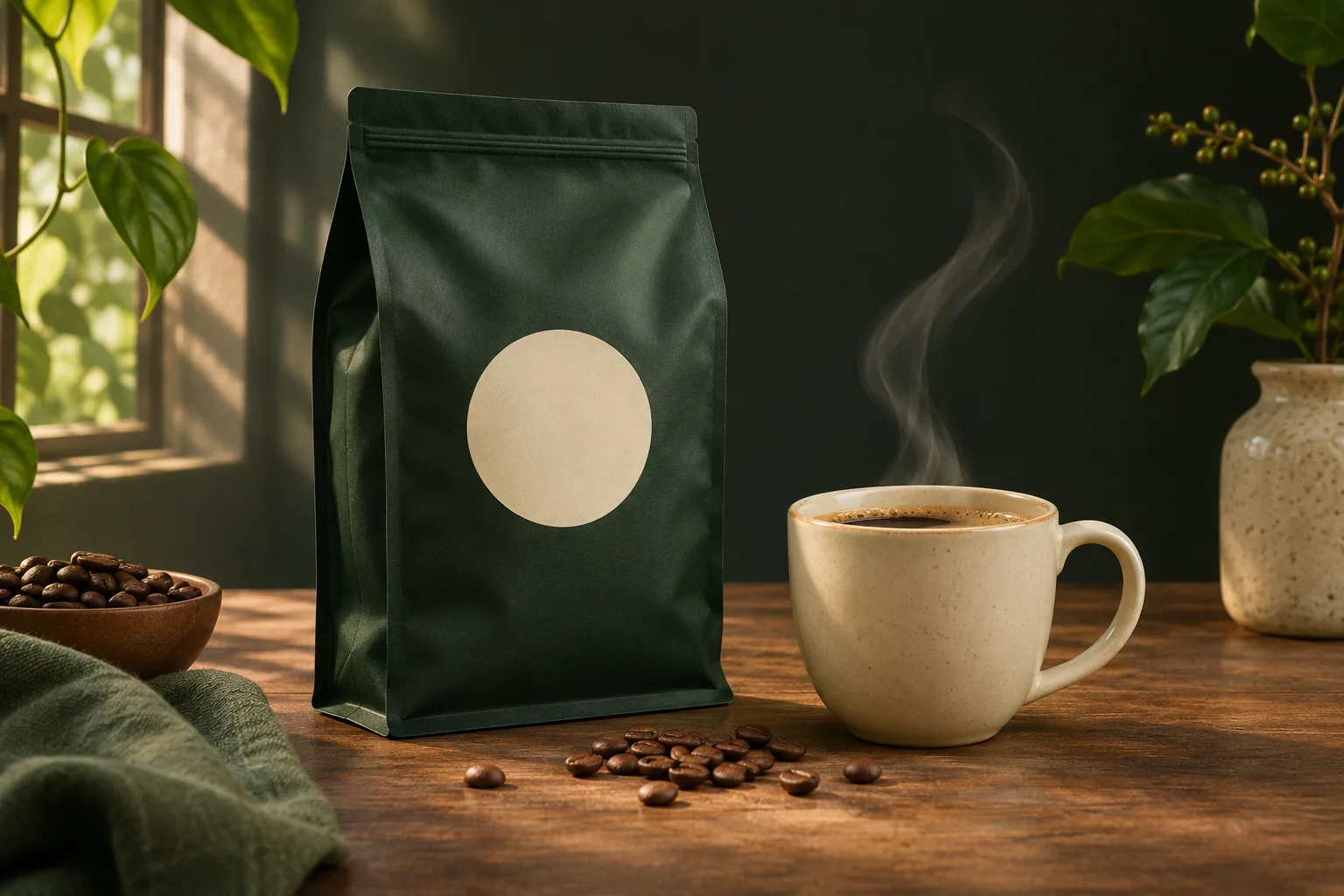
To make a GIF in ChatGPT, upload a product photo and ask for a looping animation with one clear movement. For a bag of coffee, have steam rise from the cup beside it. Open the result to adjust the speed, then save the GIF and check that the label stays sharp through the whole loop.
OpenAI added GIF generation with ChatGPT Images 2.6. The image tool is available on all tiers, including Free, and OpenAI describes GIF creation as rolling out. You can start with a text prompt or a still photo. You can also revise a GIF that ChatGPT made in the chat. For an existing animated GIF from elsewhere, use a separate editor. OpenAI’s Images 2.6 release · ChatGPT Images help
How to make a GIF in ChatGPT from a product photo
1. Upload a sharp photo with room for motion
Start with a front-facing shot of the actual product. Check that the label reads clearly and the bag fits fully inside the frame. In this example, the coffee bag sits on the left and a cup sits on the right. The dark space above the cup makes light steam easier to see. It also keeps the steam clear of the label.
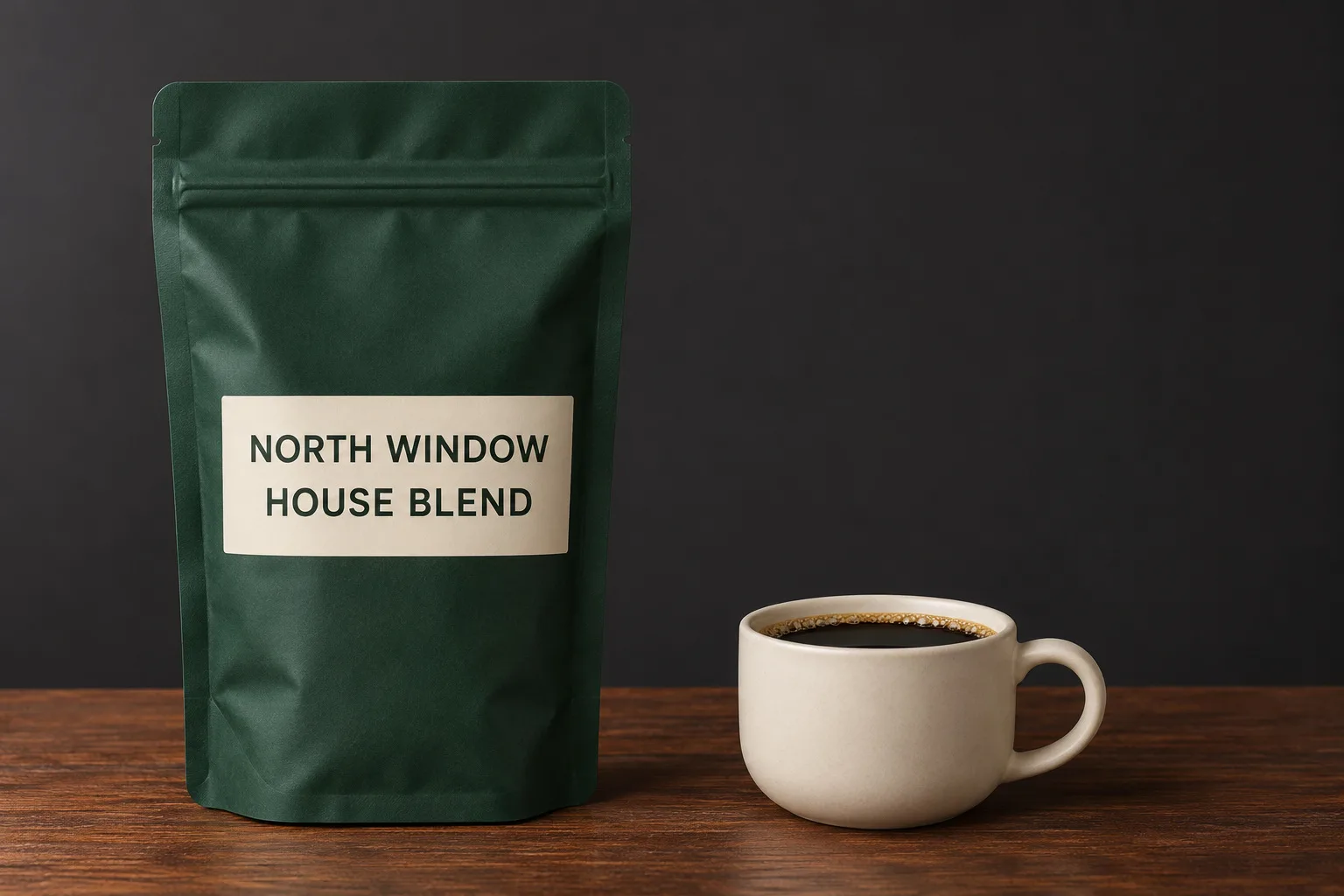
To make a GIF in ChatGPT for a one-off post, attach the photo in a new chat. If you plan to reuse the shot, ask ChatGPT to save it as a reference named coffee-bag. Then type @coffee-bag in a later chat and select the saved photo if it appears. You can always attach the original file again. How to save and reuse a reference photo
2. Give ChatGPT one thing to animate
Ask for a fixed camera and one ribbon of steam. This kind of loop is called a cinemagraph. Most of the scene looks like a still photo, so the small area of motion stands out. It also gives you fewer places to check for changes.
Copy this prompt for the coffee bag
Make a looping animated GIF from the attached product photo. Keep the camera and crop fixed. Animate one thin ribbon of steam above the cup on the right. Let it rise and fade into the dark background, then start again gently at the rim. Keep the coffee bag, label, cup, table, and lighting fixed. Export as an animated GIF.
If you saved a reference, use @coffee-bag in place of “the attached product photo.” For a feed post, a square crop is a useful starting point. For a full-screen vertical ad, choose a 9:16 crop and leave room for the platform’s buttons. Set the crop before you make several versions.
3. Check the speed, restart, and label
Open the GIF and watch it twice at the size people will see on a phone. First, check that you can see the steam. Next, watch the point where the loop restarts. Finally, pause or step through frames if the controls are available. Compare the label and the edges of the bag with the source photo. OpenAI’s note on GIF editing controls
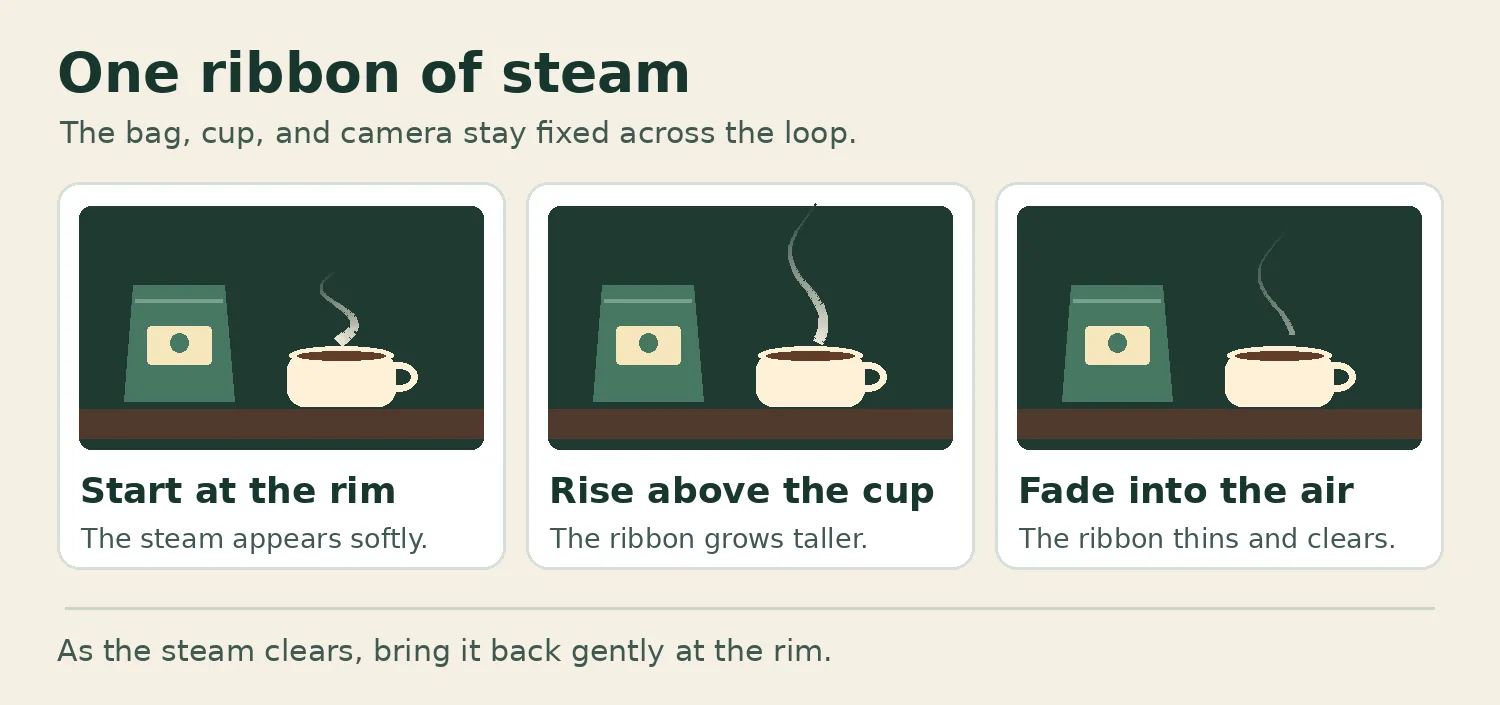
If the steam moves too fast, try a slower playback setting. If the restart jumps, ask for a fade and a soft return at the rim. If the letters shimmer, ask ChatGPT to move the steam farther from the bag. Change one thing at a time so you can see what helped.
Copy this prompt if the loop jumps
Revise this GIF. Fade the steam fully near the top and bring it back gently at the cup rim. Match the bag, label, cup, crop, and brightness across frames. Keep the camera fixed.
If the label still changes, use the original product cutout on a top layer in a video editor. Then place the moving scene behind it. This keeps the product photo intact. For options, see our guide to AI video editing tools by task.
Make a spring and winter ad from the same photo
Each time you make a GIF in ChatGPT for a new season, go back to the original photo. First, make a new still and compare the label with the original. Then add the steam to the still you choose. This makes it easier to spot whether the scene edit or the animation changed the product.
Copy this prompt for the spring version
Use my original coffee photo to create a new still. Give the scene the feel of a bright spring café, with a pale wood counter and soft window light. Keep the bag and cup in the same positions and at the same scale. Preserve the bag’s exact shape, color, and label text. Leave open space above the cup for steam.
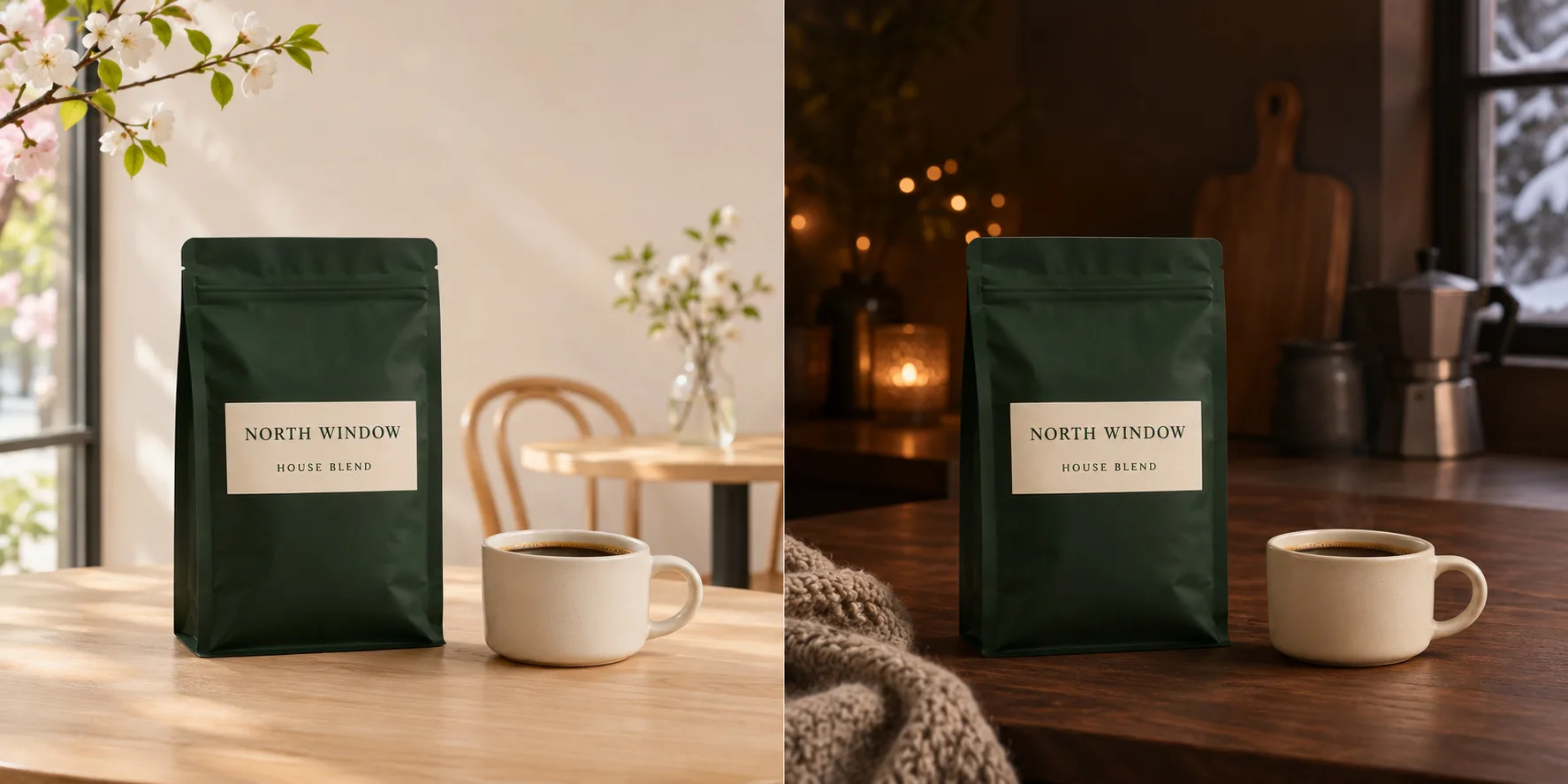
For winter, ask for a walnut counter and warm light in the distance. Keep enough contrast above the cup for the steam. To test if motion helps, compare a still and a loop from the same scene. Keep the offer, crop, audience, and call to action the same. For a store, start with clicks to the product page or purchases as your measure. Our guide to AI marketing tools for small businesses covers other parts of that workflow.
Three more product GIF prompts to copy
To make a GIF in ChatGPT for a different product, begin with “Create a looping animated GIF from this photo and keep the camera fixed.” Then add one line from the table.
| Product | Motion to ask for | Check before you post |
|---|---|---|
| Skincare jar | Move a soft window reflection across the table beside the jar. | Check the jar’s color and the amount printed on the label. |
| Sneakers | Let a soft shadow drift across the wall behind the shoe. | Check the sole, logo, and stitching. |
| Stone tile | Move a soft light across the wall behind the tile. Keep the tile evenly lit. | Match the veining and color to the source photo. |
Download the GIF and pick a format for each placement
After you make a GIF in ChatGPT, open the finished loop and save it. Then open the downloaded .gif file in your browser and watch two full loops. If you changed the playback speed in ChatGPT, check how the saved file plays before you upload it. OpenAI’s guide to saving a GIF
| Placement | What to use | What to check |
|---|---|---|
| A GIF with a clear first frame | Some email apps show only the first frame. Put the offer and the button in the email itself, then send yourself a test. Mailchimp’s Outlook guide | |
| Product page | An MP4 or WebM with a still preview and playback controls | Video often uses less data. Give readers a way to pause ongoing motion, or let them start it when they choose. web.dev’s GIF performance guide · W3C guidance on motion controls |
| Social or paid ad | An MP4 if the placement needs video | Preview the crop. Check that buttons, captions, and compression leave the product and label clear. |
To make an MP4, import the GIF into an editor that supports animated GIFs. Add it to the timeline and export as MP4. If the placement plays the clip only once, repeat the loop on the timeline until it meets the placement’s length rules. If you need several shots, see our guide to turning a photo into a video clip.
What to do if the GIF comes back as a still image
Start a fresh chat on the web or in the updated app. Attach the source photo and ask for an animated .gif file. If the chat keeps sending a still, use that photo in a separate animation editor while the feature rolls out. If the file moves on your device but stays still after upload, check the destination’s accepted formats and preview. OpenAI’s GIF rollout and editing guidance
You can also make a GIF in ChatGPT from text alone. For example, ask for a loop of a paper lantern swaying against a dark wall. For a product you sell, start from a real photo so you have a clear reference for its color, shape, and label. The coffee visuals here illustrate the workflow. The single-motion approach draws on Futurepedia’s November 13 product GIF walkthrough.
Frequently asked questions
Can I make a GIF in ChatGPT for free?
ChatGPT Images is available on all tiers, including Free. OpenAI describes GIF creation as rolling out, so check whether your account can generate an animated GIF.
Can I make a GIF without uploading a photo?
Yes. Describe the scene and what should move, then ask for a looping GIF. Upload a real product photo if you need a reference for the item’s label, shape, or color.
Can ChatGPT edit an animated GIF I upload?
ChatGPT can revise a GIF it generated in the chat. Use a separate animation editor for an existing animated GIF.
How do I keep my product label sharp across the loop?
Start with a sharp photo and put the movement beside the product. If the label still shifts, layer the original product cutout over the moving background in an editor.
Keep reading
Reinforcement Learning Explained With a Worked Example
Reinforcement learning is a way to train an agent to choose actions that maximize expected cumulative reward. The agent interacts with an environment, receives...


What Is Biocomputing? How Biological Computers Work, Examples and Applications
In 2022, researchers connected living human and mouse neurons to a simulated Pong game and reported that the cultures changed their behavior with structured fee...
Gemini 4 Neon vs GPT-6.2 Sol: Speed Evidence and Three Practical Tests
Sol looks promising for turnaround, while Neon merits a trial when reasoning errors cause rework. Compare the published evidence and repeat three practical tests on your own work.