Free VPN for PC Which App to Choose and How to Set It Up

In this story

For a free VPN for PC, start with Proton VPN Free if you want everyday browsing without a data cap. Choose Windscribe Free if selecting a server country matters more than unlimited usage. PrivadoVPN Free is another option for occasional use, with 10 GB of full-speed data every 30 days and a slower connection afterward.
All three offer ongoing free plans. Your choice comes down to data allowance, location control, and whether the Windows app works reliably on your computer. This guide focuses on Windows PCs; our Mac VPN guide covers Apple computers.
Best free VPN options for Windows PCs
The table summarizes the limits that are most likely to affect daily use. Plan terms can change, so confirm them before downloading.
Free VPN | Data allowance | Main reason to choose it and the trade-off |
Proton VPN Free | Unlimited; no provider-imposed speed cap | Good starting point for frequent browsing. One connection at a time; automatic server assignment limits location control. |
Windscribe Free | 2 GB/month without a confirmed email; 10 GB/month with one | Select from free locations in 10 countries, including the US. Unlimited personal devices, but a limited account data allowance. |
PrivadoVPN Free | 10 GB every 30 days at full speed; then limited to 1 Mbps | Useful for occasional sessions with selectable free locations. One connection at a time; monthly data refresh requires attention. |
Proton VPN Free for browsing without a data cap
Proton’s free Windows plan has no ads, data limit, or imposed speed limit. That makes it a practical choice if you want the VPN running while you browse rather than watching a monthly meter. Busy servers and network conditions can still reduce speed.
The important restriction is server selection. Proton connects free users to a server automatically. You can request another server, but the replacement is random and changes have a cooldown. Having US servers in the free pool does not mean you can choose a US connection whenever you need one.
Proton reserves supported streaming access and P2P servers for paid plans. Its free plan is therefore a better fit for ordinary browsing than for reliably accessing a particular streaming library or downloading torrents.
Windscribe Free for choosing a country
Windscribe’s Windows feature page lists free access to 10 countries, including the US, plus its Firewall feature and split tunneling. Split tunneling lets you decide which apps use the tunnel and which connect directly. Traffic you exclude loses the VPN’s protection.
The allowance starts at 2 GB per month. Adding and confirming an email address increases it to 10 GB. That is useful for occasional browsing, but video, large downloads, and cloud synchronization can consume it quickly. Unlimited devices does not mean unlimited data or a separate allowance for every computer.
Choose Windscribe when a selectable free location or app exclusions solve a specific problem. If you want the VPN on throughout the day without tracking usage, Proton’s unlimited plan is simpler.
PrivadoVPN Free for occasional sessions
Privado’s free-plan documentation specifies 10 GB every 30 days, one simultaneous connection, and a 1 Mbps speed limit after the allowance is used. Unused data does not roll over. Its support instructions also describe refreshing the allowance through the account dashboard.
The slower connection is a fallback, not another 10 GB of full-speed service. At 1 Mbps, large downloads and video calls can become frustrating. Check the account’s renewal date and any refresh prompt before relying on it for a long session.
What independent testing adds
In its October 2026 Windows free-VPN guide, RTINGS recommended Proton Free for everyday use and Windscribe Free for privacy controls. Its testing found their connection-blocking features effective in the interruption scenarios it examined.
That supports shortlisting both apps, but it does not guarantee performance on your PC or network. These are RTINGS’ findings; What the tech has not conducted those hands-on tests. The recommendations here also account for the providers’ published free-plan limits.
How much can you do with 10 GB of free VPN data
A monthly allowance sounds generous until several apps use it together. Browsing, email attachments, video meetings, background updates, and file sync all contribute when routed through the VPN.
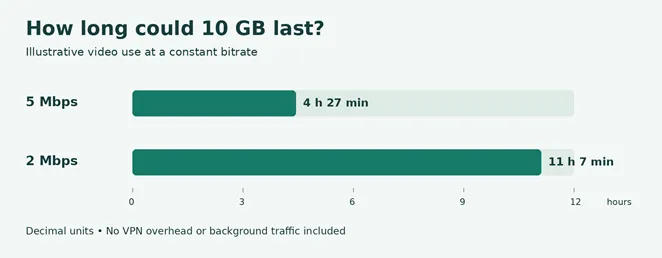
Worked example: Suppose a video stream averages 5 megabits per second. Using decimal units, 10 GB × 8 ÷ 5 Mbps equals 16,000 seconds, or about 4 hours and 27 minutes. At 2 Mbps, the same allowance lasts about 11 hours and 7 minutes.
Those are illustrative calculations, not measured streaming results. Actual bitrate varies, and VPN overhead and background traffic reduce the time available. A 10 GB allowance can suit occasional browsing while being a poor fit for daily video.
Before choosing a capped plan, open Settings → Network & internet → Advanced network settings → Data usage on Windows 11. Review which apps consume the most data. Windows’ total will not necessarily match the VPN provider’s meter, but it can reveal a game launcher or backup app you had overlooked.
Download and set up a free VPN on Windows
Use the provider’s desktop app when you want coverage beyond a single browser. A browser extension typically protects traffic within that browser, while other apps may continue to connect directly. Our proxy versus VPN guide explains why the scope matters.
These steps use Proton Free as an example:
1. Check compatibility. Open Settings → System → About and read System type. Download the correct x64 or ARM64 app. Proton’s current Windows app requires Windows 10 64-bit build 19045 or later; Windows 11 is supported. A VPN cannot compensate for an operating system missing security updates.
2. Choose the free account. Start from Proton’s official website and select the Free plan. A paid offer or a money-back guarantee is a different arrangement. Check the plan name before entering payment details.
3. Install the desktop app. Run the official installer and review optional components. Install only the apps you want. On a work or school PC, follow the organization’s software policy.
4. Connect. Open the app, sign in, and use its Connect button. Wait for the connected status before starting the activity you want routed through the VPN.
5. Configure connection blocking. Enable the kill switch if you want internet traffic blocked when the tunnel unexpectedly drops. Decide whether to launch and connect automatically with Windows.
Proton’s Windows app instructions explain installation and account controls. Menus can change between versions, so use the current app’s labels if they differ slightly.
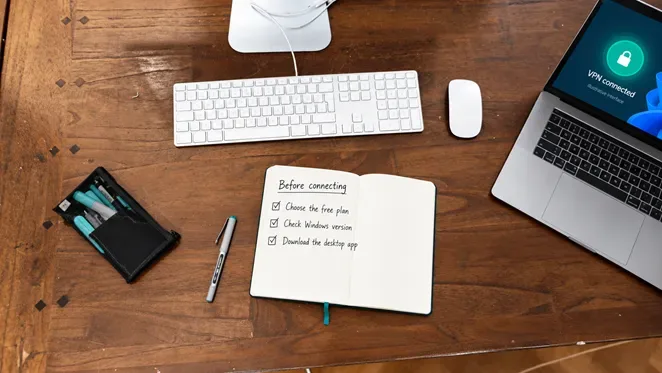
Check the plan, Windows compatibility, and desktop download before installation. The photographed interface is illustrative.
Understand the kill switch before enabling it
Proton’s kill-switch documentation distinguishes standard mode from Advanced kill switch. Standard mode protects against an unexpected VPN disconnection; deliberately disconnecting normally permits direct internet access. Advanced mode blocks internet access whenever the VPN is disconnected, including after restarting Windows.
This is intentional behavior, not necessarily an internet fault. If you enable Advanced mode, learn where to turn it off before you need a connection without the VPN. A normal Disconnect-button test does not prove how standard mode behaves during an accidental interruption.
Check that the VPN is working
A connected icon is a useful starting point. Make these checks before relying on the setup:
1. Compare public IP addresses. With the VPN disconnected, note your public IP using an IP-checking site. Connect and repeat the check. The public address should normally change to the VPN exit address. Keep the addresses private; you do not need to post screenshots online.
2. Check routing choices. Confirm that the app is using the tunnel. If you enabled split tunneling, inspect the exclusion list. A browser-only extension does not establish that a game, mail app, or file-sharing client is protected.
3. Check everyday reliability. Put the PC to sleep, wake it, and confirm the VPN reconnects. Switch between networks you control and check the status again. These practical checks reveal whether the setup fits how you use the laptop.
An IP check does not establish that every packet uses the tunnel, prove a no-logs policy, or make you anonymous. Websites can still recognize signed-in accounts and cookies. For a fuller explanation of the protection and its limits, read what a VPN does.
Fix common free VPN problems
Connected but the internet does not work
First check whether the kill switch or Windscribe Firewall is intentionally blocking direct traffic. Reconnect inside the app. If that fails, close the activity you wanted protected, deliberately disconnect, and temporarily disable the VPN’s connection-blocking setting to test the underlying internet connection.
If a hotel or café requires a browser sign-in page, you may need to complete that step before connecting. Turn protection back on afterward. Avoid disabling Windows Firewall or antivirus as a first troubleshooting step.
The free VPN is slow
Check the remaining allowance before changing settings. Privado’s post-allowance speed limit is different from a temporary slow server. On a selectable-location service, try a nearby free server. On Proton Free, use Change server and respect the cooldown.
Pause large downloads and cloud sync, then compare the same activity with and without the VPN under similar conditions. If only one network blocks the connection, try the app’s automatic protocol selection or another supported protocol. No protocol can guarantee access through every network restriction.
A website keeps asking for verification
Shared VPN exit addresses can trigger extra checks. Complete legitimate verification requests or try another available server. For a sensitive account, follow the service’s normal sign-in process rather than repeatedly switching countries. Logging in through a VPN does not remove the need for multifactor authentication.
Is a free VPN safe enough for your PC
A free plan from an identifiable provider can be useful, but “free” is not evidence of privacy. Check who operates the service, how it is funded, what data it collects, and whether security audits cover the app or infrastructure you will use. An audit is evidence within a defined scope and date, not a permanent guarantee.
Avoid cracked premium VPN installers. Choose an ongoing free plan if you do not want billing obligations; a trial may expire or convert to a paid subscription, while a refund offer generally requires paying first.
A VPN also shifts trust toward the VPN provider. Keep HTTPS, software updates, antivirus protection, and secure sign-ins in place. Pay for a VPN only when you need a feature the free tier lacks, such as dependable location selection without a data cap or supported streaming—not because a free app displays an upgrade banner.
Does Windows include a free VPN
Windows includes a VPN client, but it does not supply a public VPN service or server account. Microsoft’s setup instructions require connection information from a provider or your organization.
For ordinary personal use, installing the chosen provider’s Windows app is usually easier than filling in a manual profile. Start with Proton for uncapped browsing, or Windscribe when selectable free locations matter, then check the connection on your own PC before depending on it.
Keep reading


Best NordVPN Alternatives in 2026: 5 VPNs Compared
Compare five NordVPN alternatives for free browsing, unlimited devices, privacy, and monthly pricing. See upfront costs, renewal terms, and switching tips.

How to Find Your Router IP Address and Access Router Settings
Find your router IP address on any major device, sign in to its settings, and troubleshoot a login page that will not open.

Antivirus Software How to Choose the Right Protection
Antivirus software detects, blocks, and helps remove malicious software, including viruses, ransomware, spyware, and other threats. For a supported Windows 11 P...