Best Antivirus for iPhone: Free and Paid Security Options
Compare Apple’s built-in protections with Avast One, Bitdefender, and Norton. Learn what iPhone security apps can do, their limits, and which features you may need.


In this story
For most people looking for the best antivirus for iPhone, Apple’s built-in security is the best starting point. If you want an extra security app, Avast One is a useful free option for web filtering, Bitdefender Mobile Security suits people seeking paid phishing and scam protection, and Norton Mobile Security makes particular sense if an existing subscription already covers your phone. None can perform a Windows-style virus scan of your entire iPhone.
Choose an app for a specific job, such as blocking dangerous links. A subscription that promises to “clean viruses” without explaining what it checks is a poor reason to pay.
Do iPhones need antivirus software
An updated, non-jailbroken iPhone generally does not need a separate traditional antivirus scanner. Apple isolates third-party apps in sandboxes, limiting their access to other apps and protected system files. A security app operates within those restrictions too. It cannot inspect every other app’s private storage or repair the operating system. Apple explains these boundaries in its iOS sandboxing documentation.
That does not make an iPhone immune to attack. Phishing pages can steal a password you enter voluntarily, scammers can persuade you to approve a sign-in, and software vulnerabilities can undermine built-in protections. Keeping iOS updated and protecting your accounts remain essential even with a security app installed.
Best antivirus for iPhone: security options at a glance
Compare these options by the extra protection you need and the subscriptions you already have.
| Option | Choose it for | Cost and important limit |
|---|---|---|
| Apple’s built-in protections | Everyday protection with no additional app | Included with iPhone; no user-run full-device virus scan |
| Avast One | A free extra layer against malicious websites | Free Web Guard; email, SMS, and call guards require a paid tier |
| Bitdefender Mobile Security | Paid web filtering and scam protection | US App Store lists $29.99/year for Mobile Security; its VPN and Web Protection cannot run together |
| Norton Mobile Security | Web and scam protection, especially with an eligible Norton bundle | US website lists $19.99 for the first year, renewing at $29.99/year for one mobile device; basic plan excludes VPN |
Prices checked October 26, 2026. Taxes, promotions, and purchase channel can change the amount charged; confirm the offer and renewal terms before subscribing.
Avast One for free web protection
Avast One is worth considering if you want an additional malicious-site filter without immediately buying a subscription. Avast’s current documentation places Web Guard and Avast Assistant in the free version; Email Guard, SMS Guard, and Call Guard belong to paid tiers.
The name matters: the new Avast One app is replacing older Avast One and Avast Mobile Security apps on iOS. Follow the current product rather than an old review’s feature list. Avast’s official FAQ explains the transition and free-versus-paid features.
Start with the free functions you actually want. A free download does not mean every feature advertised inside the app is free.
Bitdefender Mobile Security for paid web and scam protection
Bitdefender is a sensible shortlist option if your main concern is dangerous links and phishing. Its iOS features include Web Protection, scam protection for messages and calendar events, security-settings checks, and email breach monitoring. Its “Security Scan” checks for security misconfigurations; it does not scan every app’s contents.
The US App Store listing lists Mobile Security at $3.99 monthly or $29.99 yearly. Premium VPN is a separate purchase, and the included VPN allowance is 200 MB per day. Do not interpret the presence of “VPN” in a feature list as unlimited VPN service.
There is also a practical conflict: Bitdefender says Web Protection and its VPN cannot run simultaneously on iOS. Web Protection uses a VPN profile, and enabling one feature disconnects the other. Check the vendor’s explanation if you already rely on a VPN for work or privacy.
Norton Mobile Security for existing Norton subscribers
Norton is especially worth checking before paying for another app if you already have Norton 360 Deluxe or Norton 360 with LifeLock. Norton lists Mobile Security as included with those subscriptions; confirm your device allowance in your account.
The iOS offering includes Safe Web, scam and SMS protection, Wi-Fi security alerts, and device-security checks. Basic Norton Mobile Security does not include a VPN. Norton sells a Mobile Security + VPN option, while Norton 360 for Mobile includes additional features. The official iOS product page explains the differences and the introductory and renewal prices.
Choose the plan by its iPhone features. Desktop ransomware protection or Windows malware-detection scores do not establish what the iOS app can do.
What an iPhone security app can actually protect
Useful extras work around specific risks. Web filtering can block destinations identified as malicious. Message filters can flag supported scam texts. Breach monitoring can warn that an email address or associated credentials appeared in known leaks. Those functions do not prove that the whole phone is malware-free.
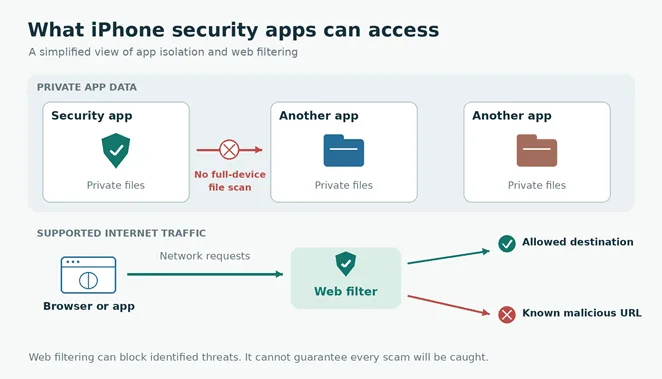
A “scan complete” screen may only mean the app checked settings, account exposure, or network conditions. Read the result labels before treating a green checkmark as a clean bill of health.
A VPN serves a different purpose: it encrypts traffic routed between your device and a VPN server. It does not automatically stop you from entering a password on a convincing fake website. Our explanation of what a VPN does covers that distinction. If private browsing connections are your main goal, compare the VPN itself using our best VPN services guide before paying for a larger security bundle.
The best free iPhone protection starts in Settings
Set up the protections you already have before deciding whether an extra app fills a gap.
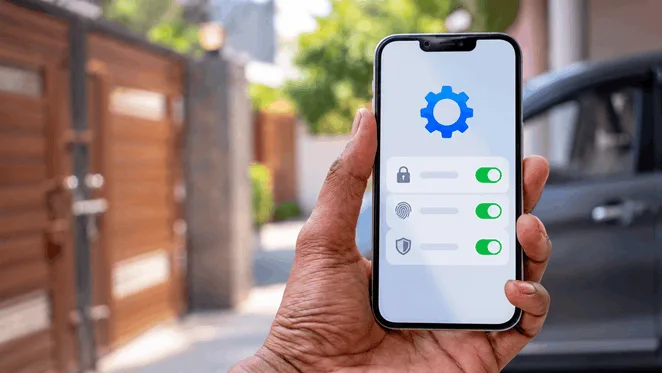
- Install available updates. Open Settings > General > Software Update. Review Automatic Updates so future fixes can install automatically. An app’s “iOS update available” alert is a reminder; the update itself comes through Apple’s software-update process.
- Use a strong passcode and secure your Apple Account. Enable two-factor authentication, use a unique account password, and choose passkeys where supported. Keep a recovery method available. For Microsoft accounts, if approvals or codes fail, follow our Microsoft Authenticator troubleshooting guide before deleting accounts or reinstalling the app.
- Turn on Safari’s warnings. In Settings > Apps > Safari, enable Block Pop-ups and Fraudulent Website Warning. Apple’s Safari guidance also explains why you should avoid interacting with suspicious pop-ups. On older iOS versions, Safari settings may appear directly under Settings.
- Protect access to the phone. Turn on Stolen Device Protection if available. Install apps from the App Store and avoid installing software or configuration profiles at a stranger’s request. Review permissions when an app asks for access unrelated to its purpose.
For example, imagine a delivery text demands a small redelivery fee. A web filter might recognize and block the destination, but a new scam domain may evade it. Open the carrier’s app or independently find its official website to check the shipment. Keeping your payment details out of the message’s link avoids relying on a filter to recognize every scam.
What to do about an iPhone virus warning
The location and wording of the warning determine the next step. Buying a cleaner is rarely the first useful action.
Battery drain alone cannot identify malware. Check Settings > Battery for app activity, install available updates, and consider whether the problem began after an app or usage change. Persistent unexplained behavior warrants Apple Support help.
A website says your iPhone has viruses
Treat a webpage claiming to have scanned your entire iPhone as untrustworthy. Do not call its phone number, pay a fee, install its recommended app, or enter a password. Close the browser tab using the browser’s controls; a button inside the page can imitate a close button.
If you entered a password, change it through the real service’s app or a website you reach independently, and review account access. If you shared card details, contact the card issuer through its official app or the number on the card. Closing the page cannot undo information already submitted.
iOS blocks an app because it contains malware
This is different from a scary advertisement. Apple says iPhone regularly checks installed third-party apps against malware it has identified. If iOS displays an alert that an app contains malware and cannot be opened, delete the app. Do not re-enable it to bypass the warning. Apple’s malware-alert instructions describe the system alert and removal steps.
Apple reports a targeted spyware threat
A targeted threat notification needs a more serious response than an ordinary app scan. Independently visit account.apple.com and sign in to verify the notification. If genuine, follow Apple’s guidance, including considering Lockdown Mode and obtaining expert help. A consumer security app cannot certify that sophisticated spyware is absent.
Apple’s threat-notification guidance explains verification and protective steps. It also recommends the everyday measures above, including updates, a passcode, two-factor authentication, Stolen Device Protection, and strong passwords or passkeys.
Before you buy an iPhone security subscription
Check your existing coverage, the renewal charge, and whether your chosen filters work with your VPN. Review the App Store privacy information and grant only permissions needed for the features you enable.
After setup, confirm the specific protection is active. Installing an app alone does not activate every filter. Keep Apple’s security settings and account protections in place alongside the extra features you choose.
Keep reading

VPN for iPhone How to Choose and Set It Up
For a free VPN for iPhone, Proton VPN Free is a sensible starting point for everyday browsing because it has no data cap. Consider NordVPN if you want a paid se...


WireGuard vs OpenVPN Which Protocol Should You Use
Start with WireGuard for everyday browsing, streaming, and mobile use. Choose OpenVPN when you need TCP fallback, compatibility with an existing setup, or more...


Best VPN for Mac: Free and Paid Options
Compare four free and paid Mac VPN options, check macOS compatibility and renewal costs, and follow practical setup and connection checks.