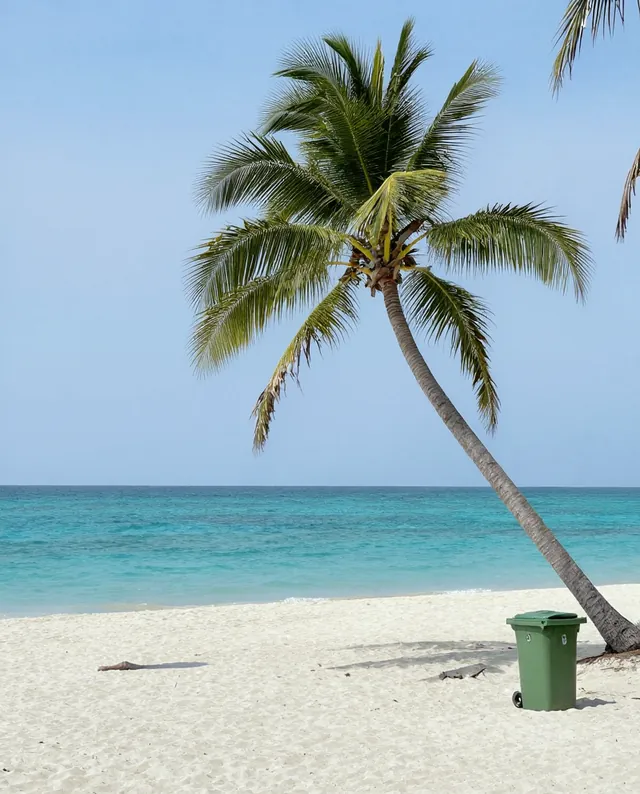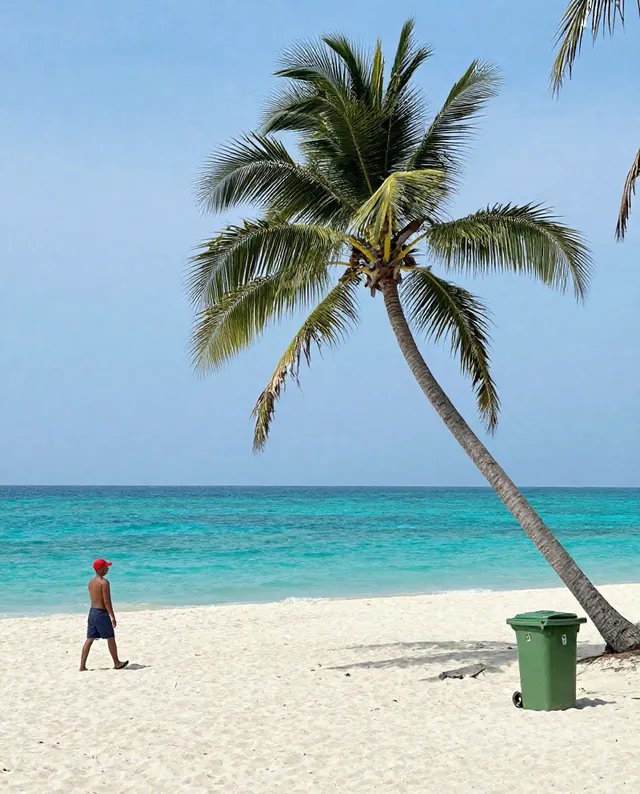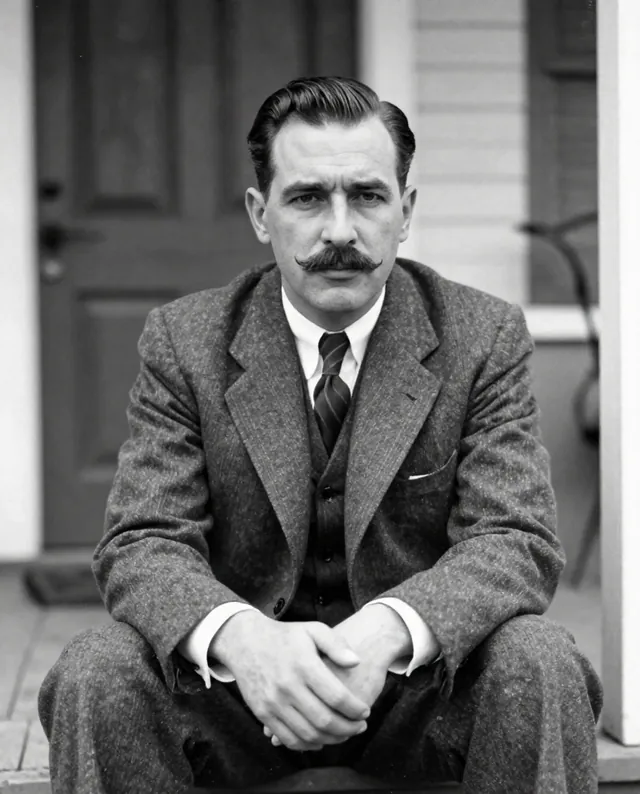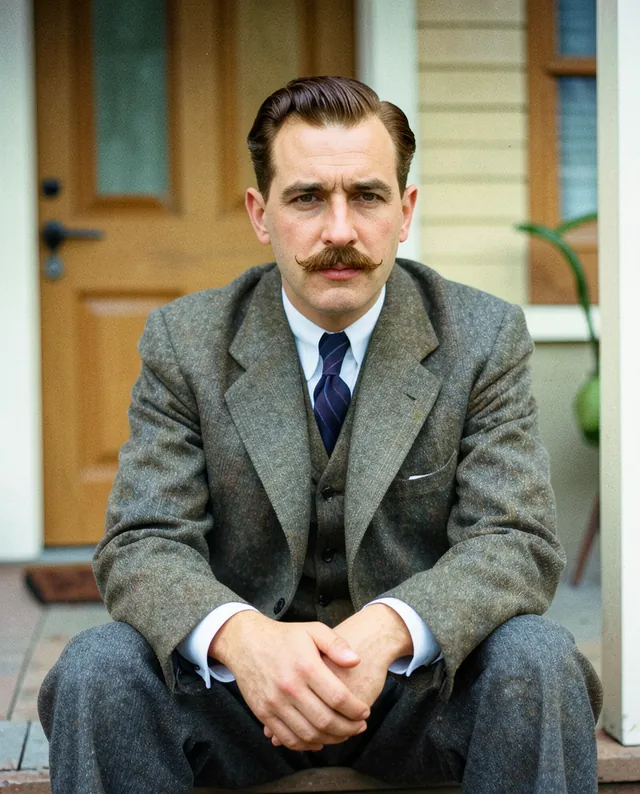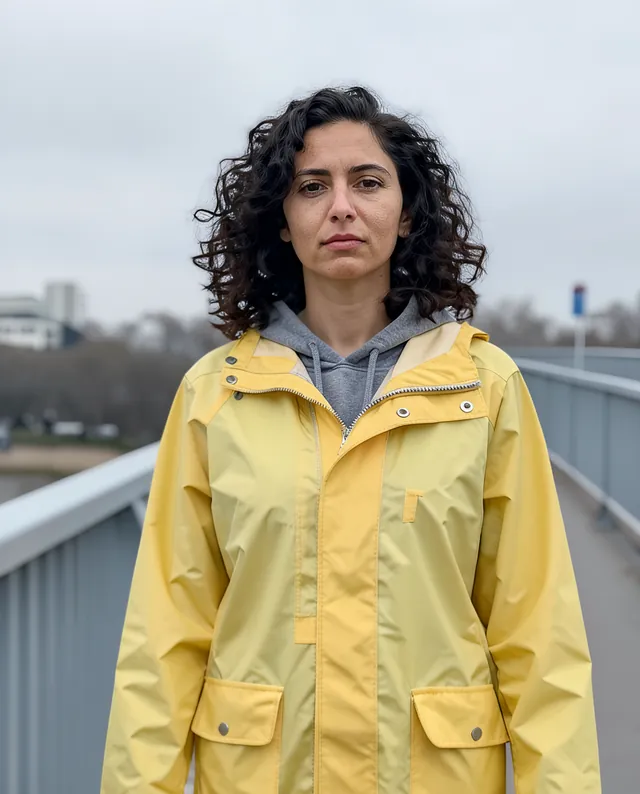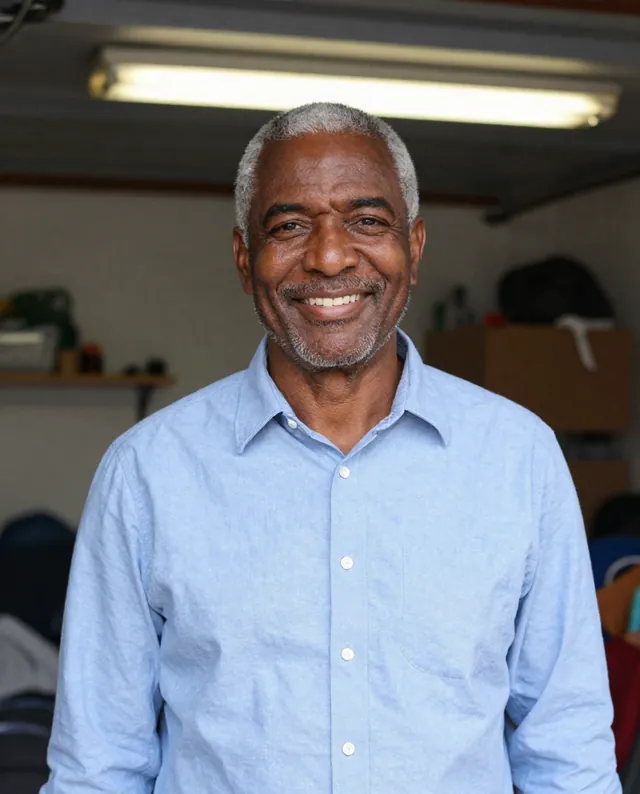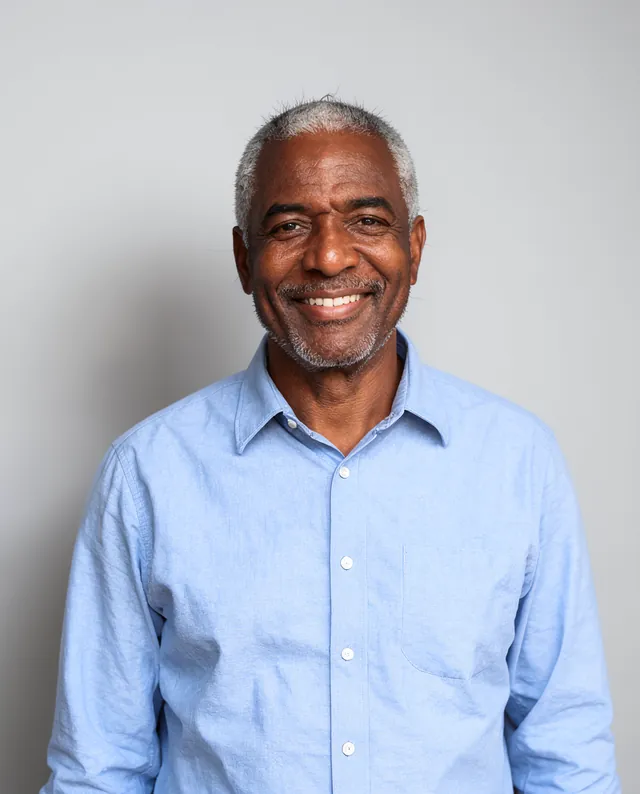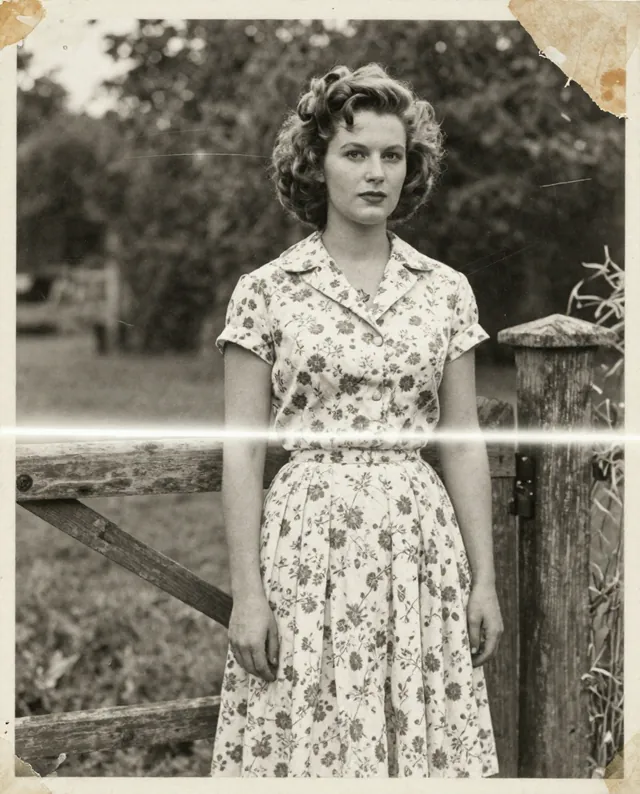
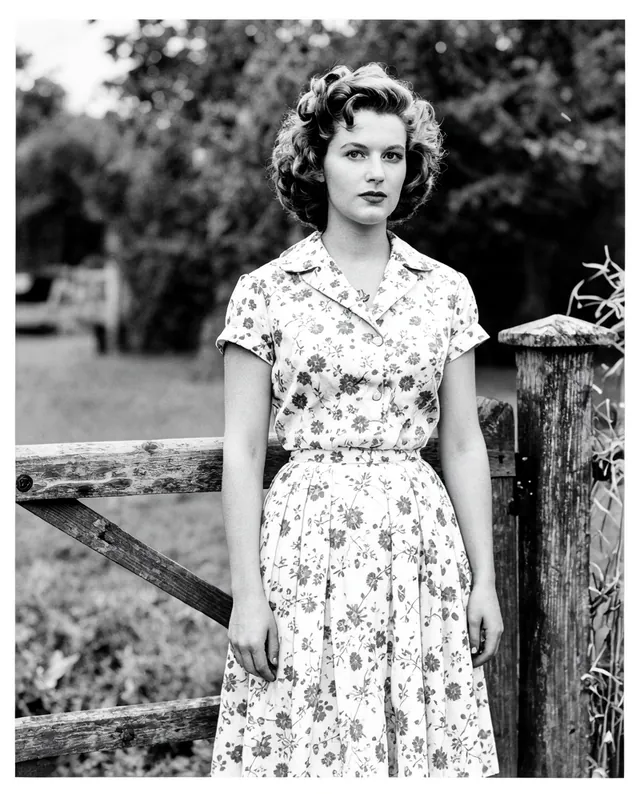
InputExample result
Example Example made on our own Mac with open models: Z-Image made the made-up input photo, FLUX.2 klein ran this prompt on it. Your result in the AI above will look different. How we make examples
Remove a person or object from a photo
Erase a stranger, a bin or a sign from your photo and fill the gap naturally. You need the photo.
- You need
- 1 photo of yours
- Written for
- Gemini, ChatGPT
- Result
- Image
Prompt
In my attached photo, remove thing. Fill the empty space with what would naturally be behind it, matching the surrounding textures, light, shadows and perspective, so no one could tell anything was there. Also remove any shadow or reflection it left. Leave everything else in the photo exactly as it is, including any other people, their faces and proportions, the colors and the framing.
Edit the attached photo.
Remove: thing, plus its shadow or reflection.
Fill: what would naturally be behind it, matching textures, light, shadows and perspective.
Keep: everything else exactly as it is, including other people's faces and proportions, colors and framing.
Fill in, or keep the brackets and change them later
thing
How to use it
- Open Gemini or ChatGPT and choose the image model.
- Attach the photo, paste the prompt and describe exactly what to remove and where it is.
- Something else changed? Ask it to restore that part and remove only the one thing.
What to expectThe filled area is invented, so patterns can repeat or look slightly off, and other parts of the photo may shift a little.
Tips
- Say where it is (left, right, background), and its color if there are similar things.
- Remove one thing at a time for cleaner results.
- Big objects in front of complex backgrounds are the hardest.
Editor: Parham Roudi · Updated November 18, 2026