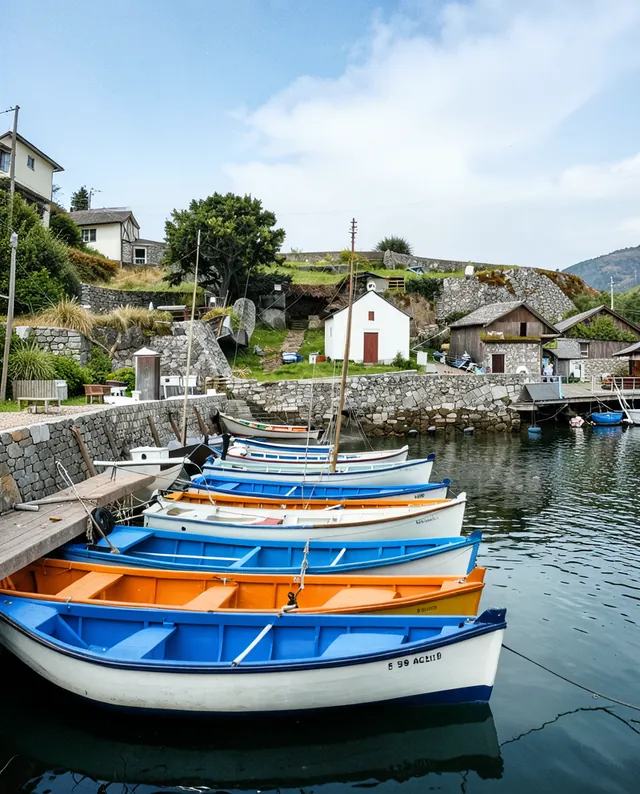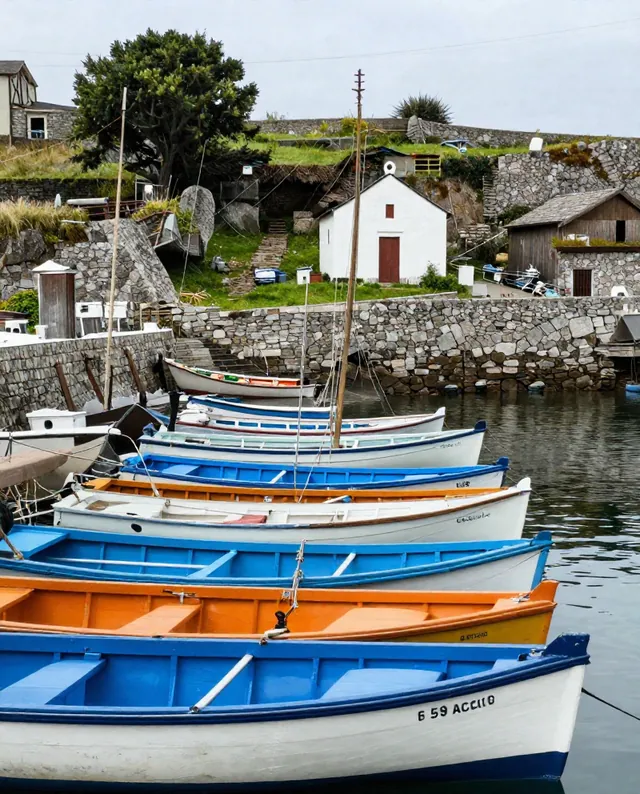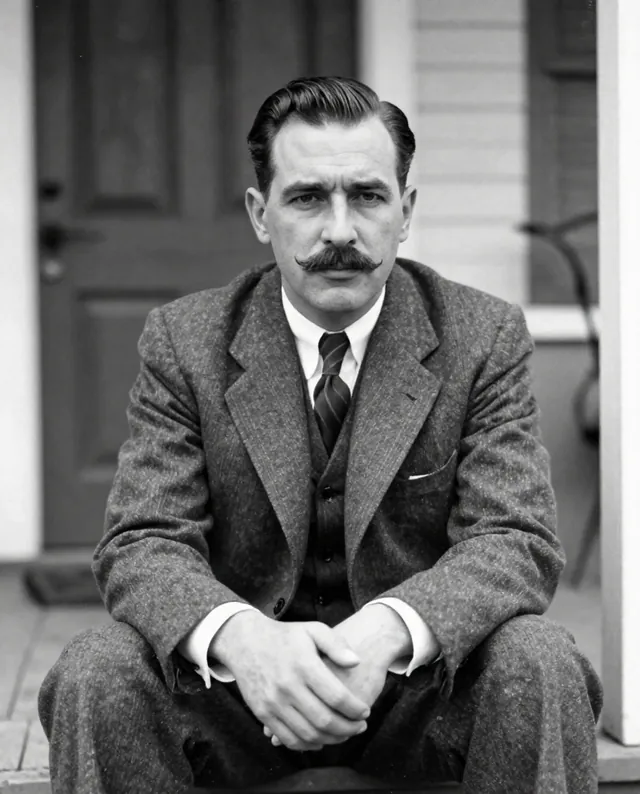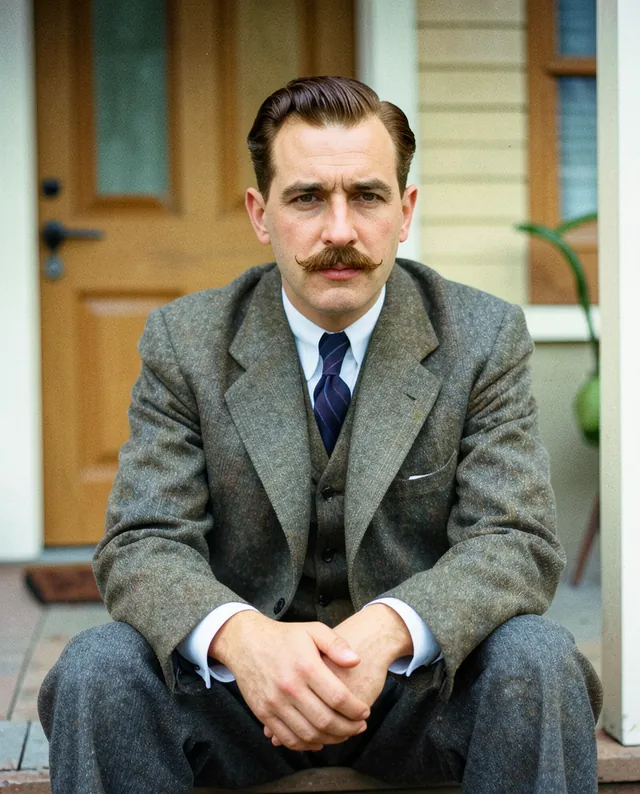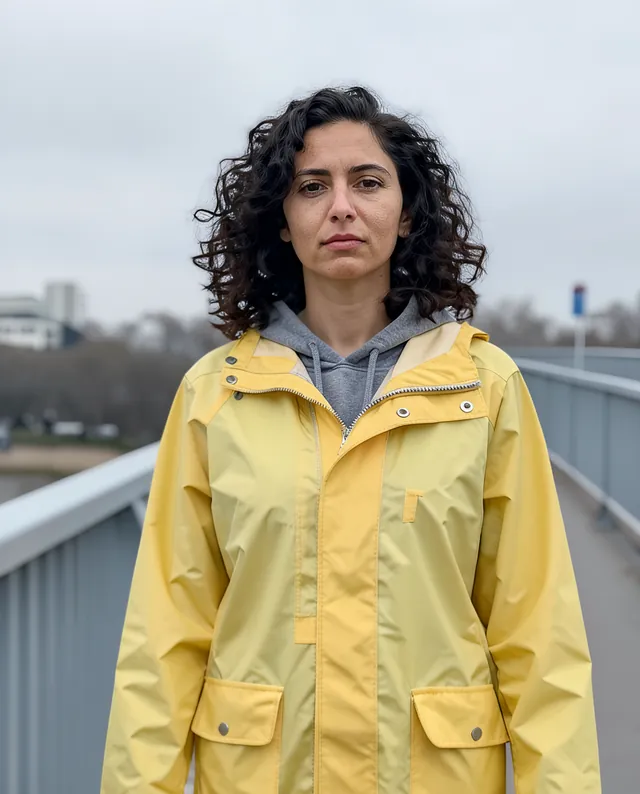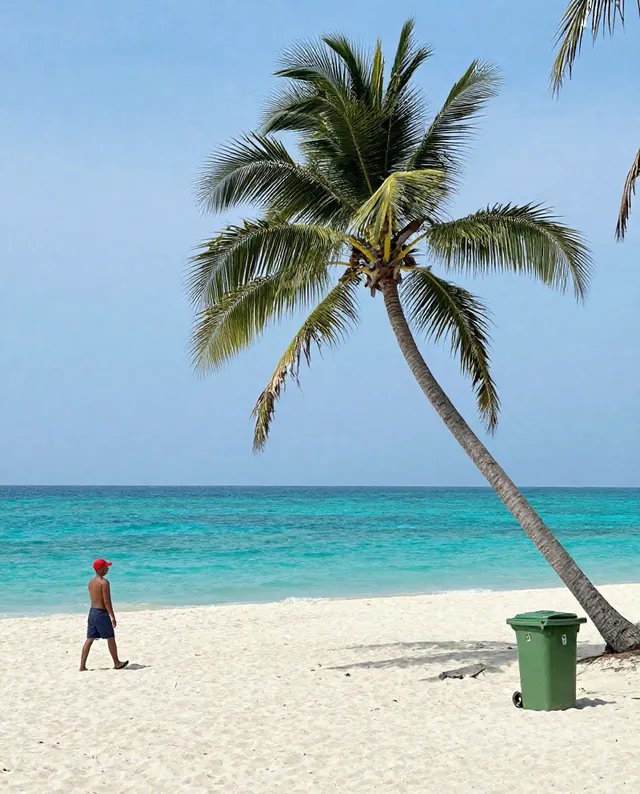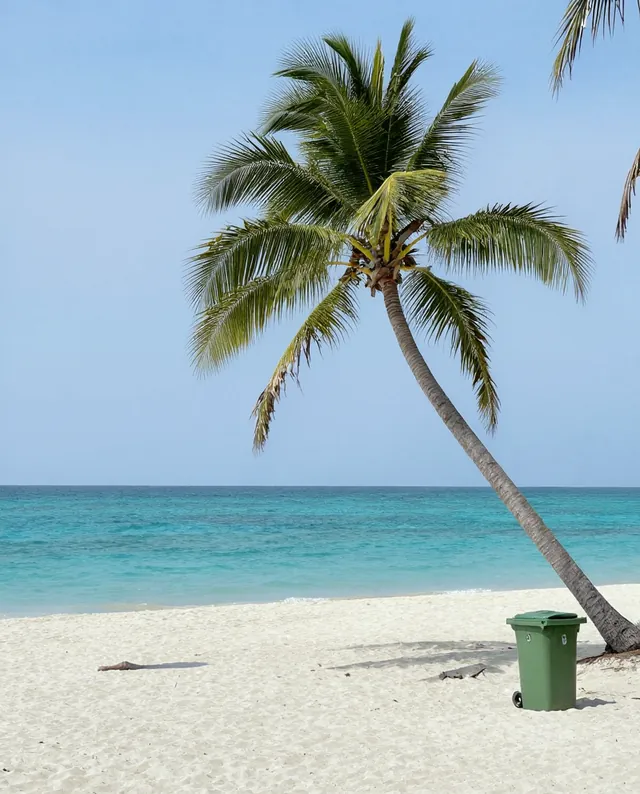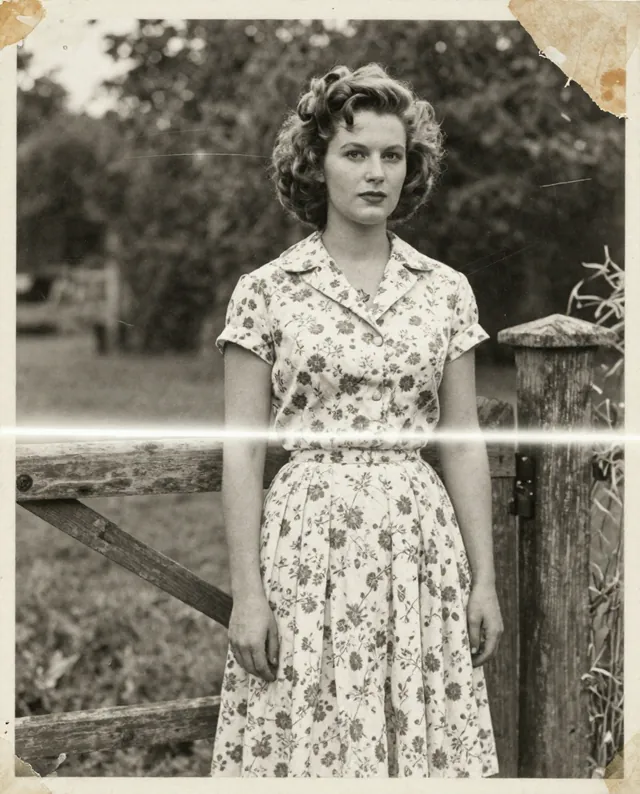
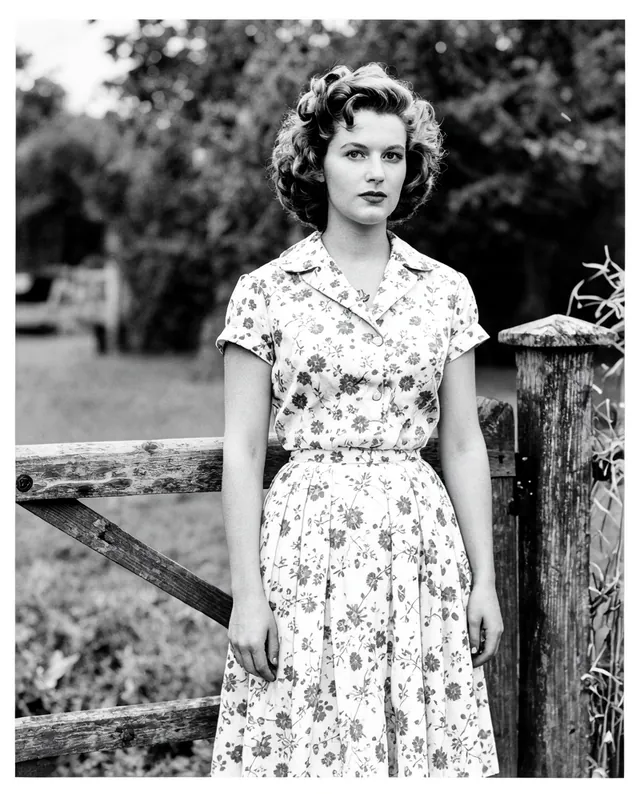
InputExample result
Example Example made on our own Mac with open models: Z-Image made the made-up input photo, FLUX.2 klein ran this prompt on it. Your result in the AI above will look different. How we make examples
Extend a photo into a wider frame
Make a photo wider or taller by letting AI paint in what's beyond the edges. You need the photo.
- You need
- 1 photo of yours
- Written for
- Gemini, ChatGPT
- Result
- Image
Prompt
Extend my attached photo to a ratio frame by adding new scenery beyond its edges. Keep the original photo exactly as it is in the middle, and continue the landscape, sky, ground and light outward so it looks like one continuous photo taken with a wider lens. Match the perspective, colors, grain and shadows exactly, and add only things that would plausibly be there, like extra. No new people, text or signs. If there are people in the photo, keep their faces, identity and proportions unchanged.
Extend the attached photo to a ratio frame (outpainting).
Keep: the original photo unchanged in the center.
Add: scenery that continues outward, such as extra, matching perspective, colors, grain and shadows.
Avoid: new people, text or signs; visible seams.
Constraints: if there are people, keep their faces, identity and proportions unchanged.
Fill in, or keep the brackets and change them later
ratio
extra
How to use it
- Open Gemini or ChatGPT and choose the image model.
- Attach the photo, paste the prompt and pick the new shape.
- See a seam? Ask it to 'blend the join between the old and new parts' and run it again.
What to expectEverything outside the original edges is invented, and the original area may shift slightly, so it's no longer a true record of the place.
Tips
- Nature and sky extend more convincingly than busy streets.
- Extend a little at a time for very large changes.
- Useful for turning a tall phone photo into a desktop wallpaper.
Editor: Ali Dezhami · Updated November 18, 2026