











Microsoft Authenticator not working? Start with the fixes that do not change your accounts: open and unlock the app, confirm the correct account, switch between Wi-Fi and mobile data, enable notifications, set the phone’s date and time automatically, update Authenticator, and restart the phone.
Do not remove an account, clear Authenticator’s stored data, or reinstall the app until you have confirmed a recovery route. You should have at least one of the following: the old phone, a compatible backup, another sign-in method, a recovery code, an active account session, or an administrator who can reset a work or school registration.
Microsoft recommends checking the network, app version, notification settings, battery optimization, device updates, VPN connection, and date and time before trying more disruptive repairs. Microsoft does not support Authenticator app versions more than 12 months old.
Account-safety warning: Clearing Authenticator’s app data removes every stored account and cannot be undone. Removing one account also prevents that device from verifying future sign-ins for the account.
Find Your Problem in This 60-Second Diagnostic
| What you see | Likely problem | Safest first action |
| No approval notification | Notification, network, battery, or device-registration issue | Open Authenticator manually |
| Six-digit code is rejected | Wrong account, incorrect device time, or an expiring code | Enable automatic date and time |
| App freezes or closes | Temporary app or operating-system problem | Force close, restart, and update |
| Problems started after changing phones | Backup, restoration, or registration issue | Check the old phone and backup |
| New phone with no backup or old phone | Account-recovery issue | Use another method or contact the account administrator |
| Only one work account fails | Organization policy or stale MFA registration | Contact the employer or school |
| Passwords disappeared from Authenticator | Retired password-autofill feature | Use Microsoft Edge or another password manager |
These categories reflect Microsoft’s current troubleshooting, backup, restoration, and account-removal guidance.
Microsoft Authenticator App Not Working? Try These Safe Fixes First
Try the following steps in order. Stop when Authenticator starts working.
1. Open and Unlock Authenticator Manually
Start a new sign-in attempt, then open Authenticator directly.
An approval request may be waiting inside the app even when no banner appears. A locked app or silent notification can also prevent the approval from being obvious.
2. Confirm the Correct Account
People often have several similar accounts in Authenticator:
- A personal Microsoft account
- A company Microsoft 365 account
- A school account
- A third-party account using the same email address
Check the full account name before entering a rotating code. A valid code generated for the wrong account will still be rejected.
3. Switch Between Wi-Fi and Mobile Data
Turn off Airplane Mode, then try another connection.
If Authenticator works over cellular data but not Wi-Fi—or the reverse—the issue may involve the network, a VPN, a firewall, or a captive Wi-Fi login page. Microsoft recommends switching networks and testing without a VPN when appropriate.
Do not disable security software or device-management controls required by an employer or school.
4. Turn On Automatic Date and Time
Authenticator’s rotating codes are time-sensitive. If the phone’s clock is inaccurate, a code can appear valid in the app but be rejected by the website.
Set the phone’s date, time, and time zone automatically. Restart the phone after changing the setting, then wait for a fresh code. Microsoft specifically connects “always expired” Authenticator notifications with an inaccurate or manually configured device clock.
5. Update Authenticator and the Phone
Install available updates for:
- Microsoft Authenticator
- iOS or Android
- Google Play Services on Android
- Microsoft Company Portal, when required by your organization
- Microsoft Defender or other organization-required security apps
Microsoft recommends keeping Authenticator, the device, and related managed-device applications current.
6. Restart the Phone
Restarting can clear a temporary notification, network, background-service, or app-state problem without removing any accounts.
Test Authenticator again before considering cache clearing, account removal, or reinstallation.
Related Contents:
How to Uninstall Microsoft Edge Safely
Is Microsoft Authenticator Down Today?
Do not reset Authenticator simply because an approval fails once. First determine whether the problem affects Microsoft services, your organization, one account, or only your phone.
Use this sequence:
- Check Microsoft’s public service-status information for known sign-in problems.
- For a work or school account, ask an administrator to check Health > Service health in the Microsoft 365 admin center.
- Test another account in Authenticator.
- Ask whether other users at the same employer or school are affected.
- Switch networks and open Authenticator manually.
Microsoft’s tenant-specific Service health page shows incidents and advisories affecting the organization. Microsoft also provides a public status page when a known issue prevents administrators from signing in to the admin center.
As a diagnostic clue, a problem affecting only one managed account is more likely to involve that account or its registration than the entire Authenticator service. An administrator may need to confirm this through tenant logs and service health.
Do not clear app data during a suspected service interruption. A local reset cannot fix a Microsoft-side or organization-wide outage.
Microsoft Authenticator Not Receiving Notifications
Check the account type before changing phone settings.
Authenticator push notifications can work with Microsoft personal accounts and eligible work or school accounts. Third-party accounts such as Google or Facebook do not receive Microsoft Authenticator push notifications; they normally use rotating verification codes instead. An organization can also disable push approvals for its users.
Open the App to Look for a Waiting Approval
Start a sign-in attempt and immediately open Authenticator.
If the approval appears inside the app, the account registration is probably functioning. Focus on notification delivery, sounds, Focus or Do Not Disturb settings, and background restrictions.
Enable Authenticator Notifications on iPhone
On current iPhone software:
- Open Settings.
- Tap Apps.
- Select Authenticator.
- Tap Notifications.
- Turn on Allow Notifications.
- Choose where the alerts should appear and whether they should make a sound.
Apple notes that individual app notifications can be enabled and customized from this screen.
Also check whether a Focus mode or another notification setting is silencing the alert.
Enable Authenticator Notifications on Android
Android settings vary by manufacturer, but the general route is:
- Open Settings.
- Tap Notifications.
- Tap App notifications.
- Select Authenticator.
- Enable its notifications and relevant notification categories.
Google notes that exact notification menus can vary by device.
Also check whether:
- Authenticator has been paused.
- Battery optimization is restricting it.
- Do Not Disturb is active.
- The app is installed inside a separate work profile.
- The work-profile version has separate notification or lock settings.
Do not disable all battery or security controls globally. Change only the setting that affects Authenticator.
Check Google Play Services for Work or School Accounts
For Android work or school push approvals, Microsoft requires Authenticator notifications, Google Play Services, and the Google Play Store to be downloaded and enabled.
Managed devices may also require a PIN or biometric lock, hardware encryption, work-profile protection, and valid device registration.
A phone may still display some rotating codes while managed push approvals fail.
Notifications Still Go to the Old Phone
Adding Authenticator to a new phone does not automatically unregister the old phone. Deleting the app from the old device is also not enough by itself; the old registration must be removed from the relevant Microsoft or organization security settings.
Use this sequence:
- Keep the old phone available.
- Sign in using the old phone or another method.
- Open the account’s security-information settings.
- Register the new phone.
- Complete a test approval.
- Remove the old device registration.
For a managed account, contact the organization’s help desk when you cannot update the registration yourself.
Security warning: Never approve a sign-in you did not start, and never provide an Authenticator code to someone who contacts you by phone, text, email, or chat.
Microsoft Authenticator Code Not Working or Not Appearing
First determine which verification method the sign-in page expects.
| Verification type | Typical account type | Internet required? | Common problem |
| Rotating Authenticator code | Microsoft or supported third-party account | Usually no | Wrong account or inaccurate device time |
| Push approval or number matching | Microsoft personal or work/school account | Yes | Notification or registration problem |
| SMS code | Depends on the provider | Yes | Delivery or outdated phone-number issue |
| Email code | Depends on the provider | Yes | Delay, spam filtering, or outdated address |
Microsoft confirms that third-party accounts use rotating codes rather than its push-notification system.
The Six-Digit Code Is Rejected
Check that:
- The account name matches the account you are signing into.
- Automatic date and time are enabled.
- You are entering the newest code.
- The code is not about to expire.
- The website is requesting an Authenticator code rather than an SMS or email code.
Wait for the next code when the current one is close to changing.
No SMS or Email Code Arrives
Check:
- Whether the masked phone number or email address is recognizable
- Text-message filtering or blocked unknown senders
- Email spam and junk folders
- Available inbox storage
- Whether another verification method is offered
Microsoft warns that repeated verification-code requests can lead to additional blocking or delays. Use another registered method when available instead of repeatedly requesting replacement codes.
No Code Appears Inside Authenticator
A Microsoft account may be configured for push or passwordless sign-in rather than a visible rotating code.
If the account is completely missing, it may not have been restored or added to the new phone. Reinstalling Authenticator will not reconstruct an account that was never backed up or re-registered.
Microsoft Authenticator Freezes, Crashes, or Won’t Open
Use this repair order:
- Force close Authenticator.
- Reopen it.
- Restart the phone.
- Update Authenticator.
- Update the operating system.
- Check whether the phone has sufficient free storage.
- On Android, consider clearing the app cache.
- Reinstall only after confirming a recovery route.
Clear the Android Cache Only After the Basic Fixes
If Authenticator still freezes after an update and restart, Android users can consider clearing its cache.
Android distinguishes between:
- Clear cache: Deletes temporary data.
- Clear storage or Clear data: Permanently deletes the app’s data.
Menu names vary by manufacturer.
Before tapping anything:
- Confirm that the button says Clear cache.
- Do not select Clear storage or Clear data.
- Reopen Authenticator and test it.
- Stop if the phone warns that accounts or app data will be erased.
When Reinstalling Is Appropriate
Reinstallation belongs near the end of the process.
Before uninstalling or offloading Authenticator, confirm at least one recovery route:
- A compatible Authenticator backup
- Access to the old phone
- Another working sign-in method
- The ability to repeat the original QR-code setup
- An administrator who can reset the work or school registration
Without one of these routes, reinstalling may leave the app operational but the accounts inaccessible.
Microsoft Authenticator Not Working After Moving to a New Phone
New-phone problems are usually caused by restoration or registration—not a routine app failure.
Microsoft Authenticator backups can only be restored to the same device type. An iOS backup cannot be restored on Android, and an Android backup cannot be restored on iOS.
| Situation | Best next step | Important limitation |
| Old phone works and backup exists | Restore, complete sign-ins, and test the new phone | Some accounts require re-verification |
| Old phone works but no backup exists | Register the new device manually | Requires current account access |
| Old phone is unavailable but backup exists | Restore on the same device type | Managed accounts may still need registration |
| No old phone and no backup | Use another method or account recovery | Administrator help may be required |
| Moving between iPhone and Android | Register accounts manually | Cross-platform backup restoration is unsupported |
| Work or school account appears after restore | Sign in again or contact IT | Only the account name may have been restored |
The Old Phone Still Works
Use this migration order:
- Confirm that Authenticator backup is enabled.
- Install Authenticator on the new phone.
- Restore or manually add the accounts.
- Complete any Sign in or Action required prompts.
- Test a real sign-in on the new phone.
- Add another permitted recovery method.
- Remove the old registration from the account’s security settings.
Do not erase or trade in the old phone before the new setup passes a test.
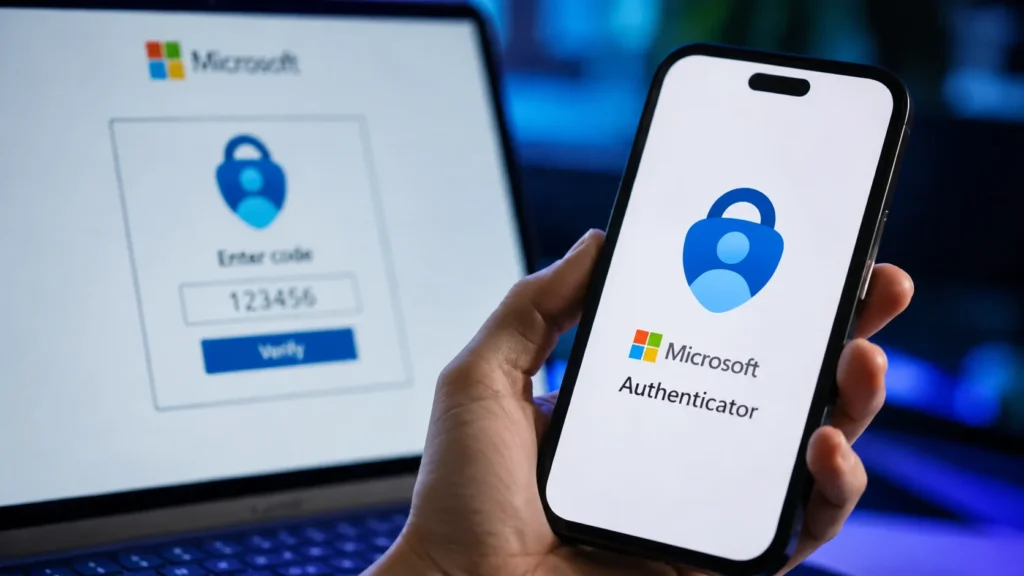
Microsoft Authenticator Not Working on a New iPhone
Microsoft’s iPhone backup process uses iCloud. Its current guidance requires the relevant iCloud features and Authenticator access in the device’s saved-to-iCloud settings.
On the new iPhone:
- Install Authenticator.
- Choose the recovery or restore option before adding unrelated accounts.
- Sign in with the same recovery account used for the backup.
- Complete any account-specific sign-in prompts.
- Enable Authenticator notifications.
- Test both rotating codes and push approvals where applicable.
A restored account that generates a code may still need separate registration for push approval or passwordless sign-in.
Microsoft Authenticator Not Working on a New Android Phone
On Android, cloud backup is stored using a selected personal Microsoft recovery account.
After restoring:
- Confirm that the expected accounts appear.
- Sign in again where prompted.
- Enable app notifications.
- Confirm Google Play Services is active for managed push approvals.
- Re-register work or school accounts when required.
Moving Between iPhone and Android
Cross-platform Authenticator restoration is not supported.
Use the old device or another sign-in method to open each account’s security settings and register the new device manually.
“Sign In to Restore Your Account” or “Action Required”
A backup does not always restore a fully usable sign-in method.
Microsoft’s current restoration rules include:
- A personal Microsoft account that only uses rotating codes can restore those codes.
- A passwordless personal account restores only the account name and requires sign-in again.
- A work or school account restores only the account name and requires sign-in again.
- Supported third-party rotating-code accounts can restore their codes.
Open each affected account and complete the additional verification. When the process requires an old work or school registration that is no longer available, use another method or contact the organization.
How to Regain Access With No Backup or Old Phone
There is no universal Authenticator reset that can reconstruct every lost account. The correct route depends on who controls the account.
You Have Another Verification Method
Choose Try another way or the equivalent option during sign-in. After regaining access:
- Open the account’s security settings.
- Register the new phone.
- Test Authenticator.
- Remove the lost device.
- Add a second permitted recovery method.
You Are Still Signed In on Another Device
Use the existing session to inspect or update the account’s security information.
Do not sign out until the replacement method has been added and tested. Some sensitive security changes may still require a fresh verification challenge.
It Is a Personal Microsoft Account
Use Microsoft’s Sign-in Helper and the security-information choices displayed during sign-in.
Microsoft Support agents cannot send verification codes or password-reset links, or directly access and change account details.
When two-step verification is enabled and none of the alternate methods are accessible, Microsoft states that its recovery options can be severely limited.
It Is a Work or School Account
Contact the employer’s or school’s help desk.
Microsoft advises users with a lost or stolen device to sign in with another method or ask the organization’s help desk to clear the old settings. The user is then prompted to register again.
It Is a Third-Party Account
Contact the service that originally displayed the QR code.
For example, a bank, retailer, hosting company, social network, or other platform controls its own recovery codes and two-factor authentication reset. Microsoft cannot reset another provider’s account configuration.
When a Work or School Administrator Must Reset MFA
Phone troubleshooting has probably reached its limit when:
- The old device was lost or erased.
- No alternative verification method appears.
- Push approvals still target the old phone.
- The restored account appears but cannot approve sign-ins.
- The Security Info page cannot be opened.
- Organization policy blocks self-service changes.
- Only the managed account fails while other accounts work.
An authorized Microsoft Entra administrator with at least the required Authentication Administrator permissions can use Require re-register MFA for another user.
Microsoft says this action removes registered phone numbers, Microsoft Authenticator apps, software OATH tokens, and deactivates hardware OATH tokens. The user is then required to configure a new MFA method.
This is an administrator action, not a setting ordinary users should expect to see.
Fix Specific Microsoft Authenticator Errors
| Error or symptom | What it usually means | Safe first action |
| Authentication did not complete | The app may be locked, notifications may be silent, the network may be unavailable, the app may be outdated, or device time may be wrong | Unlock Authenticator, check notifications and network access, update it, and correct the time |
| Enable push notifications to receive alerts | Authenticator lacks notification permission or network access | Enable notifications and confirm internet access |
| Google Play Services are unavailable | Android work or school push approvals cannot access required Google services | Enable or update Google Play Services and the Play Store |
| Something went wrong [4s8qz] | A temporary app, update, service, or managed-device problem may be interrupting sign-in | Wait briefly, open and update Authenticator, check Company Portal compliance, and restart |
| Code always expired | The phone’s clock is inaccurate or manually set | Enable automatic date, time, and time zone |
| Account tile is gray and inactive | It may be an inactive single-sign-on account created by another application | It can normally be ignored when no related sign-in is failing |
| Sign-in denied | Microsoft detected a discrepancy between reported GPS locations | Confirm location access and contact the organization when policy blocks sign-in |
| Device is rooted or jailbroken | Work or school Entra credentials are blocked on a modified device | Use a secured device or contact IT |
| QR code will not scan | Authenticator may be outdated, camera permission may be blocked, or the QR code may be invalid | Update the app, check camera permission, or use manual setup |
Microsoft’s current troubleshooting page documents these error categories and recommends submitting diagnostic feedback before contacting support when problems continue.
Authenticator Password Autofill Is No Longer Supported
If Authenticator still generates codes and approves sign-ins but no longer fills passwords, the authentication app is not necessarily broken.
Microsoft discontinued Authenticator password autofill in mid-August 2025. Passwords and addresses are no longer available in Authenticator, though synced passwords remain accessible through Microsoft Edge. Microsoft Authenticator continues to support authentication and Microsoft Entra passkeys.
Do not reinstall Authenticator to restore a feature that Microsoft retired.
When to Stop Troubleshooting and Contact Support
| Situation | Correct support route |
| Personal Microsoft account | Microsoft account Sign-in Helper or support |
| Employer account | Employer’s IT help desk |
| School account | School IT department |
| Third-party account | The service that issued the QR code |
| Several users at one organization are affected | Microsoft 365 administrator |
| App crashes for every account | Microsoft Authenticator feedback and support |
| Unrequested approvals appear | Account provider or organization security team |
Before contacting Microsoft or an administrator about a persistent app problem, use Send feedback inside Authenticator so diagnostic logs can be captured.
Never approve an unexpected request. Reject it, change the account password where appropriate, and review the account’s recent activity.
Prevent Another Microsoft Authenticator Lockout
After restoring access:
- Turn on Authenticator backup.
- Confirm the Android recovery account or required iCloud settings.
- Add more than one permitted sign-in method.
- Store recovery codes somewhere other than the protected phone.
- Register the replacement phone before erasing the old one.
- Test both push approvals and rotating codes.
- Confirm that managed accounts no longer target the old phone.
- Remove the old device from the account’s security settings.
Remember that work or school backup restores only the account name; it does not guarantee that the new phone is registered for approvals.
Frequently Asked Questions
Why Won’t Microsoft Authenticator Work?
Common causes include disabled notifications, an outdated or locked app, network problems, inaccurate device time, battery restrictions, incomplete new-phone registration, or an organization-specific security policy.
Start by opening the app, checking the account, switching networks, enabling notifications, setting automatic time, updating Authenticator, and restarting the phone.
Why Is Microsoft Authenticator Not Receiving a Code?
Identify whether the sign-in page expects a rotating code, push approval, SMS, or email.
A rejected rotating code often involves the wrong account or inaccurate phone time. A missing push approval usually involves notifications, internet access, or device registration. SMS and email codes are controlled by the account provider rather than Authenticator itself.
How Do I Reset Microsoft Authenticator?
Restarting the app or phone is safe. Removing an account, clearing app data, and reinstalling are different kinds of resets and should only be attempted after confirming a backup or another recovery method.
For a work or school account, an administrator may need to reset the MFA registration.
How Do I Regain Access on a New Phone With No Backup?
Use another registered sign-in method, an active signed-in session, a recovery code, or the account provider’s recovery process.
For a work or school account, contact the organization’s help desk. For a third-party account, contact the service that issued the original QR code.
Does Reinstalling Microsoft Authenticator Delete My Accounts?
Reinstallation can leave accounts unusable when no compatible backup or re-registration route exists.
Some rotating-code accounts can be restored from backup. Passwordless personal accounts and work or school accounts generally require sign-in or registration again.
Why Are Notifications Still Going to My Old Phone?
Adding Authenticator to the new phone does not automatically remove the old registration.
Register and test the new phone, then remove the old device from the personal Microsoft account or organization security settings. Simply deleting the app from the old phone is not enough.
Final Checklist: Restore Access Without Making the Problem Worse
- Identify whether the problem involves notifications, rotating codes, the app itself, or a new phone.
- Try safe, non-destructive fixes first.
- Confirm a backup or alternative sign-in method.
- Do not remove accounts or clear app data without a recovery route.
- Separate personal, work or school, and third-party recovery.
- Contact the organization when it controls the registration.
- Add a second recovery method after access is restored.