











To uninstall Microsoft Edge, open Settings > Apps > Installed apps, find Microsoft Edge, and select Uninstall if Windows provides that option.
On most US Windows PCs, however, the built-in stable version of Edge cannot be officially uninstalled because Microsoft treats it as a Windows component. When the Uninstall option is missing, you can still remove Edge from your everyday workflow by changing the default browser, stopping Edge from launching automatically, turning off Startup Boost, and removing its shortcuts.
Mac users can normally uninstall Microsoft Edge through Finder like any other separately installed application.
Can You Uninstall Microsoft Edge on Your Device?
The correct method depends on your operating system, Edge version, device management settings, and whether Windows displays an official Uninstall option.
| Situation | What to expect | Best next step |
| US or other non-EEA Windows PC with built-in Edge | The Uninstall option is usually unavailable | Change the default browser and disable unwanted Edge behavior |
| Windows PC with an active Uninstall option | Official removal is available on that device | Uninstall Edge through Windows Settings |
| Work or school computer | Administrator policies may control removal | Contact your IT administrator |
| Edge Beta, Dev, or Canary | The preview version may have a separate app entry | Check the complete application name |
| Mac | Edge is normally removable | Quit Edge and move it to the Trash |
| Website installed through Edge | Edge itself does not need to be removed | Uninstall the web app through edge://apps |
Use the controls displayed on your own device as the deciding factor. Do not assume that every Windows computer in the same country or region will offer identical removal options.
Windows 10 note: Standard Windows 10 support ended on October 14, 2025. Microsoft Edge and WebView2 Runtime may continue receiving updates on supported Windows 10 22H2 configurations for a limited period, but that does not restore full operating-system support. Do not disable Windows or browser updates to prevent Edge from returning.
Before You Uninstall Microsoft Edge
A few preparation steps can prevent lost passwords, missing bookmarks, broken links, and inaccessible web applications.
Install and Test Another Browser
Install your preferred replacement browser before changing or removing Edge.
Confirm that the new browser can:
- Open normal websites.
- Sign in to important accounts.
- Download files.
- Open links from email and other applications.
- Import the bookmarks and passwords you need.
You should also make the replacement browser your default before uninstalling or disabling Edge.
Back Up Favorites and Passwords
Confirm that your Edge favorites and other important data are synchronized or imported into the replacement browser.
To export saved passwords from Edge on a desktop computer:
- Open Microsoft Edge.
- Open the main menu or press Alt + F.
- Open the password-management section.
- Select the additional options menu.
- Choose Export passwords.
- Confirm the export and save the CSV file securely.
An exported password CSV is not encrypted. Anyone who can access the file may be able to read the passwords inside it.
After importing the passwords into your new browser or password manager, confirm that the transfer worked and permanently delete the CSV file.
Check Whether Your Computer Is Managed
A work or school computer may use administrator policies that prevent Edge from being removed or automatically reinstall it.
Stop and contact your administrator if:
- Windows says settings are managed by your organization.
- You cannot change default applications.
- Edge returns automatically.
- Internal websites require Edge.
- Administrator credentials are needed.
Do not attempt to bypass organization policies by deleting registry keys or running unapproved scripts.
Review Edge-Dependent Apps
Edge is also used as a platform for some web applications and Windows features.
Before removal, check whether you use:
- Progressive web apps.
- Websites installed as applications.
- Windows widgets.
- Copilot web experiences.
- Web results in Windows Search.
- Workplace tools that rely on Edge or Internet Explorer mode.
Read More:
How to Uninstall Microsoft Edge on Windows 11 or 10
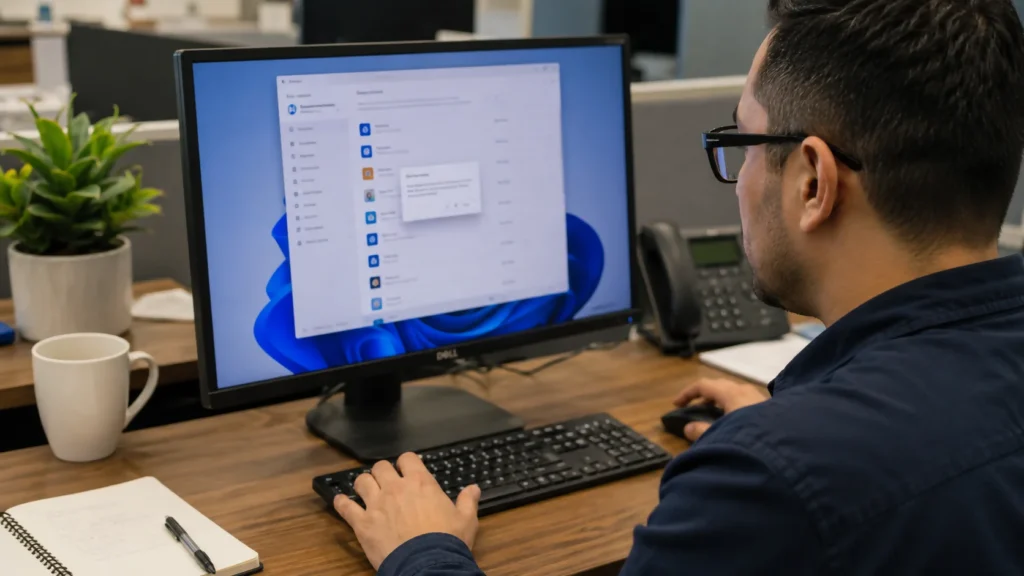
Use the official Windows Settings method when the Uninstall option is available.
- Close every open Microsoft Edge window.
- Open Start > Settings.
- Select Apps.
- Open Installed apps in Windows 11.
- On Windows 10, open Apps & features.
- Find Microsoft Edge.
- Open the three-dot menu or application options.
- Select Uninstall.
- Confirm the removal.
- Restart Windows if prompted.
- Test a web link to confirm that it opens in your replacement browser.
If the Edge entry shows Modify but not Uninstall, Windows is not offering normal removal on that device.
Use Modify when your real problem is Edge crashing, failing to open, or behaving incorrectly.
What to Do If the Uninstall Button Is Missing
A missing or greyed-out Uninstall button usually means that:
- Edge is treated as a built-in Windows component.
- Your Windows configuration does not support official removal.
- An administrator manages the device.
- You are viewing the built-in stable browser rather than a separately installed preview version.
Do not delete Edge program folders manually. Manual deletion can leave registered components, broken shortcuts, incomplete update records, and files that Windows still expects to find.
How to Remove Microsoft Edge From Windows
Removing Edge does not always require deleting the browser completely.
When Windows does not provide an Uninstall option, you can remove Microsoft Edge from your normal workflow by changing browser defaults, stopping automatic startup, and removing visible shortcuts.
Remove Microsoft Edge as the Default Browser
To stop ordinary web links from opening in Edge:
- Open Settings.
- Select Apps > Default apps.
- Search for your preferred browser.
- Select the browser.
- Choose Set default, when available.
- Review individual file and link associations if Windows lists them separately.
- Test a link from an email, document, or messaging application.
This leaves Edge installed for Windows features that may use it while directing everyday browsing to your chosen browser.
Remove Microsoft Edge From Startup
Review the applications configured to start automatically:
- Open Settings.
- Select Apps > Startup.
- Look for Edge or applications that may launch Edge.
- Turn off unwanted startup entries.
Not every Edge launch is controlled through the Startup list. Windows restartable-app settings and Edge Startup Boost can also cause Edge processes or windows to return.
Remove Microsoft Edge From the Taskbar and Start Menu
To remove visible Edge shortcuts:
- Right-click the Edge taskbar icon and select Unpin from taskbar.
- Right-click Edge in the Start menu and select Unpin from Start.
- Delete the Edge desktop shortcut if one is present.
Unpinning Edge removes the shortcut only. It does not uninstall the application.
Remove a Website Installed Through Microsoft Edge
A website installed through Edge can appear and behave like a separate application.
To remove it:
- Open Microsoft Edge.
- Enter edge://apps in the address bar.
- Find the application.
- Select Details.
- Choose Uninstall.
- Decide whether to remove its local history and data.
You do not need to uninstall the Edge browser to remove an Edge-installed website app.
How to Disable Microsoft Edge Without Uninstalling It
For many users, “disable Microsoft Edge” means stopping it from launching, running in the background, or taking over ordinary web links.
| What you want Edge to stop doing | Best action |
| Opening normal web links | Change the default browser |
| Reopening after Windows sign-in | Turn off restartable apps |
| Preloading in the background | Turn off Startup Boost |
| Appearing on the taskbar or Start menu | Unpin its shortcuts |
| Opening an installed website app | Remove the web app |
| Crashing or showing blank pages | Repair Edge |
Stop Microsoft Edge From Opening Automatically
Windows may reopen Edge after sign-in when restartable applications are enabled.
To change this setting:
- Open Settings.
- Select Accounts > Sign-in options.
- Find the restartable-app setting.
- Turn off Automatically save my restartable apps and restart them when I sign in.
This setting affects other restartable applications as well as Edge.
Turn Off Microsoft Edge Startup Boost
Startup Boost keeps minimal Edge processes running in the background so the browser opens more quickly.
To turn it off:
- Open Microsoft Edge.
- Enter the following address:
edge://settings/system/manageSystem
- Turn Startup Boost off.
Turning off Startup Boost does not uninstall or fully disable Edge. It stops Edge from preloading its core processes for faster startup.
Stop Edge From Running in the Background
In the same Edge system settings area, review any option that allows extensions or applications to continue running after Edge closes.
Turn off unwanted background activity, but remember that menu names can change between Edge versions.
Prevent Edge From Reopening After Sign-In
If Edge still opens after changing the restartable-app and Startup Boost settings, check:
- Windows startup applications.
- Edge-installed web apps.
- Browser extensions.
- Workplace applications.
- Programs that deliberately open web links in Edge.
- Tasks restored after an unexpected shutdown.

Why Can’t I Uninstall Microsoft Edge?
Microsoft treats the built-in stable version of Edge differently from an ordinary downloaded application on many Windows systems.
Edge Is a Built-In Windows Component
Microsoft describes Edge as the default Windows browser and a component that supports web-based Windows experiences.
On affected systems, Windows does not provide the same removal control used for ordinary third-party applications.
Your Windows Configuration Does Not Allow Removal
Microsoft documents region-based removal controls for certain Windows configurations, including specific managed-device scenarios.
That does not mean every consumer computer in an eligible region will display the Uninstall option.
Use the controls available on your own installation rather than changing region settings or copying a workaround from another device.
Your Device Is Managed by an Organization
An administrator may prevent removal or automatically restore Edge.
The organization may need the browser for:
- Internal websites.
- Security policies.
- Single sign-on.
- Web applications.
- Internet Explorer compatibility.
- Device-management tools.
Edge and WebView2 Are Different Components
Do not confuse the Microsoft Edge browser with Microsoft Edge WebView2 Runtime.
WebView2 is a separate component that allows desktop applications to display web content. Applications such as Microsoft 365 and other Windows programs may depend on it.
Removing the Edge browser does not necessarily remove WebView2. Removing WebView2 by mistake may affect unrelated applications.
What Can Stop Working After Microsoft Edge Is Removed?
Even a supported uninstall can affect applications or Windows experiences that depend on Edge technology.
| Feature | Possible effect | What to check |
| Progressive web apps | The application may stop opening | Review installed web apps |
| Websites installed as apps | Dedicated windows or shortcuts may fail | Remove or migrate the app |
| Windows widgets | Some content may stop loading | Test the Widgets board |
| Copilot web experiences | Certain integrations may be unavailable | Check current Microsoft guidance |
| Windows web search | Web-result behavior may change | Test Windows Search |
| Link associations | Links may open in the wrong application | Recheck Default apps |
Removing Edge does not mean that every Windows feature will stop working. It means you should identify the Edge-based applications you use before deciding that complete removal is worth the tradeoff.
How to Uninstall Microsoft Edge Using Command Prompt
Microsoft does not provide a universal consumer Command Prompt command that safely removes the built-in stable version of Edge from every Windows 10 or Windows 11 computer.
Older tutorials may show Command Prompt, PowerShell, registry, or installer-folder methods. These instructions may be:
- Written for an older Edge version.
- Dependent on a specific installer path.
- Blocked by current Windows protections.
- Reversed by Windows servicing.
- Capable of leaving an incomplete installation.
- Difficult for a beginner to undo.
For these reasons, the official Settings method should be used whenever Windows provides it.
Why Older Command Prompt Methods May Fail
Edge updates can change:
- Version numbers.
- Installer paths.
- Permissions.
- Registered components.
- Update behavior.
- Windows integration.
A command that worked on one computer or an older Edge release may fail on another system.
Risks of Registry and Manual Folder Removal
Registry or manual file-removal methods can cause:
- Broken browser associations.
- Missing shortcuts.
- Failed Edge updates.
- Incomplete uninstallation.
- Problems with dependent applications.
- Difficulty reinstalling or repairing Edge.
Do not delete random Edge or WebView2 folders.
Are One-Click Edge Uninstallers Safe?
Third-party uninstallers may automate a normal uninstall process, search for leftover files, or run unsupported removal routines.
Before trusting one, check whether it:
- Clearly identifies its publisher.
- Explains what files and settings it removes.
- Creates a usable backup.
- Requires administrator access.
- Installs unrelated software.
- Asks you to disable Windows Update or security tools.
- Provides a documented recovery method.
- Has independent evidence supporting its claims.
A one-click tool does not make an unsupported removal method officially supported.
How to Uninstall Microsoft Edge on Mac
Microsoft Edge is normally installed as a separate application on macOS.
- Quit Microsoft Edge.
- Open Finder.
- Select Applications.
- Find Microsoft Edge.
- Drag it to the Trash, or Control-click it and choose Move to Trash.
- Enter an administrator name and password if macOS requests them.
- Empty the Trash when you are ready to remove the application permanently.
Removing the Edge application does not necessarily erase data that has already synchronized with your Microsoft account.
Back up important favorites and passwords before deleting the application. Avoid manually deleting Edge-related Library folders unless you understand exactly what data they contain.
Troubleshooting Microsoft Edge Removal Problems
Microsoft Edge Keeps Reinstalling
Edge may return when:
- An unsupported workaround deleted files without completing a recognized uninstall.
- Windows restores a required component.
- An organization policy reinstalls it.
- An update repairs an incomplete installation.
Do not disable security updates to prevent Edge from returning.
Web Links No Longer Open
If links stop opening after Edge is removed or disabled:
- Confirm that your replacement browser is installed.
- Open Settings > Apps > Default apps.
- Set the replacement browser as default again.
- Test normal web links and saved HTML files.
- Repair or reinstall the replacement browser if Windows cannot find it.
Microsoft Edge Keeps Opening Automatically
Review:
- Restartable-app settings.
- Windows startup applications.
- Edge Startup Boost.
- Background application settings.
- Edge-installed web apps.
- Workplace programs that deliberately open Edge.
You Removed the Wrong Edge Component
An Edge-related application entry may refer to:
- Microsoft Edge Stable.
- Edge Beta.
- Edge Dev.
- Edge Canary.
- An Edge-installed website app.
- Microsoft Edge WebView2 Runtime.
Check the complete application name before removing anything.
How to Repair or Reinstall Microsoft Edge
Uninstalling Edge is usually the wrong first step when the browser crashes, displays blank pages, or refuses to open.
Try these actions first:
- Update Microsoft Edge.
- Restart the browser.
- Restart Windows.
- Disable problematic extensions.
- Clear relevant browsing data.
- Test another Edge profile.
- Check security or network software.
To repair Edge in Windows:
- Close Edge for every signed-in user.
- Open Settings > Apps > Installed apps.
- Find Microsoft Edge.
- Select Modify.
- Approve the prompt.
- Follow the repair instructions.
If Modify is unavailable, the device may be managed by an organization.
If Edge is no longer installed, download it again from Microsoft’s official Edge download page rather than using an unknown third-party installer.
FAQs
Can Microsoft Edge Return After an Update?
Yes. This is most likely after an unsupported workaround rather than an official uninstall. Windows may restore missing or damaged components during servicing or repair.
Is Unpinning Edge the Same as Uninstalling It?
No. Unpinning Edge only removes a shortcut from the taskbar or Start menu. The browser remains installed.
Can I Uninstall Edge Beta, Dev, or Canary?
A separately installed preview version may have its own entry under Installed apps. Check the complete application name before removing it.
Can I Remove Edge From a Work or School Computer?
Only when your organization allows it. Contact IT when Edge is managed, automatically restored, or required by internal websites and applications.
Can I Permanently Delete Microsoft Edge?
When Windows provides an official Uninstall option, use it. When that option is missing, Microsoft does not provide a supported universal method for permanently deleting the built-in stable browser.
Final Checklist Before Removing Microsoft Edge
Confirm that:
- Another browser is installed and tested.
- The replacement browser is set as default.
- Favorites and passwords have been transferred.
- Any exported password CSV has been securely deleted.
- Edge-installed web apps have been reviewed.
- You are removing Edge rather than WebView2 Runtime.
- The computer is not controlled by a work or school policy.
- Windows displays an official Uninstall option.
- Windows and browser security updates will remain enabled.
- You know how to repair or reinstall Edge.
When Windows does not provide an Uninstall option, changing the default browser, turning off Edge startup behavior, and removing its shortcuts is the lowest-risk way to remove Edge from your everyday workflow.