













To delete downloads on a Mac, open Finder and choose Downloads from the sidebar or press Option+Command+L. Select the files you no longer need, then press Command+Delete to move them to Trash. Review the files before emptying Trash, because items removed from Trash are permanently deleted.
- Open the Downloads folder.
- Select one or more files.
- Press Command+Delete.
- Review the files in Trash.
- Empty Trash only when you are ready to remove them permanently.
Clearing Chrome, Safari, or Firefox’s download list is a different action. It may remove the browser’s record without deleting the file stored on your Mac.
Before You Delete Anything: Choose the Right Action
Mac users often use “delete a download” to describe several different tasks. Choose the action that matches what you actually want to remove.
| What you want to remove | Correct action | Frees Mac storage? | Usually reversible? |
| One downloaded file | Delete it through Finder | After Trash is emptied | Yes, before Trash is emptied |
| Multiple or all downloads | Select them in Finder and move them to Trash | After Trash is emptied | Yes, before Trash is emptied |
| A browser download record | Clear the browser’s Downloads list | No | The stored file is unaffected |
| A .dmg or .pkg installer | Delete the installer file | After Trash is emptied | Yes, before Trash is emptied |
| An installed application | Uninstall it from Applications | Usually | Sometimes |
| Files already in Trash | Empty Trash | Yes | Usually no |
The most common mistake is clearing a browser’s download history and assuming the actual file has been deleted. Chrome and Firefox explicitly distinguish removing a history entry from deleting the file on disk.
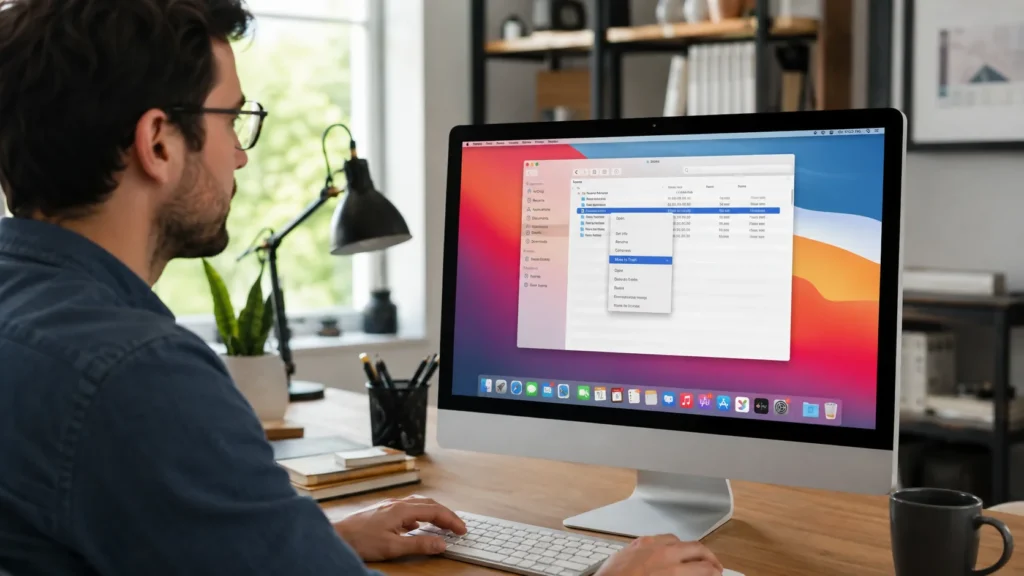
How to Delete Downloads on a Mac Using Finder
Finder is the simplest method for deleting downloaded files. You do not need a separate cleanup application for routine file removal.
Delete One Download
- Open Finder from the Dock.
- Select Downloads in the sidebar.
- Click the file you want to remove.
- Press Command-Delete.
You can also drag the file to the Trash icon in the Dock. It remains in Trash until you empty it, giving you an opportunity to restore it if you selected the wrong file. To restore it, open Trash, select the item, and choose File > Put Back.
Delete Multiple or All Downloads at Once
Use the selection method that fits the files you want to remove:
- Hold Command and click files that are not next to each other.
- Click the first file, hold Shift, and click the last file to select a continuous range.
- Press Command-A to select every item in the Downloads window.
Press Command-Delete after making your selection. Apple documents Command-click for separate items, Shift-click for adjacent items, and Command-A for selecting every item in the active window.
Review the selection carefully before using Command-A. A Downloads folder may contain important documents alongside duplicate files, old installers, and temporary exports.
Related Contents:
How to Uninstall Microsoft Edge Safely
Delete a Downloaded File From the Desktop
Files saved directly to the Desktop can be deleted in the same way:
- Select the file.
- Press Command-Delete.
- Review it in Trash before permanently removing it.
How to Delete Downloads Without a Mouse
You can complete the process using keyboard shortcuts:
- While using Finder, press Option-Command-L to open Downloads.
- Use the arrow keys to highlight a file, or press Command-A to select everything.
- Press Command-Delete to move the selected files to Trash.
- Review Trash.
- Press Shift-Command-Delete only when you are ready to empty it.
| Task | Keyboard shortcut |
| Open Downloads in Finder | Option-Command-L |
| Select all items | Command-A |
| Move selected items to Trash | Command-Delete |
| Empty Trash | Shift-Command-Delete |
| Empty Trash without confirmation | Option-Shift-Command-Delete |
Apple lists each of these Finder shortcuts in its current Mac keyboard guidance.
Avoid the no-confirmation shortcut unless you have already reviewed Trash. It removes the usual warning that may help you catch an accidental deletion.
How to Permanently Delete Downloads and Free Storage
Moving a file to Trash does not permanently delete it. Files moved from local Mac storage remain there until Trash is emptied.
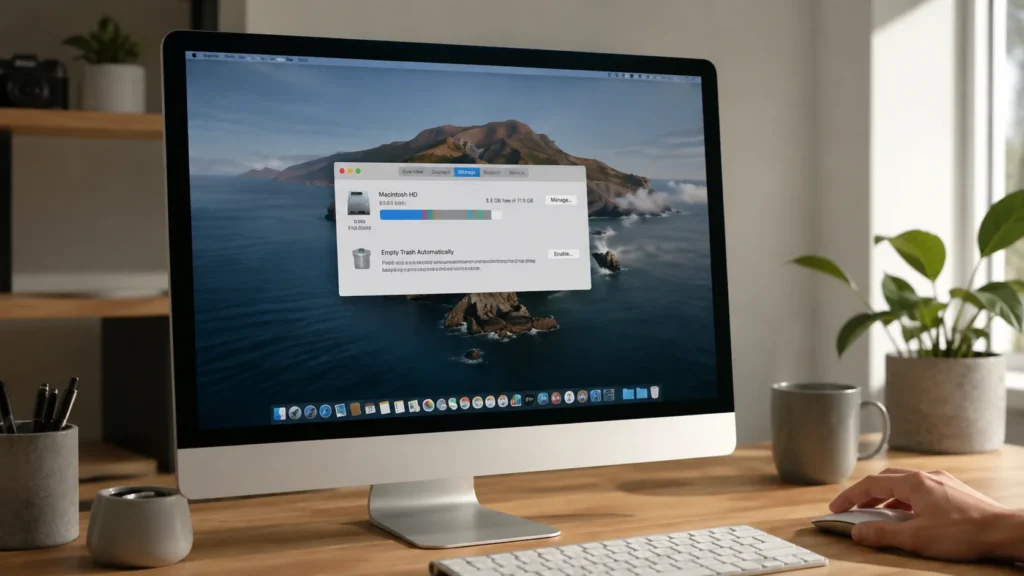
Empty Trash to Reclaim Storage
To empty all of Trash:
- Open Trash from the Dock.
- Review the files.
- Click Empty in the upper-right corner.
You can also choose Finder > Empty Trash or press Shift-Command-Delete.
Permanent-deletion warning: Items emptied from Trash are no longer available through Finder. Check for important documents, photos, installers, recovery files, and other irreplaceable content before continuing.
To remove only one item:
- Open Trash.
- Control-click the file.
- Select Delete Immediately.
- Confirm the deletion.
Apple supports deleting one Trash item without emptying everything else.
Permanently Delete Files With a Keyboard Shortcut
For most users, the safest shortcut is Shift-Command-Delete, used after reviewing Trash.
Apple also provides Option-Shift-Command-Delete, which empties Trash without displaying a confirmation dialog. Use it only when you are certain that every item in Trash can be permanently removed.
Automatically Empty Trash After 30 Days
To automatically remove files after they have been in Trash for more than 30 days:
- Open Finder.
- Choose Finder > Settings.
- Select Advanced.
- Enable Remove items from the Trash after 30 days.
Automatically removed files are permanently deleted. This setting affects Trash rather than deleting files directly from the Downloads folder.
How to Delete Chrome Downloads on a Mac
Chrome downloads are files stored on your Mac. Chrome also keeps a separate history list showing what you downloaded.
Delete the Actual File
- Open Chrome.
- Select More > Downloads.
- Point to the file name and select Show in Folder.
- Select the file in Finder.
- Press Command-Delete.
Chrome’s default Mac download location is /Users/<username>/Downloads unless you changed it under Chrome > Settings > Downloads.
To free storage, delete the file in Finder. Removing only its Chrome history entry will not remove the stored file.
Remove a File From Chrome’s Download History
- Open More > Downloads.
- Find the item.
- Select Remove beside it.
Google states that this removes the item from Chrome’s Downloads page, not from the computer.
Clearing Chrome’s broader download history has the same limitation: it deletes the list of downloaded files but leaves the actual files on the Mac.
Safari and Firefox: Clear the List or Delete the File?
Safari and Firefox also distinguish between browser records and stored files.
| Browser | Remove the download record | Locate or delete the actual file |
| Safari | Open the Downloads list and select Clear, or Control-click an item and choose Remove From List | Select the magnifying-glass icon beside the download to reveal it in Finder, then delete it there |
| Firefox | Select Clear Downloads or Remove From History | Control-click the entry and select Delete, or use the magnifying-glass control to reveal it in Finder |
Safari lets you change the save location under Safari > Settings > General > File download location. Its Downloads list can be cleared without deleting the stored file.
Firefox states that Remove From History and Clear Downloads leave downloaded files on disk, while Delete removes the selected file.

How to Delete a Downloaded Program or Installer
A downloaded installer and an installed application are separate items.
| Item | What it is | What removing it does |
| .dmg file | Downloaded disk image | Removes the installer file |
| .pkg file | Downloaded installation package | Removes the package file |
| Mounted disk image | Temporary installer volume in Finder | Ejecting closes the mounted volume |
| Application in Applications | Installed app | Removes the application when correctly uninstalled |
Delete a DMG or PKG Installer
After confirming that the application installed correctly:
- Open Downloads.
- Select the .dmg or .pkg file.
- Press Command-Delete.
- Empty Trash when you are ready.
Deleting an installer does not normally remove an application that has already been installed in Applications.
Uninstall the Installed Application
- Open Finder > Applications.
- Find the application.
- Check whether its folder contains an Uninstall or Uninstaller tool.
Apple recommends using an included uninstaller when available because it may also remove login items, extensions, or other data stored outside the Applications folder. If no uninstaller exists, select the application and choose File > Move to Trash.
Deleting an application does not automatically remove documents created with it or cancel a subscription purchased through it.
Eject a Mounted Installer
Opening a .dmg can create a mounted disk image that appears in Finder.
Select the mounted volume and press Command-E to eject it. Ejecting closes the mounted installer; it does not delete the original .dmg or uninstall the application. Apple lists Command-E as the shortcut for ejecting a selected disk or volume.
Should You Clear the Downloads Folder?
You do not need to keep every file in Downloads, but deleting everything without reviewing it creates unnecessary risk.
Files often worth reviewing for deletion include:
- Duplicate documents, images, or archives.
- Old .dmg and .pkg installers.
- Temporary exports.
- Large videos you no longer need.
- Files already moved to a permanent folder.
- Outdated versions that have been replaced.
Check more carefully before deleting:
- Work or school documents.
- Tax, financial, or legal records.
- Original photos and videos.
- Purchased downloads.
- License keys and recovery files.
- Files that are not backed up.
- Installers that may no longer be available.
Before deleting a file, ask:
- Is this the only copy?
- Would it be difficult to download again?
- Is it tied to work, school, tax, or legal records?
- Has it been backed up?
- Do I know what application created it?
When uncertain, move the file to an organized folder instead of permanently deleting it.
Find Downloads That Are Not in the Downloads Folder
A downloaded file may be somewhere else if the browser or application uses a custom save location.
Check:
- Desktop
- Documents
- iCloud Drive or another cloud folder
- External drives
- The browser’s configured download location
You can also:
- Press Command-F in Finder and search for the file name.
- Open the browser’s Downloads page.
- Use Show in Folder, Show in Finder, or the magnifying-glass control where available.
Chrome, Safari, and Firefox each provide controls for revealing downloaded files or changing their save location.
For an optional storage-based view, open System Settings > General > Storage. Apple’s Storage tools can show downloads and large files and sort them by properties such as name, kind, last accessed date, or size.
Common Mistakes to Avoid
| Mistake | What happens | Better action |
| Clearing Chrome’s download list | The stored file remains | Delete the file through Finder |
| Clearing Safari or Firefox download records | The file may remain | Locate and delete the stored file |
| Deleting a .dmg and expecting the app to disappear | The installed app remains | Uninstall it from Applications |
| Moving files to Trash and stopping | They remain in Trash | Review and empty Trash |
| Selecting everything without checking | Important files may be included | Sort and review first |
| Emptying Trash immediately | Accidental deletion becomes harder to correct | Inspect Trash first |
| Deleting the Downloads folder itself | It can disrupt the normal workflow | Delete unwanted contents instead |
| Using a destructive command for a basic task | A wrong path can affect unrelated files | Use Finder for routine deletion |

Troubleshooting Downloads That Will Not Delete
The File Is Open or in Use
Close any application that may be using the file, including a media player, PDF editor, installer, or cloud-sync application. Then try moving it to Trash again.
If macOS says that an application is in use, Apple recommends confirming that the app is closed and restarting the Mac if necessary.
The File Is Locked
- Select the file.
- Choose File > Get Info, or press Command-I.
- Clear the Locked checkbox.
- Try deleting the file again.
Apple documents this process for unlocking files before moving them to Trash. Administrator authorization may be required.
You Do Not Have Permission
Check whether:
- The file belongs to another user account.
- Your account can modify the file.
- The Mac is managed by an employer or school.
- Administrator authorization is required.
On a managed Mac, contact the administrator rather than attempting to bypass access controls.
Available Storage Did Not Increase
Check these points in order:
- Empty Trash. The files may still be stored there.
- Confirm that the actual file was deleted. Clearing a browser record does not free file storage.
- Check the file size. Removing a few small files may not produce a noticeable change.
- Confirm the storage location. Deleting a file from an external drive does not free internal Mac storage.
- Reopen Storage settings. Storage calculations may need to refresh.
Apple recommends deleting unneeded files from Downloads and provides Storage settings for reviewing large files and downloads.
You Deleted the Wrong File
Before emptying Trash:
- Open Trash.
- Select the file.
- Choose File > Put Back.
Apple supports restoring local files this way before Trash is emptied. After an item has been permanently removed, Finder can no longer put it back.
Frequently Asked Questions
How do I clear all Downloads on a Mac?
Open Downloads, press Command-A, and then press Command-Delete. Review the selected files in Trash before emptying it.
Does deleting Downloads free storage on a Mac?
Moving files to Trash does not permanently remove them. Empty Trash after reviewing it to make the space used by the deleted local files available again.
Does clearing Chrome Downloads delete the files?
No. Chrome’s Remove option deletes the entry from its Downloads page, not the file from your computer.
Can I delete an installer after installing the app?
Usually, yes—after confirming that the application installed correctly and opens normally. Deleting the .dmg or .pkg removes the installer, not the installed application.
Final Download-Cleanup Checklist
- Confirm whether you are deleting a file, browser record, installer, or application.
- Review important files before using Command-A.
- Delete unwanted files through Finder.
- Inspect Trash before permanently removing anything.
- Empty Trash only when you are ready.
- Check custom browser download locations.
- Uninstall applications separately from their installers.
- Restore accidental deletions before emptying Trash.
- Back up files that cannot be replaced.
- Use Finder rather than risky command-line deletion for routine cleanup.
Resources:
Apple: Delete Files and Folders on Mac
Apple: Delete or Uninstall Apps on Mac