
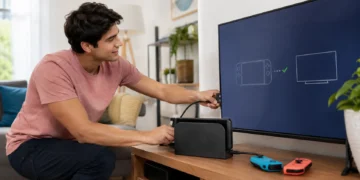



To connect Switch 2 to a TV, use the Nintendo Switch 2 dock, the Nintendo Switch 2 AC adapter, and an Ultra High Speed HDMI cable. Connect the AC adapter to the dock, plug it into a wall outlet, connect the HDMI cable from the dock to your TV, place the console into the dock, and select the matching HDMI input on your TV.
If the TV says “No Signal,” do not replace the dock first. Check the TV input, dock power, HDMI cable type, and whether the console screen turns off when docked. Many Switch 2 TV setup problems come from using the wrong input, an old Nintendo Switch accessory, or an HDMI device between the dock and TV.
Nintendo’s official setup page lists the Nintendo Switch 2 console, Nintendo Switch 2 dock, Nintendo Switch 2 AC Adapter model NGN-01, and an Ultra High Speed HDMI cable as required for connecting the console to a TV or monitor using HDMI.
How to Connect Switch 2 to a TV
- Open the back cover of the Nintendo Switch 2 dock.
- Connect the Nintendo Switch 2 AC adapter to the dock.
- Plug the AC adapter into a wall outlet.
- Connect an Ultra High Speed HDMI cable from the dock to your TV.
- Place the Switch 2 console into the dock.
- Turn on the TV and choose the matching HDMI input.
When the console is docked correctly, the console screen should shut off and the image should appear on the TV. Nintendo’s official setup instructions say to turn on the TV and select the correct HDMI input after inserting the console into the dock.
If Your Switch 2 Says No Signal on TV, Check These First
Before changing display settings or buying a replacement dock, check these five things:
- Make sure the TV is on the same HDMI input that the dock is plugged into.
- Confirm the dock is connected to wall power.
- Use the Nintendo Switch 2 AC adapter or a compatible adapter that meets Nintendo’s power requirements.
- Use an Ultra High Speed HDMI cable, not the HDMI cable from the original Nintendo Switch.
- Connect the dock directly to the TV while troubleshooting, not through a soundbar, receiver, splitter, or capture card.
Nintendo’s no-video support page says to confirm the AC adapter is powerful enough, confirm the HDMI cable is Ultra High Speed, check that the console powers on, make sure vents are not blocked, reset the AC adapter, and connect directly to the TV if an external HDMI device is involved.
If the console works in handheld mode but never outputs to more than one TV after these checks, the dock, AC adapter, HDMI cable, or console may need service.
What You Need Before You Start
Before changing TV settings or buying accessories, check that you are using the right parts. Switch 2 TV mode is more specific than “any USB-C charger and any HDMI cable.”
| Item | Required? | Why It Matters | What to Check |
| Nintendo Switch 2 console | Yes | Sends the image to the TV through the dock. | Make sure it powers on in handheld mode. |
| Nintendo Switch 2 dock | Yes for official TV setup | Connects the console to HDMI and power. | Use the Switch 2 dock, not the original Switch dock. |
| Nintendo Switch 2 AC adapter | Yes | Powers the dock for TV mode. | Nintendo lists model NGN-01 for setup. |
| Ultra High Speed HDMI cable | Yes | Sends video and audio from the dock to the TV. | Use the included cable or a certified replacement. |
| TV or monitor with HDMI | Yes | Displays the Switch 2 output. | Remember which HDMI port you used. |
Nintendo says the original Nintendo Switch AC adapter cannot be used with the Nintendo Switch 2 dock to support TV mode because of different power output. Nintendo also says the HDMI cable included with the original Nintendo Switch is not Ultra High Speed and cannot be used to play Switch 2 in TV mode.
If you need a replacement HDMI cable, look for the official “Ultra High Speed HDMI Cable” name on the packaging or cable jacket. HDMI.org says certified Ultra High Speed HDMI cables use a certification label that can be scanned to verify certification status.
How to Connect Switch 2 to TV With HDMI
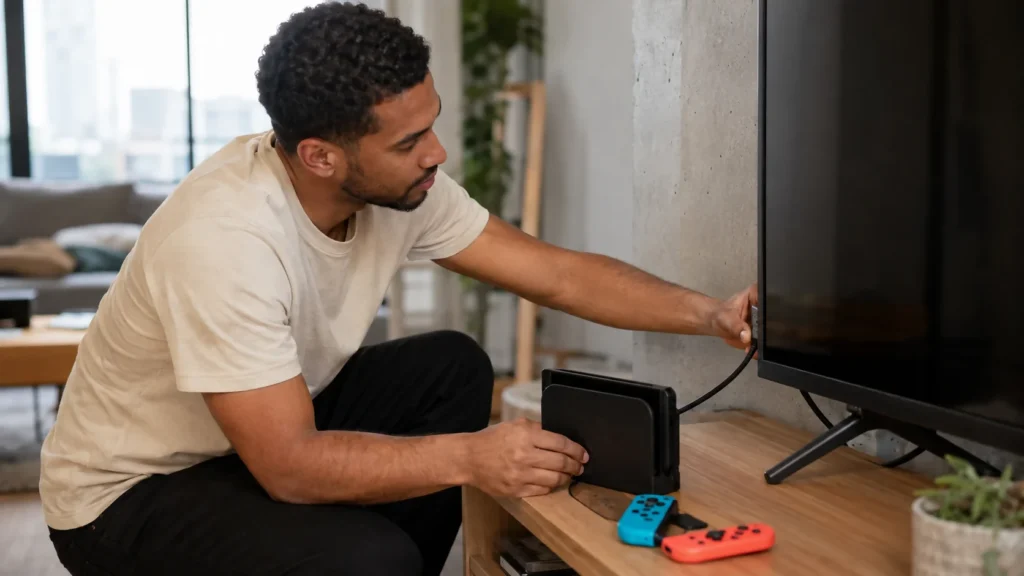
To connect Switch 2 to TV with HDMI, set up the dock, power, HDMI cable, and TV input in order. It is easier to avoid no-signal problems if the dock is fully connected before you test the console on the TV.
Step 1: Open the Back Cover of the Switch 2 Dock
Place the Nintendo Switch 2 dock near your TV with enough space around it for airflow. Open the back cover of the dock so you can reach the ports.
Avoid placing the dock inside a tight cabinet or directly next to a heat source. Nintendo’s no-video troubleshooting guidance tells users to make sure the console and dock are in an open, ventilated area and that vents are not blocked.
Step 2: Connect the Switch 2 AC Adapter
Plug the USB-C end of the Nintendo Switch 2 AC adapter into the AC adapter port on the dock. Then plug the AC adapter into a wall outlet.
This is not the best place to use a random phone charger. Nintendo recommends the Nintendo Switch 2 AC adapter model NGN-01 with the dock. Its no-video support page says another AC adapter and cable can be used only if the power output is at least 54W.
Step 3: Connect the Ultra High Speed HDMI Cable
Plug one end of the Ultra High Speed HDMI cable into the HDMI port on the back of the dock. Plug the other end into an HDMI port on your TV or monitor.
Use the HDMI cable that came with your Switch 2 if you still have it. If you are using a replacement cable, check the cable printing or packaging. Nintendo’s troubleshooting page says to confirm that the HDMI cable is an “Ultra High Speed” HDMI cable.
Step 4: Remember Which HDMI Port You Used
Look at the label beside the TV’s HDMI port. It may say HDMI 1, HDMI 2, HDMI 3, HDMI ARC, or something similar.
This small detail matters. If you plugged the dock into HDMI 2 but the TV is showing HDMI 1, the TV may show “No Signal” even though the Switch 2 is connected correctly.
Step 5: Place the Switch 2 Console Into the Dock
Position the Switch 2 console so the screen faces the same direction as the front of the dock, then gently insert it into the dock.
When the console is docked correctly, the console screen should shut off. Nintendo’s official setup instructions say the console screen shuts off when docked.
Step 6: Select the Correct HDMI Input on Your TV
Turn on the TV and use the Input, Source, or HDMI button on your remote. Choose the HDMI input that matches the port you used.
| If You Plugged Into | Choose This TV Input |
| HDMI 1 | HDMI 1 |
| HDMI 2 | HDMI 2 |
| HDMI 3 | HDMI 3 |
| HDMI port on receiver/soundbar | Try direct TV connection first if there is no image. |
If your setup uses an HDMI splitter, soundbar, receiver, or capture device and there is no image, connect the dock directly to the TV first. Nintendo recommends bypassing external HDMI devices during no-video troubleshooting.
Switch 2 vs Original Switch: What Not to Reuse
Many setup problems happen because the original Nintendo Switch and Nintendo Switch 2 look similar enough that people reuse old accessories. For TV mode, that can cause problems.
| Accessory | Can You Reuse It for Switch 2 TV Mode? | What to Know |
| Original Nintendo Switch dock | No | Use the Nintendo Switch 2 dock for the official setup. |
| Original Nintendo Switch AC adapter | No for Switch 2 dock TV mode | Nintendo says the original Switch AC adapter cannot support Switch 2 TV mode through the Switch 2 dock. |
| Original Nintendo Switch HDMI cable | No for Switch 2 TV mode | Nintendo says the original Switch HDMI cable is not Ultra High Speed. |
| Switch 2 dock | Yes | This is the official dock for Switch 2 TV setup. |
| Switch 2 AC adapter | Yes | Use the included adapter or a compatible adapter that meets Nintendo’s power requirements. |
| Ultra High Speed HDMI cable | Yes | Use the included cable or a certified replacement. |
The safest rule: if you are setting up Switch 2 on a TV, start with the accessories that came with the Switch 2. Only replace a cable or adapter after checking that the replacement meets Nintendo’s requirements.
Can You Connect Switch 2 to TV Without the Dock?
For the official TV setup, you should use the Nintendo Switch 2 dock. Nintendo’s documented setup uses the Switch 2 dock, Switch 2 AC adapter, and Ultra High Speed HDMI cable.
A third-party dock or USB-C-to-HDMI adapter is not automatically a safe replacement. Only consider one if the manufacturer clearly states Nintendo Switch 2 compatibility, lists the required power support, explains video-output support, and offers a reasonable return policy. Unverified low-cost docks are not worth the risk if they create power, heat, or compatibility problems.
| Method | Should You Use It? | Practical Advice |
| Official Nintendo Switch 2 dock | Yes | Best option for normal TV setup. |
| Official replacement Switch 2 dock | Yes, if available and verified | Useful for a second TV setup. |
| Reputable third-party dock | Use caution | Confirm Switch 2 compatibility and power requirements first. |
| Basic USB-C-to-HDMI adapter | Avoid as a default method | It may not support Switch 2 TV mode properly. |
| Unverified low-cost dock | Avoid | Power and heat issues can create unnecessary risk. |
The safest recommendation is simple: use the official dock unless you have confirmed that a third-party accessory is designed for Nintendo Switch 2 TV mode.
Can You Connect Switch 2 to TV Wirelessly?
Nintendo’s standard Switch 2 TV setup is not wireless. It uses the dock, power adapter, and HDMI cable.
Wireless HDMI kits may let an HDMI signal travel across a room without a long cable, but they are not the same as built-in wireless TV mode. They can add input lag, cost more than a certified HDMI cable, and introduce another device that can fail during setup.
| Goal | Better Choice |
| Lowest input lag | Official dock connected directly by HDMI |
| Most reliable setup | Official dock, official AC adapter, Ultra High Speed HDMI cable |
| TV is far from the dock | Longer certified HDMI cable or a better dock position |
| No visible cable across the room | Wireless HDMI only if you accept possible lag and compatibility tradeoffs |
For most players, especially in fast games, the official wired setup is the better choice.
Read More:
How to Uninstall Microsoft Edge
Can Nintendo Switch 2 Work With Any TV or Monitor?
Switch 2 can connect to a TV or monitor through HDMI, but not every display will support every feature. A basic HDMI TV can display the console, while 4K, HDR, and higher frame-rate output depend on the TV, cable, settings, and game.
Nintendo says Switch 2 TV mode supports up to 4K on compatible TVs, HDR in supported games, and frame rates up to 120 fps on compatible TVs. Nintendo also says 4K output is capped at 60 fps.
Using a TV
For a normal TV setup, check:
- The TV has at least one HDMI input.
- You know which HDMI port the dock is connected to.
- The TV input matches that port.
- The dock is connected directly to the TV while troubleshooting.
- The TV supports the resolution or refresh rate you are trying to use.
If the TV is older, start with basic output first. Do not troubleshoot 4K or HDR until you know the Switch 2 image appears on the screen.
Using a Monitor Instead of a TV
A monitor can work if it has HDMI input. The main thing to watch is audio. Some monitors have weak speakers, no speakers, or no easy audio output.
| Monitor Feature | Why It Matters |
| HDMI input | Needed for dock connection. |
| Built-in speakers | Needed if you want sound from the monitor. |
| Headphone jack or audio output | Useful if the monitor has no speakers. |
| 1080p, 1440p, or 4K support | Affects image clarity and display options. |
| 120Hz support | Needed for 120 fps output where supported. |
If you get picture but no sound on a monitor, the problem may be the monitor’s audio setup rather than the Switch 2.
Older TVs and HDMI Ports
An older TV with HDMI may still work for basic play. The limitation is usually not whether the Switch 2 can show an image, but whether the TV supports higher-end features.
| Feature | What You Need |
| Basic TV play | HDMI input |
| 4K output | 4K-compatible TV and compatible game |
| HDR | HDR-compatible TV and supported content/settings |
| 120 fps | Compatible display, compatible resolution, and supported game |
Start by getting a stable picture first. After that, adjust resolution, HDR, or refresh-rate settings.
Why Won’t My Switch 2 Work on TV?
If your Switch 2 will not show on the TV, work through the problem in order. Do not start by replacing the dock. Most issues are caused by power, HDMI, TV input, or the console not being seated correctly.
| Problem | Likely Cause | What to Try First | When to Stop |
| TV says “No Signal” | Wrong input, dock not powered, or HDMI issue | Select the correct HDMI input, check dock power, reconnect HDMI | Stop if the official dock/cable/adapter fail on more than one TV. |
| Console screen stays on while docked | Console not seated or dock is not working | Reseat the console and check dock power | Nintendo says the dock may need service if the screen stays on while docked and connected to TV/power. |
| TV detects HDMI but screen is black | HDMI handshake, cable, or display setting problem | Power off TV, reconnect HDMI, try a different Ultra High Speed HDMI cable | Stop if direct TV connection still fails. |
| Picture works but there is no sound | TV mute, audio setting, HDMI issue, or external audio device | Raise TV volume, remove headphones, connect directly to TV | Stop if sound fails after basic TV and cable checks. |
| 4K, HDR, or 120 fps is missing | TV, cable, game, or setting limitation | Confirm TV support and use the correct display mode | Do not assume every game supports every display feature. |
| Dock or console feels hot | Poor ventilation or hardware issue | Move dock to open air and clear vents | Stop using it if overheating continues. |
Nintendo’s no-video troubleshooting says to confirm the AC adapter is powerful enough, confirm the HDMI cable is Ultra High Speed, check that the console powers on, make sure the console and dock are not warm, clear blocked vents, reset the AC adapter, and try direct TV connection if external devices are involved.
No Signal or Blank Screen
Start with the basics:
- Remove the console from the dock and make sure it turns on.
- Confirm the dock is connected to wall power.
- Confirm the HDMI cable is connected to the dock and TV.
- Select the correct HDMI input.
- Remove HDMI splitters, receivers, soundbars, or capture devices temporarily.
- Try another Ultra High Speed HDMI cable if available.
- Try a different HDMI port or TV if possible.
If the console works in handheld mode but never works in TV mode after those checks, the dock, cable, AC adapter, or TV connection may be the problem.
Console Screen Stays On While Docked
When Switch 2 is correctly docked and connected to TV and power, the console screen should shut off. Nintendo says that if the console screen stays on while docked after the proper checks, the dock will need service.
Before assuming the dock is broken:
- Remove and reinsert the console.
- Check that the AC adapter is plugged into the dock and wall.
- Make sure the HDMI cable is connected directly to the TV.
- Check that the dock and console are not hot.
- Remove anything blocking the vents.
Picture Works but There Is No Sound
If the TV image appears but sound does not, check the simple things first:
- Turn up the TV volume.
- Make sure the TV is not muted.
- Remove headphones or speakers connected to the console audio jack.
- Check the HDMI cable for damage.
- Connect the dock directly to the TV instead of through a soundbar, receiver, DVI adapter, or other accessory.
If sound works in handheld mode but not while docked, the issue may be the TV input, HDMI cable, dock connection, or external audio setup.
4K, HDR, or 120 fps Is Not Working
Do not troubleshoot this like a broken dock until basic TV output works. First make sure you can see the Switch 2 home screen on the TV.
Then check the limitation:
| Goal | What to Check | Common Limitation |
| 4K | TV supports 4K and game supports it | 4K output is capped at 60 fps. |
| 120 fps | Display supports 120Hz | Not every resolution or game supports 120 fps. |
| HDR | TV supports HDR and setting/content supports it | HDR may not appear on unsupported displays. |
| Stable image | Cable is Ultra High Speed | Low-quality or wrong cables can cause display issues. |
Nintendo says 4K and HDR require compatible displays and supported games, and that 4K output is fixed to a maximum of 60 fps.
Dock or Console Feels Hot
Warm electronics are not automatically broken, but blocked vents and tight cabinets can create problems. Nintendo’s no-video troubleshooting specifically tells users to make sure the console and dock vents are not blocked and to place the console and dock in an open, ventilated area.
Move the dock if it is:
- Inside a closed cabinet.
- Pressed against other hot electronics.
- Covered by decorations, stickers, or accessories.
- Surrounded by dust.
- Near a heater or direct sunlight.
If the console or dock repeatedly feels unusually hot or video output fails when it warms up, stop troubleshooting and contact Nintendo Support.
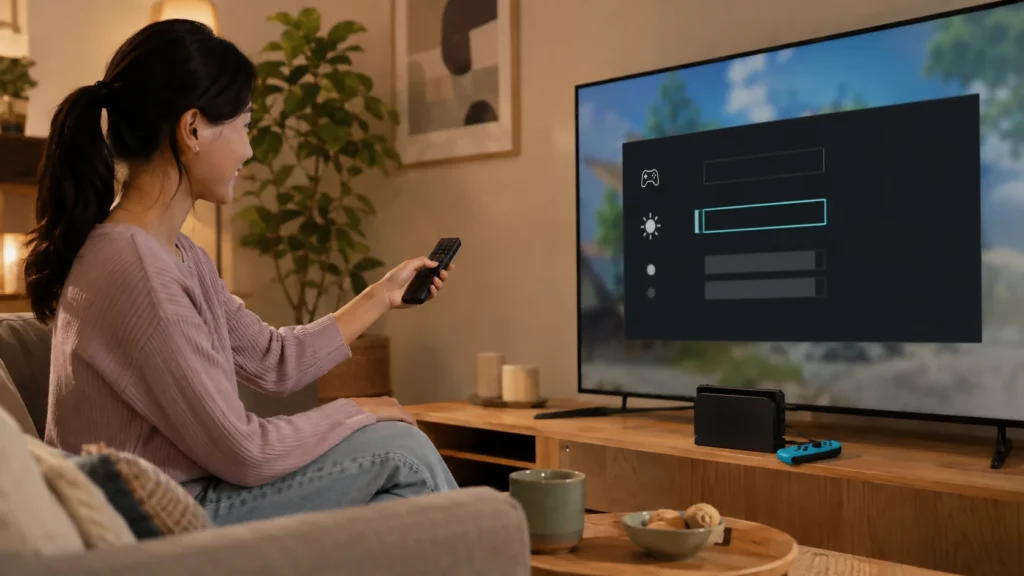
How to Choose the Right TV Display Settings for Switch 2
Do not choose Switch 2 display settings only by picking the biggest number. The right setting depends on your TV, monitor, cable, game, and whether you prefer sharper image quality or smoother motion.
Nintendo lists TV mode support up to 4K, HDR support in compatible games, and frame rates up to 120 fps on compatible TVs. Nintendo also states that 4K output is capped at 60 fps.
| Goal | What to Choose | What to Check First |
| Sharper image on a 4K TV | 4K output | TV and game must support it; 4K is capped at 60 fps. |
| Smoother gameplay | Lower resolution with 120 fps where supported | Display and game must support 120 fps. |
| Better contrast and color | HDR | TV and content/settings must support HDR. |
| Fewer signal problems | Standard output first | Confirm basic TV output before changing advanced settings. |
Start with a stable picture first. After the console appears on the TV, then adjust resolution, HDR, and refresh-rate settings.
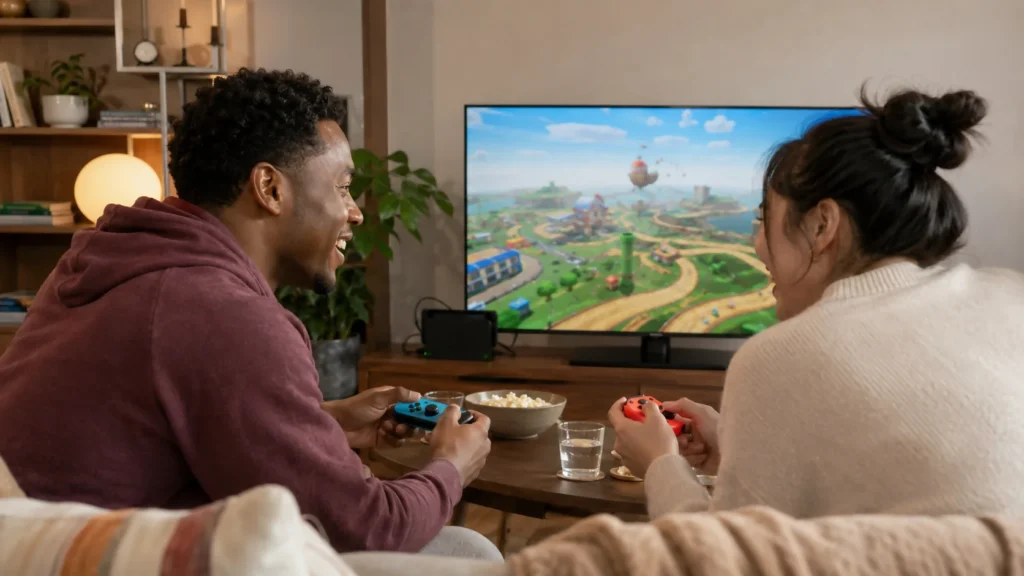
How to Use Joy-Con 2 Controllers When Playing on TV
If the Joy-Con 2 controllers have not been paired before, attach them to the Switch 2 console first. Nintendo’s TV setup instructions say Joy-Con 2 controllers must first be paired if they have not previously been attached to the console.
For TV play:
- Attach the Joy-Con 2 controllers to the Switch 2 console if they have not been paired before.
- Remove the controllers before or after docking, depending on how you want to play.
- Open the game you want to play.
- Choose the game’s multiplayer or controller setup option if needed.
For 2-player play, the exact steps depend on the game. Some games allow each person to use one Joy-Con 2. Others require a pair of controllers or a different controller type. Keep deeper controller setup for a separate guide.
Common Mistakes When Connecting Switch 2 to a TV
| Mistake | What Happens | Fix |
| Choosing the wrong TV input | TV says “No Signal” | Match the TV input to the HDMI port used. |
| Using the original Switch AC adapter with the Switch 2 dock | TV mode may not work | Use the Switch 2 AC adapter or a verified compatible adapter. |
| Using the original Switch HDMI cable | Switch 2 TV mode may fail | Use an Ultra High Speed HDMI cable. |
| Running HDMI through a splitter first | No image or unstable image | Connect the dock directly to the TV while troubleshooting. |
| Docking the console before pairing controllers | Controllers may not work wirelessly | Attach Joy-Con 2 controllers first if they were never paired. |
| Blocking dock or console vents | Heat-related problems | Keep the dock in an open, ventilated area. |
| Expecting wireless TV mode | Setup does not work as expected | Use dock + HDMI for the official setup. |
| Expecting 4K and 120 fps together | Setting is not available | Use 4K/60 or a lower supported resolution for 120 fps. |
The two mistakes most likely to affect upgrade users are the old AC adapter and old HDMI cable. Nintendo specifically warns that the original Switch AC adapter cannot support Switch 2 TV mode through the Switch 2 dock, and that the original Switch HDMI cable is not Ultra High Speed.
When to Contact Nintendo Support
Stop troubleshooting and contact Nintendo Support if:
- The Switch 2 works in handheld mode but never appears on any TV.
- The console screen stays on while docked even when the dock is connected to power and TV.
- The official Switch 2 dock, AC adapter, and HDMI cable still do not work.
- The dock or console repeatedly feels hot.
- The HDMI port, USB-C connector, dock, or cable looks damaged.
- You have tried direct TV connection without a splitter, receiver, soundbar, or capture device and still get no output.
Nintendo’s no-video troubleshooting says that if there is still no video output on the TV after its checks, the dock will need service.
Final Setup Checklist
Use this checklist before replacing anything:
- The Nintendo Switch 2 dock is connected to wall power.
- You are using the Nintendo Switch 2 AC adapter or a verified compatible adapter.
- The HDMI cable is Ultra High Speed.
- The HDMI cable is connected to the dock and the TV.
- The TV is on the correct HDMI input.
- The Switch 2 console is seated correctly in the dock.
- The console screen turns off when docked.
- The dock and console vents are not blocked.
- The HDMI cable is connected directly to the TV while troubleshooting.
- Your TV or monitor supports the display mode you are trying to use.
If all of those are true and the TV still shows no image, the issue is more likely to be a faulty cable, dock, AC adapter, TV HDMI port, or hardware problem than a normal setup mistake.
FAQs
How do I connect my Nintendo Switch 2 to my TV?
Connect the Switch 2 AC adapter to the dock, plug the dock into the wall, connect the dock to the TV with an Ultra High Speed HDMI cable, place the console into the dock, turn on the TV, and select the correct HDMI input.
Why won’t my Switch 2 show up on my TV?
The most likely causes are the wrong TV input, a dock that is not powered, the wrong HDMI cable, an underpowered AC adapter, or an external HDMI device blocking the signal.
Can I connect Switch 2 to TV without the dock?
For the official setup, use the Nintendo Switch 2 dock. Third-party docks or USB-C-to-HDMI adapters should be used only after confirming Switch 2 compatibility and power support.
Can I connect Switch 2 to TV wirelessly?
Nintendo’s standard TV setup uses the dock and HDMI cable. Wireless HDMI kits may be possible as a separate accessory setup, but they are not the official built-in Switch 2 TV connection and may add lag.
Can Nintendo Switch 2 connect to a monitor?
Yes, if the monitor has HDMI input. Check audio before choosing a monitor, because some monitors have no speakers or limited audio output.
Do I need an Ultra High Speed HDMI cable for Switch 2?
Yes. Nintendo lists an Ultra High Speed HDMI cable as a required item for TV setup, and the original Switch HDMI cable is not Ultra High Speed.
Can I use my old Nintendo Switch dock or cable with Switch 2?
Do not rely on the original Switch dock, AC adapter, or HDMI cable for Switch 2 TV mode. Use the Switch 2 dock, Switch 2 AC adapter, and an Ultra High Speed HDMI cable.
How do I play 2-player on Switch 2 on TV?
First connect the Switch 2 to the TV using the dock and HDMI. Then make sure the controllers are paired and open a game that supports local multiplayer. Some games let each player use one Joy-Con 2, while others need additional controllers.
Can I connect Nintendo Switch 2 to a PC?
Not in the same simple way you connect it to a TV. A PC’s HDMI port is usually output, not input. To display or record Switch 2 gameplay on a computer, you typically need a capture card or a monitor with HDMI input.
Resources:
- Nintendo Support: How to Connect a Nintendo Switch 2 Console to a TV
- Nintendo Support: No Video Output to TV in TV Mode on Nintendo Switch 2
- Nintendo Support: No Sound While the Nintendo Switch 2 Console Is Docked
- Nintendo Switch 2 Official Tech Specs
- HDMI.org: Ultra High Speed HDMI Cable Certification