













To organize photos on a Mac, first choose one master system—Apple Photos or Finder—then back it up, gather scattered images into that system, remove duplicates and low-value clutter, and create a structure you can maintain.
For most Mac and iPhone users, Apple Photos is the best starting point because it provides chronological browsing, search, albums, folders, Favorites, duplicate detection, and optional iCloud synchronization. Finder is better when you need direct control over files, names, and portable folders.
Follow this order:
- Choose Photos, Finder, or a carefully controlled hybrid system.
- Confirm a separate, current backup.
- Gather photos from phones, downloads, cameras, old libraries, and external drives.
- Remove recognized duplicates and obvious clutter.
- Organize important images with albums, folders, keywords, or Finder tags.
- Add a short weekly or monthly maintenance routine.
At minimum, keep one clearly defined master collection and one separate backup. Do not edit two competing master copies unless you have a documented process for keeping them consistent.
Choose Photos, Finder, or a Hybrid System
The best photo-organization system is not necessarily the most detailed one. It is the simplest system that helps you find important pictures, protect the originals, and process new images without creating another backlog.
| Method | Best for | Main advantage | Main limitation |
| Apple Photos | Personal, family, travel, and iPhone libraries | Search, albums, people, dates, editing, and iCloud integration | Less direct control over file folders |
| Finder | Project archives, professional delivery, and portable storage | Visible folders, file names, tags, and direct file access | Requires more manual organization |
| Hybrid | Experienced users who need Photos plus a separate archive | Combines easy browsing with portable exports | Can create conflicting master copies |
Use Apple Photos for Most Personal Libraries
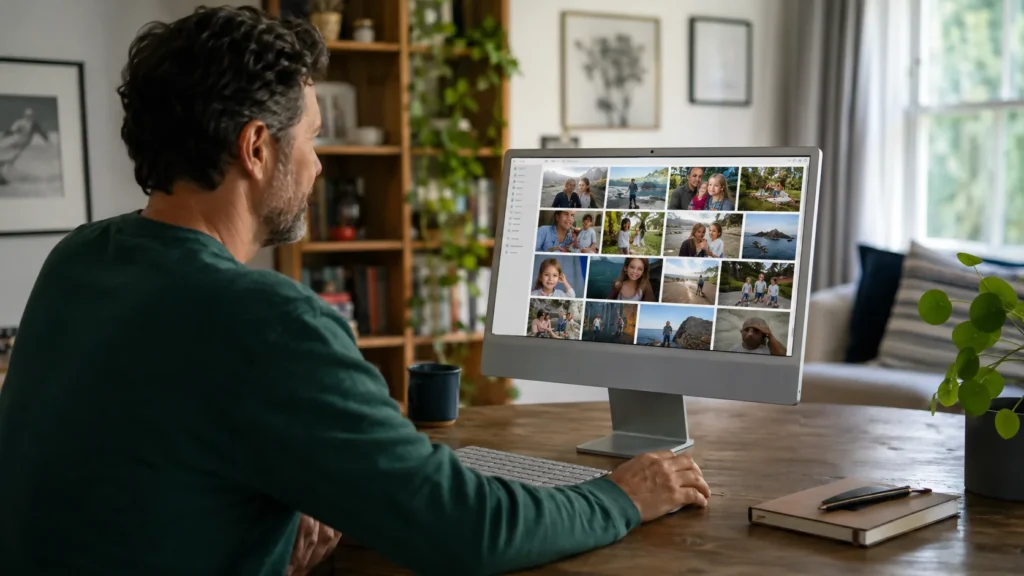
Apple Photos is usually the better choice when most of your pictures come from an iPhone or iPad. A photo can appear in more than one album without creating another copy of the image, while the main library remains intact.
Use Photos when you want to:
- Browse pictures chronologically
- Create family, travel, event, or project albums
- Search using dates, titles, captions, or keywords
- Mark the strongest images as Favorites
- Detect recognized duplicates
- Synchronize the System Photo Library through iCloud Photos
Only the System Photo Library can share and update pictures through iCloud Photos, Shared Albums, and iCloud Shared Photo Library. Changes made in another Photos library do not synchronize through iCloud Photos.
Use Finder When Direct File Control Matters
Finder is better when the folder structure itself matters—for example, when photos need to be delivered to clients, opened by different applications, copied between platforms, or stored in a portable archive.
A basic Finder structure could look like this:
Photos
├── 2026
│ ├── 2026-01 New York
│ ├── 2026-03 Family Birthday
│ └── 2026-07 Italy
├── 2025
└── Archive
Finder also lets you apply several tags to the same file and retrieve tagged files through search or the sidebar.
The tradeoff is maintenance. Finder will not decide where a new image belongs, prevent duplicate copies, or build a useful naming convention for you.
Use a Hybrid System Only With One Clear Master
A hybrid system can work when each copy has a defined role:
- Master: the collection you actively manage
- Export or archive: a deliberate copy created for portability or long-term storage
- Backup: a recovery copy that is not used as an everyday working library
For example, the master may live in Photos while selected originals are exported to year-and-event folders on an external drive.
The risky version is editing both copies independently. Deletions, captions, album assignments, and edits will eventually diverge unless every change is deliberately repeated.
Back Up and Inventory the Library First
Before deleting, consolidating, or moving large numbers of pictures, confirm that a separate backup contains the current collection.
Apple’s Photos guidance warns that images stored outside the Photos library as referenced files are not included when the library itself is backed up. Those files must either be backed up separately or consolidated into the library.
Safe vs Risky Photo-Organization Methods
| Safer approach | Riskier approach |
| Confirm a current backup before bulk changes | Begin by permanently deleting large batches |
| Define one master library | Edit separate Photos and Finder copies as equal masters |
| Use Apple’s duplicate feature first | Give an unfamiliar cleaner full library access |
| Check referenced files before moving folders | Delete source folders without checking whether Photos references them |
| Follow Apple’s external-drive requirements | Place a Photos library on unsupported flash, network, or cloud-synced storage |
| Process one source or photo type at a time | Mix several imports, moves, and deletion passes together |
Identify Every Possible Photo Source
Check more than the Photos app. A collection may also be spread across:
| Possible source | What to check |
| Photos library | Does it contain the newest and oldest pictures you expect? |
| iPhone or iPad | Are photos waiting to synchronize or import? |
| Downloads | Are saved pictures or attachments stored there? |
| Desktop | Are temporary screenshots or project images present? |
| Camera or SD card | Were all folders imported? |
| External drives | Do they contain older archives or previous libraries? |
| Other cloud services | Were original-quality files downloaded? |
| Previous Mac | Is there another Photos library or Pictures folder? |
The goal is not to import everything blindly. It is to prevent you from deleting a folder that contains the only remaining copy of an image.
Check for Referenced Files
Photos can store imported originals inside its library or reference files that remain elsewhere in Finder.
Referenced files need special attention because moving or deleting the source folder can make the originals unavailable to Photos. They are also not included automatically in a backup of the Photos library.
Apple provides this method for identifying and consolidating them:
- In Photos, choose File > New Smart Album.
- Name the album Referenced.
- Set the condition to Photo is referenced.
- Open the resulting Smart Album.
- Select the verified items.
- Choose File > Consolidate.
Consolidation suits readers who want a single managed library. It may not suit a professional workflow intentionally designed around externally stored originals.
Bring Scattered Photos Into One System
Organizing the current Photos library will not solve the problem when hundreds of pictures remain in Downloads, phone folders, camera cards, and old drives.
Process one source at a time.
Finder users can create a temporary intake structure:
Photo Intake
├── iPhone Import
├── Downloads
├── Camera Card
├── Old External Drive
└── Needs Review
Photos users can create a temporary album called Needs Review or Recent Imports to Sort.
This intake area is not the final structure. It is a controlled waiting room that stops files from remaining scattered while you decide what belongs in the master collection.
Import Photos From an iPhone or iPad
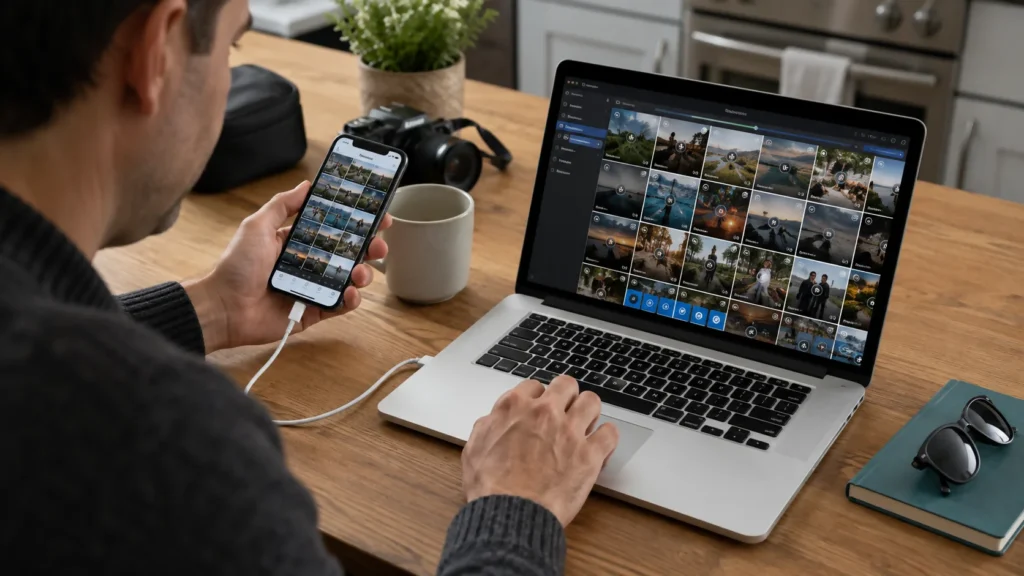
When iCloud Photos is active, pictures can synchronize to the Mac automatically. Apple also supports importing directly by connecting the iPhone or iPad with a USB cable and opening the device in Photos.
Before removing pictures from the phone or another source:
- Let the import or synchronization finish.
- Confirm that the expected images open on the Mac.
- Check the intended Photos library.
- Confirm that the updated library is backed up.
Process Current Sources Before Old Archives
A practical order is:
- Current iPhone or iPad
- Downloads and Desktop
- Current camera cards
- Frequently used external drives
- Previous computers and old archives
Starting with current sources stops new clutter from accumulating while you work through older material.
Multiple Photos libraries require extra care. Apple supports importing from another library, but both libraries should be backed up and the intended destination should be identified before the import.
Related Contents:
How to Uninstall Microsoft Edge
Remove Duplicates and Low-Value Clutter
Do not create albums for pictures that you are likely to delete later.
Use four decisions during the first cleanup pass:
| Decision | Typical examples | Action |
| Delete | Blurred images, accidental shots, irrelevant screenshots | Remove after confirming the backup |
| Keep searchable | Everyday pictures or temporary records that may still matter | Keep without creating a dedicated album |
| Promote | Best family, travel, work, or portfolio pictures | Favorite, caption, keyword, tag, or add to an album |
| Archive | Important originals not needed in the active collection | Move through a deliberate archive workflow |
Merge Recognized Duplicates in Photos
In Photos, open Duplicates under Utilities, select a duplicate group, and choose Merge Items.
Photos automatically places detected duplicate pictures and videos in the Duplicates collection. Apple notes that duplicates may take time to appear while Photos analyzes a large library. Merged-away items are moved to Recently Deleted and remain recoverable for up to 30 days unless they are permanently deleted sooner.
Use Apple’s native duplicate feature before paying for a cleaner.
A specialist tool may still help compare similar—not technically identical—pictures, such as ten versions of the same group photo. Those decisions require human review because the images may differ in expression, focus, crop, or timing.
Remove Clutter by Type
Reviewing thousands of unrelated images chronologically creates unnecessary decision fatigue.
Instead, complete separate passes for:
- Screenshots
- Screen recordings
- Blurred pictures
- Accidental pocket photos
- Burst sequences
- Downloaded memes
- Temporary receipts
- Repeated exports
- Images saved from messaging apps
A screenshot pass is easier than deciding whether to keep every picture from an entire year.
Do Not Organize Every Picture Equally
Use three levels of effort:
Tier 1: Important pictures
Add these to albums, mark them as Favorites, or give them useful titles, captions, keywords, or tags.
Tier 2: Useful but ordinary pictures
Leave them searchable by date and existing metadata. They do not all need albums.
Tier 3: Low-value pictures
Delete them or move them into a deliberate archive.
This prevents you from spending several minutes categorizing an image you are unlikely to search for again.
Organize Photos in Apple Photos
Each Photos organization tool has a different job.
| Tool | Best use |
| Album | A selected event, person, project, trip, or theme |
| Folder | A group of related albums |
| Favorite | A fast marker for important pictures |
| Keyword | A searchable category that can cross albums |
| Title or caption | Identifying an important image or adding context |
| Smart Album | An automatically updated collection based on rules |
Create Albums for Meaningful Collections
Create albums for collections you expect to reopen:
- Italy 2026
- Family Favorites
- Graduation
- Kitchen Renovation
- Portfolio Candidates
- Tax Receipts 2026
Avoid vague or unnecessary album names such as:
- Random
- Miscellaneous 2
- Tuesday
- January Photos
- New Album 17
Apple Photos lets the same picture appear in several albums. Removing it from a regular album does not remove it from the main library.
An album should answer a useful question: “Which pictures belong to this event, project, person, or curated collection?”
Group Related Albums Into Folders
A folder in Photos is not a folder of image files.
Photos folders contain albums and subfolders:
Travel
├── Italy 2026
├── New York 2025
└── Weekend Trips
Apple’s current workflow lets you create a folder from the Albums section and drag related albums into it.
Deleting an album or album folder removes that organization structure, but the underlying pictures remain in the main library.
Use Favorites and Metadata Selectively
Favorites answer:
Which pictures matter most?
Albums answer:
Which collection does this picture belong to?
Use Favorites for the strongest image from a burst, pictures you plan to print, portfolio candidates, or images you expect to share soon.
Titles, captions, and keywords are most useful when a picture cannot be located reliably by date or location alone. Apple Photos supports searching by titles, captions, keywords, and dates.
A small keyword framework is easier to maintain than hundreds of overlapping terms:
- Person: Grandma, Alex, Design Team
- Place: Rome, Office, Lake House
- Project: Website Redesign, Kitchen Remodel
- Status: Needs Editing, Portfolio Candidate, Print
Create Smart Albums for Recurring Searches
A Smart Album updates automatically when pictures meet the criteria you specify.
In Photos, choose File > New Smart Album, add one or more conditions, and decide whether items must match any or all of them.
Useful Smart Album ideas include:
| Goal | Possible rule |
| Find referenced files | Photo is referenced |
| Collect portfolio candidates | Keyword matches Portfolio Candidate |
| Review recent Favorites | Date condition plus Favorite status |
| Collect selected portraits | Portrait type plus Favorite status |
| Find titled project images | Title contains the project name |
Smart Albums created on a Mac do not appear in Photos on an iPhone or iPad. Use regular albums when the collection needs to be visible across those devices.
How to Organize Photos on Mac in Finder
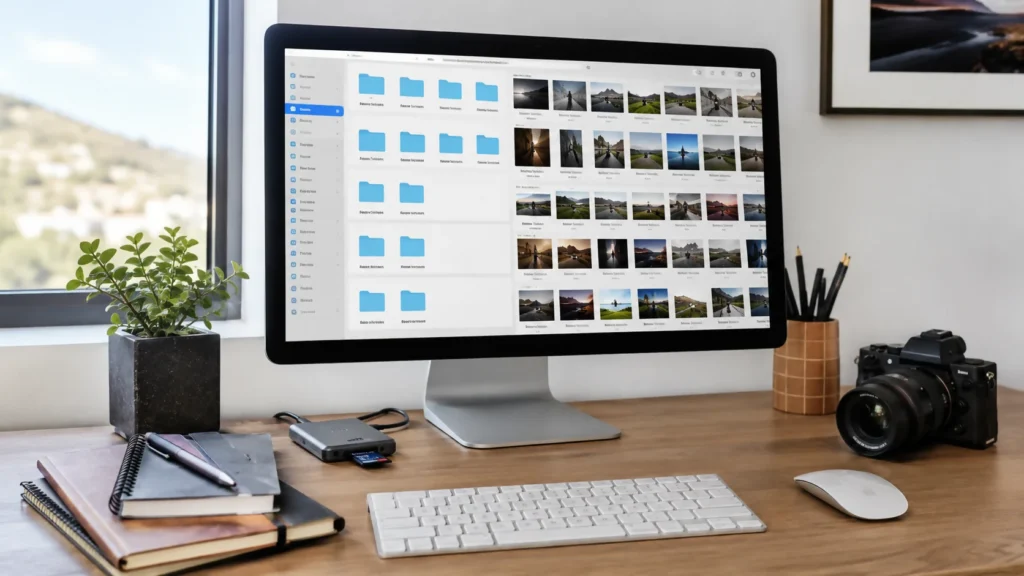
Finder is the stronger option when the archive needs to remain understandable outside Apple Photos.
Use a Year–Month–Event Folder Structure
A date-first format keeps folders in chronological order:
Photos
├── 2026
│ ├── 2026-01 New York
│ ├── 2026-03 Family Birthday
│ └── 2026-07 Italy
├── 2025
├── 2024
└── Archive
For most personal archives, this is enough. Avoid building several levels such as year, month, day, camera, person, and edit status unless the workflow genuinely requires them.
Rename Files Only When the Name Adds Value
Names such as IMG_4827.HEIC may look untidy, but renaming every personal picture does not necessarily improve retrieval.
Rename when:
- Files will be delivered to a client
- Several cameras create conflicting names
- Project identification matters outside Photos
- You are creating a portable long-term archive
- The files must remain understandable without photo-management software
A useful pattern is:
2026-07-18-italy-rome-001.jpg
Avoid putting sensitive personal information in names that may later be shared.
Add Finder Tags for Status and Cross-Folder Categories
Folders answer:
Where does this file live?
Tags answer:
What status or category does it have?
Possible Finder tags include:
- Needs Editing
- Approved
- Favorite
- Archive
- Needs Review
Finder supports multiple tags on one file, and tagged files can be found through search or the sidebar.
Create Smart Folders for Automatic Views
A Smart Folder is a saved Finder search that updates when files begin or stop matching its criteria.
Possible Smart Folders include:
- Images modified this month
- Files tagged Needs Editing
- Pictures above a chosen file size
- Images containing a project name
- All JPEG or RAW files in a selected archive
To create one, choose File > New Smart Folder in Finder, add the criteria, and save it.
A Seven-Pass Workflow for Thousands of Photos
Do not inspect a huge library once from beginning to end. Use several passes, each with one purpose.
| Pass | Goal |
| 1 | Find and inventory all photo sources |
| 2 | Consolidate pictures into the chosen master system |
| 3 | Remove recognized duplicates and obvious clutter |
| 4 | Divide the collection broadly by year or project |
| 5 | Create albums or event folders for important groups |
| 6 | Add selective metadata, tags, or automated collections |
| 7 | Establish a maintenance routine |
Start With Years, Not Individual Pictures
First organize broadly:
- 2026
- 2025
- 2024
- Older Archive
Then create deeper collections only where they improve retrieval:
- Italy
- Graduation
- House Renovation
- Client Project
- Family History
Do not create hundreds of small albums before obvious clutter has been removed.
Work in Short Sessions
A focused 30-minute session is safer than a long deletion marathon:
- 5 minutes: Confirm the backup and choose one batch.
- 10 minutes: Remove obvious clutter.
- 10 minutes: Assign broad albums, folders, or tags.
- 5 minutes: Mark important pictures and choose the next batch.
Stop when the session goal is complete. Fatigue makes inconsistent labeling and accidental deletion more likely.
Use One Temporary Needs Review Collection
Uncertain pictures should not block the entire project.
Create one:
- Photos album
- Finder folder
- Finder tag
Call it Needs Review and set a date to clear it. Without a review date, it becomes another permanent junk drawer.
Rearrange Albums and Photos Without Changing the Library
Inside a regular Photos album, use View > Sort to arrange pictures by title, oldest first, or newest first. You can also drag pictures into a manual order. Albums can similarly be sorted or dragged into a preferred sidebar order.
This changes the selected album’s presentation. It does not rewrite the chronological structure of the complete Photos library.
Removing a picture from a regular album leaves it in the main library. Deleting it from the library moves it to Recently Deleted, where it remains recoverable for 30 days unless permanently deleted sooner.
What Is the Best Program to Organize Photos on a Mac?
For most Mac and iPhone users, start with Apple Photos. It handles the main personal-library tasks without requiring another subscription or giving another application access to the collection.
| Need | Best starting option |
| Personal and family pictures | Apple Photos |
| Direct file and folder control | Finder |
| Criteria-based collections | Smart Albums or Smart Folders |
| Cross-platform portable archive | Finder-based folders or verified cross-platform software |
| Exact duplicate cleanup | Apple Photos Duplicates first |
| Similar-image comparison | A carefully verified specialist tool |
| Professional catalog management | Dedicated asset-management software |
Consider another program only when you need a specific capability that Photos and Finder do not provide, such as:
- Professional metadata workflows
- Cross-platform catalogs
- Advanced similar-image comparison
- Several independent catalogs
- Team or client approval tools
- Specialized archive or asset-management features
Before installing a photo organizer or cleanup tool, verify:
- Current macOS compatibility
- Whether it modifies the Photos library
- Whether pictures are uploaded to external servers
- Whether actions can be undone
- How originals are preserved
- The current privacy policy
- Whether payment is one-time or recurring
Do not grant an unfamiliar utility full access to the library merely because it promises to free storage quickly.
The 10-Minute Maintenance Routine
A sustainable system needs less work than a perfect system.
| Frequency | Task |
| Weekly | Review new screenshots, downloads, imports, and obvious clutter |
| Monthly | Check duplicates, clear Needs Review, and organize important events |
| Quarterly | Confirm the backup, available storage, and external-drive access |
| Annually | Review old albums, folder names, archives, and unused devices |
A short weekly review is more effective than rebuilding the library every two years.
Common Mac Photo-Organization Mistakes
| Mistake | Why it causes problems | Better approach |
| Creating an album for every date | Crowds the sidebar without improving retrieval | Reserve albums for collections you expect to reopen |
| Treating Photos and Finder copies as equal masters | Edits, deletions, and imports become inconsistent | Define one master and label the others as exports, archives, or backups |
| Organizing before removing clutter | Wastes time categorizing pictures that will be deleted | Remove recognized duplicates and obvious clutter first |
| Deleting before confirming a backup | Makes recovery harder when a mistake is found later | Verify a separate, current backup before bulk changes |
| Renaming every image | Creates substantial work with limited benefit | Rename only when portability, delivery, or project identification requires it |
| Moving referenced files in Finder | Photos may lose access to the originals | Consolidate deliberately or preserve their existing location |
| Installing cleanup software immediately | Adds cost and privacy exposure before native options are exhausted | Use Photos’ duplicate feature first |
Moving a Photos Library to External Storage
Apple currently requires an external Photos library to be stored on a device formatted as APFS or Mac OS Extended (Journaled). The library should not be stored on the same device used for Time Machine backups, an SD card, USB flash drive, network share, internet-shared device, or cloud-based storage service.
The drive must be connected and available before opening Photos. When Photos cannot locate the external library, Apple says it may create a new empty library in the default Pictures location.
Follow Apple’s complete migration process before deleting the original library.
Troubleshooting Photo Organization on Mac
| Problem | First check | Safer next action |
| Duplicates is missing | Expand Utilities and allow Photos time to analyze the library | Continue organizing elsewhere and check again later |
| Pictures are missing after import | Check the active library, import destination, and Recently Deleted | Stop deleting or moving source files until the pictures are found |
| iPhone pictures are not appearing | Check the Apple Account, iCloud Photos status, connection, and available storage | Resolve synchronization before starting another import |
| Photos opens an empty library | Check whether the intended external drive or library is available | Quit Photos and reopen the correct library |
| Referenced pictures are unavailable | Check whether their originals were moved, renamed, or disconnected | Restore the location or consolidate only after verification |
| The Photos library will not open | Confirm that the correct library and storage device are accessible | Preserve accessible files and follow Apple’s official repair guidance |
| Mac storage is nearly full | Check free space and library size | Remove clutter or plan a supported external-library move |
When to Stop and Preserve the Existing Files
Stop deleting, moving, or consolidating pictures when:
- You cannot identify which library or folder contains the only original.
- Expected pictures disappear after an import or library change.
- A referenced file cannot be found.
- An external drive disconnects, reports errors, or opens inconsistently.
- Photos opens an unexpected empty library.
- The Photos library will not open normally.
- The available backup is missing or outdated.
Preserve the existing files and verify the library location, storage device, and backup before making further changes. Use Apple’s official support or repair guidance when the library itself behaves unexpectedly.
Frequently Asked Questions
Does removing a photo from an album delete it from the library?
No. Removing a picture from a regular album removes it only from that album. Deleting it from the main library moves it to Recently Deleted.
Why can’t I see Duplicates in Photos?
The Duplicates collection appears after Photos identifies duplicate pictures or videos. Analysis can take time on a large library, and the collection will not appear when Photos has not identified duplicates.
Do Smart Albums created on a Mac appear on an iPhone or iPad?
No. Smart Albums created on a Mac remain Mac-only. Use regular albums when the collection needs to appear on an iPhone or iPad.
Can a Photos library be stored on an external drive?
Yes, but the drive must meet Apple’s current format and storage requirements. It must also remain available before Photos opens.
Final Mac Photo-Organization Checklist
- One master photo system has been selected.
- A separate, current backup has been confirmed.
- Photos from phones, downloads, cameras, and drives have been inventoried.
- Referenced files have been identified and handled deliberately.
- Recognized duplicates and obvious clutter have been reviewed.
- Important pictures have been promoted with albums, Favorites, captions, keywords, or tags.
- Albums have been grouped into folders where useful.
- Finder files use a consistent date-and-event structure.
- Smart Albums or Smart Folders automate repeated searches.
- The temporary Needs Review collection has a review date.
- A weekly or monthly maintenance routine has been scheduled.
Start with the current year rather than the entire archive. Confirm the backup, complete one duplicate or screenshot pass, create only the albums or folders you expect to reopen, and schedule the next review. A system you maintain for ten minutes each week will outperform an elaborate structure you abandon after one weekend.
Resorces:
Create and organize albums in Photos on Mac
Create Smart Albums in Photos on Mac
Find and remove duplicate photos on Mac