











Last reviewed: August 2, 2026
To stop Microsoft Edge from opening on startup, begin with Settings > Accounts > Sign-in options and turn off Automatically save my restartable apps and restart them when I sign in. Next, open Settings > Apps > Startup and turn off Microsoft Edge if it appears.
If no Edge window opens but Edge processes remain in Task Manager, the ordinary Windows startup list may not be the cause. Turn off Startup boost and Edge’s background-app setting instead.
Before changing several settings: Make one change, restart Windows, and test the result. Otherwise, you will not know which setting solved the problem.
Quick Fix
Try these settings in order:
- Turn off restartable apps: Open Settings > Accounts > Sign-in options, then disable Automatically save my restartable apps and restart them when I sign in.
- Check Startup Apps: Open Settings > Apps > Startup and turn off Microsoft Edge if it is listed.
- Turn off Startup Boost: Open edge://settings/system/manageSystem in Edge and disable Startup boost.
- Stop background activity: If Edge remains in Task Manager after every browser window is closed, open edge://settings/system and disable Continue running background extensions and apps when Microsoft Edge is closed.
Microsoft recommends disabling the Windows restartable-app option when Edge starts automatically after sign-in. Windows also lets registered startup applications be controlled through either Settings or Task Manager.
Read More:
Microsoft Authenticator App Not Working?
How to Uninstall Microsoft Edge Safely
Before You Start: Identify What Edge Is Actually Doing
A visible Edge window and background Edge processes are different problems. Use the symptom that matches what you see.
| What you see | Check this first | Best next step |
| A full Edge window opens after sign-in | Restartable apps and Windows Startup Apps | Follow the Windows 11 or Windows 10 steps below |
| Edge restores tabs from your previous session | Restartable apps, then Edge’s startup-page setting | Turn off app restoration and check what Edge opens at launch |
| Edge appears in Task Manager without a window | Startup Boost | Turn off Startup Boost |
| Edge remains after the last window closes | Background extensions and apps | Turn off Edge background activity |
| One website opens in an app-like window | Installed Edge web app | Disable that app’s login auto-start |
| A setting is locked or changes back | Work or school policy | Contact the device administrator |
Do not work through every method simply because it appears in the article. Start with the row that describes your actual problem.
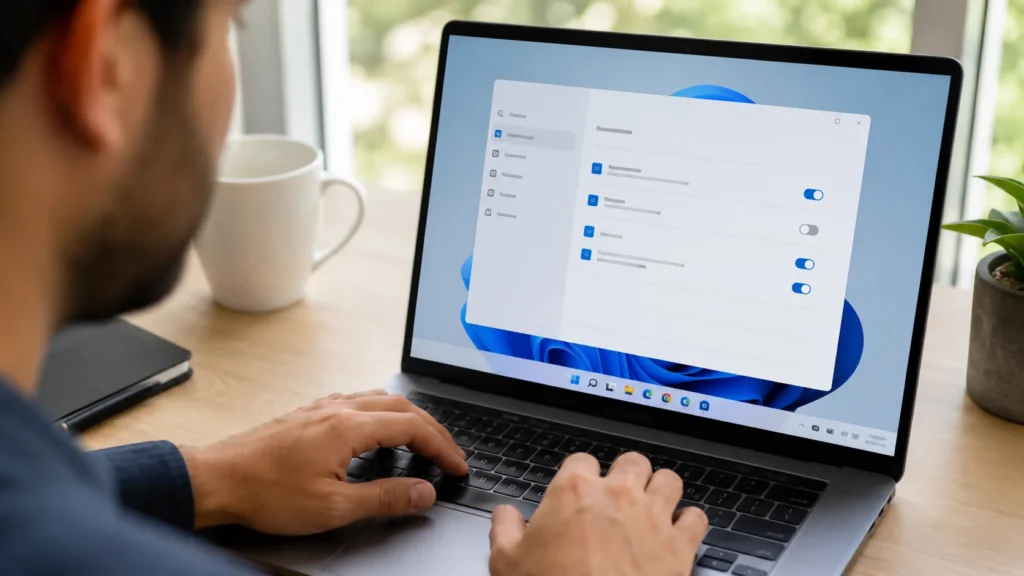
How to Stop Microsoft Edge From Opening on Startup in Windows 11
Method 1: Turn Off Restartable Apps
Windows can save supported applications when you sign out or restart and reopen them after you sign back in. This can make Edge return even when it is not enabled in the normal Startup Apps list.
- Press Windows key + I to open Settings.
- Select Accounts.
- Select Sign-in options.
- Find the additional sign-in settings.
- Turn off Automatically save my restartable apps and restart them when I sign in.
- Close every Edge window.
- Restart Windows and sign in normally.
Microsoft’s Edge support documentation identifies this Windows setting as the direct control for stopping Edge from reopening automatically at sign-in.
Expected result: Edge should no longer reopen as a visible window after you sign in.
This setting is not exclusive to Edge. Other supported restartable applications may also stop reopening automatically.
Method 2: Disable Edge in Windows Startup Apps
Use this method when Edge is registered as a standard Windows startup application.
- Open Settings.
- Select Apps > Startup.
- Find Microsoft Edge.
- Turn its switch Off.
- Restart the computer.
Windows documents Start > Settings > Apps > Startup as the main route for enabling or disabling applications registered with startup tasks.
Expected result: Windows should stop launching Edge through its registered startup entry.
If Microsoft Edge is not in the list, do not assume something is broken. Move to the Startup Boost and background-app sections.
Method 3: Disable Edge Through Task Manager
Task Manager is an alternative interface for the same registered startup applications shown in Windows Settings.
- Right-click Start and select Task Manager.
- Select Startup apps.
- Select Microsoft Edge, if it appears.
- Select Disable.
- Restart Windows.
You can also open Task Manager by pressing Ctrl + Shift + Esc.
Microsoft states that Task Manager provides the same startup-application list as Settings, but adds information about each application’s startup impact.
Expected result: Edge should no longer launch from a normal Windows startup entry.
Checking Task Manager after already disabling Edge in Settings usually does not provide a second, independent fix. If only background processes remain, continue to the next section.
Why Is Microsoft Edge Running When You Don’t Use It?
Edge can keep processes running for Startup Boost, background extensions, installed web apps, or an active browser session. This can happen without a visible Edge window.
Turn Off Microsoft Edge Startup Boost
Startup Boost keeps minimal Edge processes ready in the background so the browser can open more quickly when you launch it.
To disable it:
- Open Microsoft Edge.
- Enter edge://settings/system/manageSystem in the address bar.
- Turn off Startup boost.
- Close every Edge window.
- Restart Windows.
Microsoft’s policy documentation confirms that Startup Boost can start Edge processes at operating-system sign-in and restart them in the background after the last browser window closes.
Expected result: Edge should stop preloading its core processes through Startup Boost.
The first manual launch of Edge may take slightly longer because those processes are no longer waiting in the background.
Stop Edge Extensions and Apps From Running in the Background
Startup Boost is not the only background control. Edge also has a setting that allows extensions and applications to continue after the final browser window closes.
- Open Microsoft Edge.
- Enter edge://settings/system in the address bar.
- Turn off Continue running background extensions and apps when Microsoft Edge is closed.
- Close every Edge window.
- Reopen Task Manager and check whether the Edge processes disappear.
Microsoft’s current Edge troubleshooting guidance uses this exact setting when Edge processes continue running after all browser windows are closed.
Expected result: Edge extensions and installed apps should no longer remain active through the browser’s background-mode setting after Edge closes.
Turning this setting off can also stop background extensions, installed web apps, or related notifications from working after the browser is closed.
How to Stop Microsoft Edge From Opening on Startup in Windows 10
Windows 10 support notice: Windows 10 reached the end of standard support on October 14, 2025. Windows 10 computers still function, but standard technical assistance, feature updates, and security updates are no longer provided unless the device is covered by an applicable Extended Security Updates option. Microsoft recommends moving to Windows 11 on compatible hardware.
The main startup controls remain similar to those in Windows 11:
- Open Settings > Accounts > Sign-in options and turn off Automatically save my restartable apps and restart them when I sign in.
- Open Settings > Apps > Startup and turn off Microsoft Edge if it appears.
- Open Task Manager > Startup apps and disable Edge if it is listed.
- In Edge, open edge://settings/system/manageSystem and turn off Startup boost.
- Open edge://settings/system and turn off Continue running background extensions and apps when Microsoft Edge is closed if background processes remain.
Microsoft’s current startup-app documentation still covers both Windows 11 and Windows 10.
Menu layouts can differ slightly between Windows 10 builds. Search Settings for startup apps or sign-in options when the exact label is not immediately visible.

What to Do If Microsoft Edge Still Opens After Restarting
If the basic settings do not solve the problem, note exactly what opens:
- A blank or new tab.
- Your previous browsing session.
- A specific Microsoft page.
- One particular website.
- A website in a separate app-like window.
That detail helps distinguish Windows launching the browser from Edge deciding what to display after it has already launched.
If Edge Opens to Unwanted Tabs, Change Its Startup Pages
Edge has a separate setting that controls what it displays when the browser starts.
- Open Edge.
- Select the three-dot Settings and more menu.
- Select Settings.
- Open Start, home, and new tabs or On startup, depending on the interface shown.
- Choose whether Edge should open a new tab, restore the previous session, or open selected pages.
Microsoft documents the browser’s startup setting as the control for what Edge displays when it launches.
This setting changes the pages or tabs that appear. It does not normally control whether Windows launches Edge in the first place.
Check Whether an Edge Web App Starts Automatically
A website installed through Edge can behave like a separate desktop application and have its own login-startup control.
- Open Edge.
- Enter edge://apps in the address bar.
- Find the website or application that opens automatically.
- Select Details on its app card.
- Turn off Auto-start on device login.
- Restart Windows.
Microsoft confirms that installed Edge apps are managed from edge://apps and can have an independent Auto-start on device login setting.
This method is particularly relevant when only one website opens in a separate window.
Check the Windows Startup Folder
An Edge or web-app shortcut may be placed in a Windows Startup folder even when it does not appear as expected elsewhere.
For the current user:
- Right-click Start and select Run.
- Enter shell:startup.
- Press Enter.
- Look for an Edge or Edge web-app shortcut.
- Delete only a shortcut you have positively identified as the unwanted startup item.
For startup items that apply to all users, an administrator can open:
shell:common startup
Microsoft documents both startup folders and explains that removing a link from one of them stops that shortcut from launching automatically.
Do not delete unfamiliar files or shortcuts merely because their names are unclear.
Check Whether the Computer Is Managed
A work or school administrator can enforce Edge settings through organizational policies.
Common signs include:
- A message saying Edge is managed by your organization.
- A switch that is unavailable.
- A setting that changes back after you edit it.
- The same startup behavior appearing across multiple company devices.
Do not try to bypass workplace or school controls. Contact the administrator and explain whether Edge opens visibly, remains only in Task Manager, or launches a specific web app.
What Not to Do
Do not delete Edge program files
Deleting program files does not fix the setting that launches Edge and may interfere with browser updates or Windows features that depend on Edge components.
Do not edit the Registry as the first fix
Microsoft documents Registry locations for startup applications but warns that Registry changes can have unintended consequences. The user-facing Windows and Edge controls should be tried first.
Do not install a “startup cleaner” for this problem
Windows, Task Manager, and Edge already provide the relevant controls. An extra utility adds complexity without identifying which startup mechanism caused the problem.
Do not remove the desktop shortcut
A normal desktop shortcut does not make Edge start when you sign in. Removing it only removes that shortcut.
Do not change the default browser solely to fix startup
The default-browser setting controls which browser handles links. It is separate from Windows startup behavior.
Do not end Edge processes after every login
Ending the processes in Task Manager is temporary. They can return at the next sign-in or after Edge closes unless the underlying startup or background setting is changed.
Quick Troubleshooting Checklist
Before requesting additional help, confirm that you have:
- Turned off Windows restartable apps.
- Disabled Edge in Startup Apps if it was listed.
- Checked the Task Manager Startup apps list.
- Turned off Startup Boost.
- Turned off background extensions and apps.
- Checked what Edge displays when it launches.
- Checked installed Edge apps for login auto-start.
- Inspected the Windows Startup folder.
- Restarted Windows after each major change.
- Checked whether the computer is managed by work or school.
After restarting, decide whether the remaining problem is a visible Edge window or only Edge processes in Task Manager. Return to the matching section rather than repeating every method.
Frequently Asked Questions
How Do I Stop a Browser From Opening on Startup?
Open Settings > Apps > Startup and turn off the browser if it appears. Alternatively, open Task Manager > Startup apps, select the browser, and choose Disable. Microsoft says both interfaces display the same registered startup applications.
Why Is Microsoft Edge Still Running in Task Manager?
Startup Boost or Edge’s background-app setting may keep processes running without showing a browser window. Turn off Startup Boost at edge://settings/system/manageSystem, then disable Continue running background extensions and apps when Microsoft Edge is closed at edge://settings/system.
Is It Safe to Disable Microsoft Edge at Startup?
Disabling a startup entry, Startup Boost, or Edge background activity does not uninstall the browser. Edge should still open when you launch it manually. Disabling Startup Boost may make the first browser launch slightly slower because Edge is no longer preloaded.
Can I Completely Disable Microsoft Edge in Windows 11?
Stopping Edge from opening automatically is different from removing or disabling it throughout Windows. For this startup problem, use the documented Windows and Edge settings rather than deleting program files or applying undocumented Registry changes.
Why Does Edge Keep Opening After I Disabled It in Task Manager?
Task Manager controls the same registered startup-app list shown in Windows Settings, but it does not control every way Edge can run. Windows may restore Edge through restartable apps, Startup Boost may start background processes, and an installed Edge web app may have its own login auto-start setting. Check those controls separately.
For Work, School or Administrator-Managed Computers
Administrators can control Edge startup behavior through organizational policies:
- StartupBoostEnabled controls Startup Boost.
- BackgroundModeEnabled controls whether background apps and Edge processes continue after the last window closes.
- LaunchEdgeOnWindowsStartupEnabled controls visible Edge launch at Windows startup in Edge 152 and later.
If a setting is locked, displays Managed by your organization, or returns after you change it, contact the organization’s IT team. Do not edit policy Registry values to bypass workplace or school controls.
When to Get Additional Help
Use Microsoft support or your organization’s IT help desk when:
- Edge opens visibly after every sign-in despite all user-level settings being off.
- No Edge shortcut or installed web app exists in the startup locations.
- Settings are locked or repeatedly restored.
- The same behavior affects several managed computers.
- Edge also crashes, displays errors, or fails to work normally.
Note the full Edge version from edge://settings/help and describe whether the problem is a visible window, a restored session, a web app, or background processes. That detail is more useful than simply reporting that “Edge keeps opening.”
Final Check: Confirm Edge No Longer Starts Automatically
Close every Edge window and restart the computer. Sign in normally and allow the usual startup applications to finish loading.
If no Edge window appears, the visible startup issue is resolved. Open Task Manager only when background processes were the original concern.
If the behavior changed but did not disappear, return to the troubleshooting table and follow the row matching what you now see.
Resources:
Microsoft’s guide to stopping Edge from starting automatically
Microsoft’s guide to managing Windows startup apps
Microsoft’s Startup Boost support guide