Example Example page built by Claude for this page, not by the AI named above. How we make examples
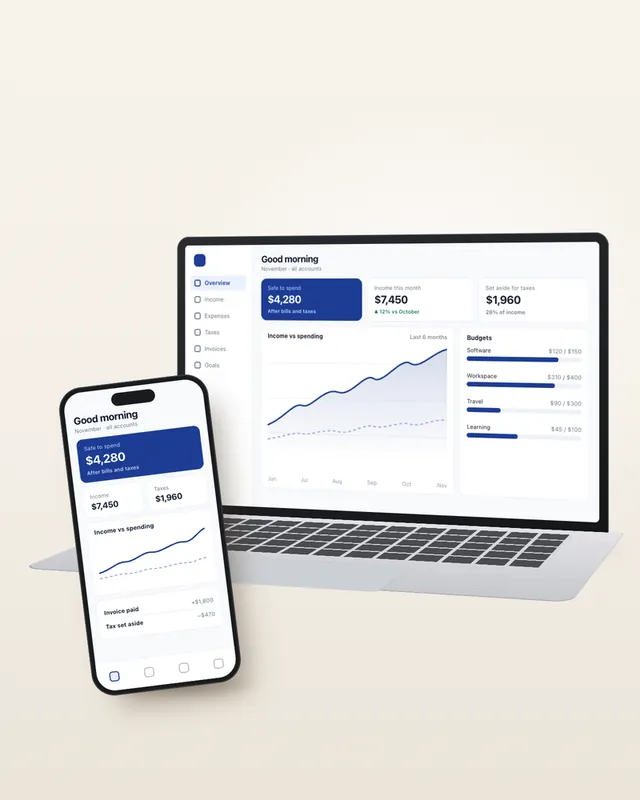
UI mock-up image for your pitch deck
Get a polished laptop and phone mock-up of your app idea, with room for a slide title, ready to drop into a deck.
You need
Nothing but the prompt
Written for
Gemini, ChatGPT
Result
Image
Prompt
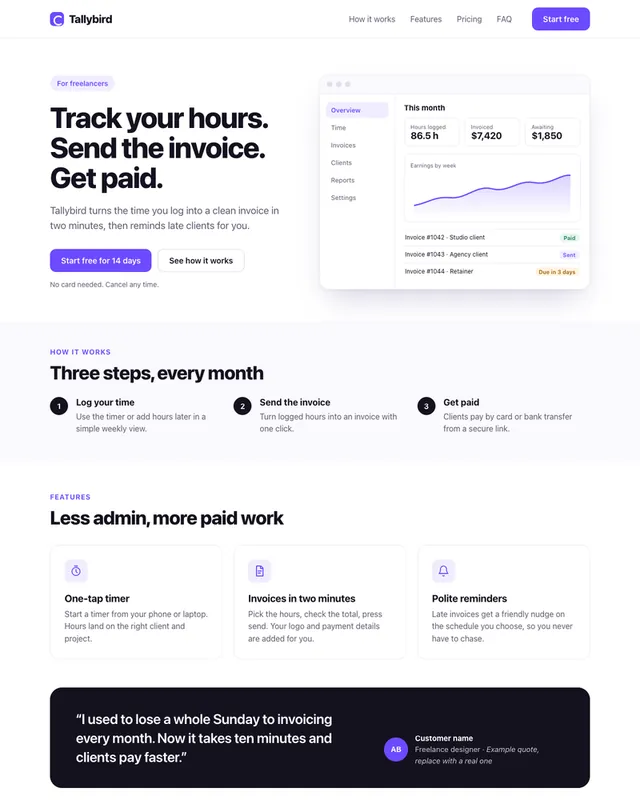
Create a polished product mock-up image for a pitch deck slide. A modern laptop sits at a slight angle on a clean background color surface, and a smartphone leans against it. Both screens show the same app, app description: the laptop shows the main dashboard with clear cards, a simple chart and a sidebar, and the phone shows the mobile version of the same screen. The interface uses accent color as its accent, with short readable labels and lots of white space. The light is soft and even, like a studio, with gentle shadows and a calm, premium feel. The frame is wide, 16:9, with empty space on the left for a slide title. There are no brand names or logos on the devices or the screens.
Subject: a laptop at a slight angle and a smartphone leaning against it, both showing the same app, app description. Laptop screen: a dashboard with cards, a simple chart and a sidebar. Phone screen: the mobile version of that dashboard.
Style: polished product mock-up for a pitch deck, accent color accent, short readable labels, lots of white space.
Lighting: soft, even studio light with gentle shadows.
Background: a clean background color surface.
Framing: 16:9, devices on the right two-thirds, empty space on the left for a title.
Constraints: no brand names, logos or maker marks; keep on-screen text short and spelled correctly.
Fill in, or keep the brackets and change them later



 Claude, ChatGPT, Lovable