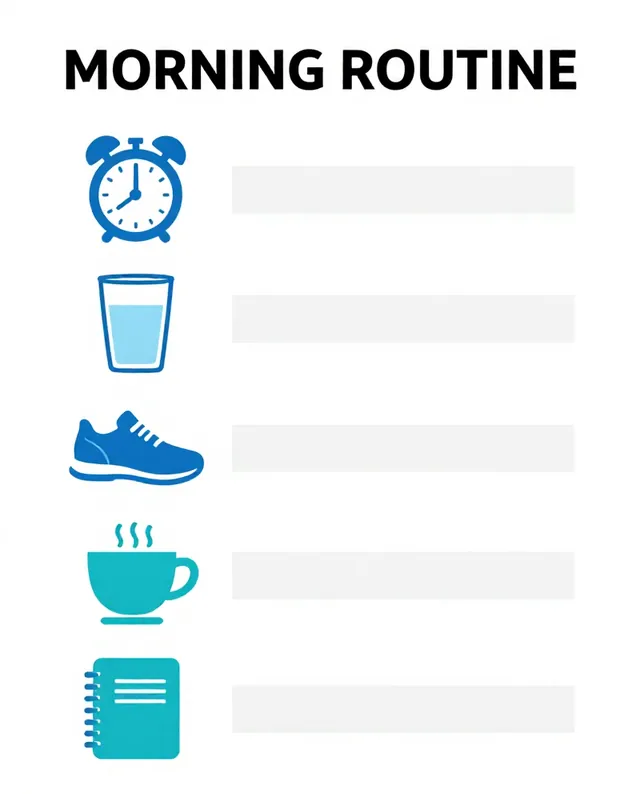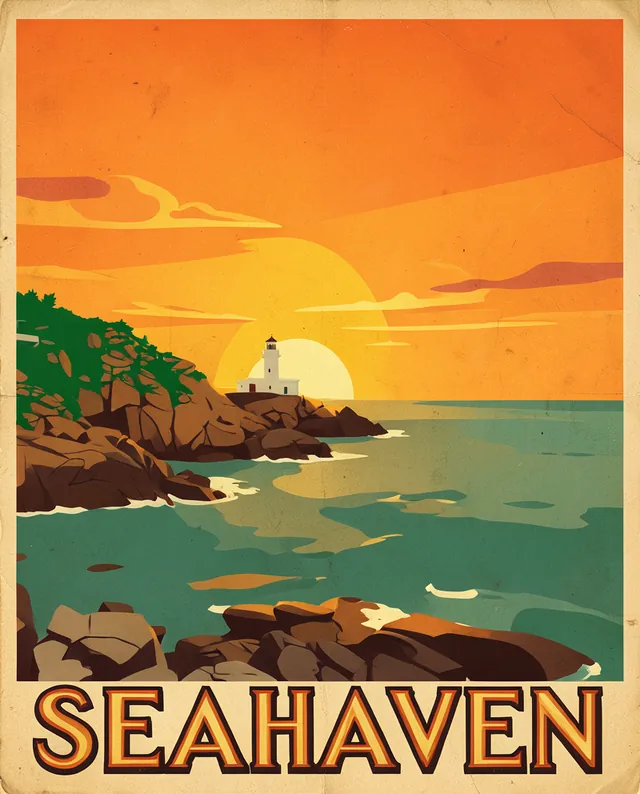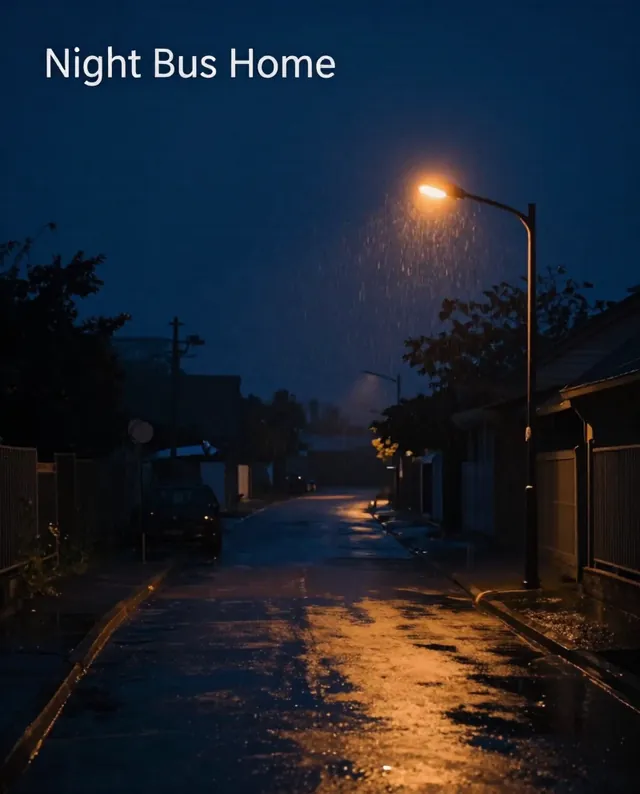

Example Example made on our own Mac with open models (Z-Image and FLUX.2 klein). Your result in the AI above will look different. How we make examples
Turn your notes into an infographic
Paste your notes and get a clean, one-page infographic with icons and short labels. You need your notes.
- You need
- Your own text
- Written for
- Gemini, ChatGPT
- Result
- Image
Prompt
Turn my notes below into a clear one-page infographic in portrait format. Use a title at the top, then number sections, each with a simple flat icon, a short heading and one line of text taken from my notes. Lay it out as a layout, with a calm palette color palette, plenty of white space and a clean sans-serif font. Use only facts from my notes, keep wording short, and spell everything exactly as I wrote it. No logos.
My notes:
your notes
Turn my notes into a one-page infographic.
Format: portrait, title at the top, number sections.
Each section: simple flat icon, short heading, one line of text from my notes.
Layout: layout.
Style: palette palette, lots of white space, clean sans-serif.
Constraints: only facts from my notes, short wording, spell everything exactly as written, no logos.
Notes:
your notes
Fill in, or keep the brackets and change them later
number
layout
palette
your notes
How to use it
- Cut your notes down to the key points, one line each.
- Open Gemini, paste the prompt and then your notes.
- Check every number and word against your notes; ask it to fix any section that is wrong.
What to expectThe AI can drop, merge or misspell points, and it may mix up numbers, so proofread before you share.
Tips
- Short notes give a cleaner infographic; long notes get squeezed.
- Pick 'timeline' for history or steps, 'grid' for comparisons.
- For more than six sections, split it into two images.
Editor: Peyman Khosravani · Updated November 18, 2026