




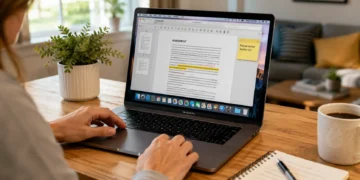



The easiest way to edit a PDF on Mac is to use the built-in Preview app. Preview lets you add text boxes, highlight text, draw shapes, add notes, rearrange pages, delete pages, fill out forms, and sign PDFs.
However, Preview is best for markup and light edits. If you need to directly change existing PDF text, replace images, run OCR on a scanned file, redact sensitive data, or make professional layout edits, you may need a dedicated PDF editor such as Adobe Acrobat or another advanced PDF tool.
Key Takeaways
- Mac has a built-in PDF tool called Preview.
- Preview is free and works well for adding text, signatures, notes, highlights, shapes, and basic page changes.
- Preview can fill out and sign many PDF forms.
- Preview is not the best tool for rewriting existing PDF text inside the original layout.
- For advanced editing, use Adobe Acrobat or another professional PDF editor.
- If the PDF is scanned, you may need OCR before editing text.
- For sensitive documents, avoid uploading files to unknown online PDF editors.
- Always save a copy before editing.
Read More:
How to Fix Sticky Keyboard Keys
Best Ways to Edit a PDF on Mac
| Editing Task | Best Tool on Mac | Notes |
| Add text box | Preview | Good for forms and simple notes |
| Highlight text | Preview | Good for review and study |
| Add signature | Preview | Built into macOS |
| Fill PDF form | Preview | Works with many fillable forms |
| Add shapes or arrows | Preview | Useful for feedback and annotation |
| Delete or rearrange pages | Preview | Use thumbnail sidebar |
| Merge PDFs | Preview | Drag pages between PDFs |
| Compress PDF | Preview | Export with reduced file size option |
| Edit existing PDF text | Adobe Acrobat or advanced PDF editor | Better for real text replacement |
| Edit scanned PDF text | OCR-capable PDF editor | Preview does not provide full OCR editing |
| Redact confidential information | Dedicated PDF editor with redaction | Do not just cover text with a box |
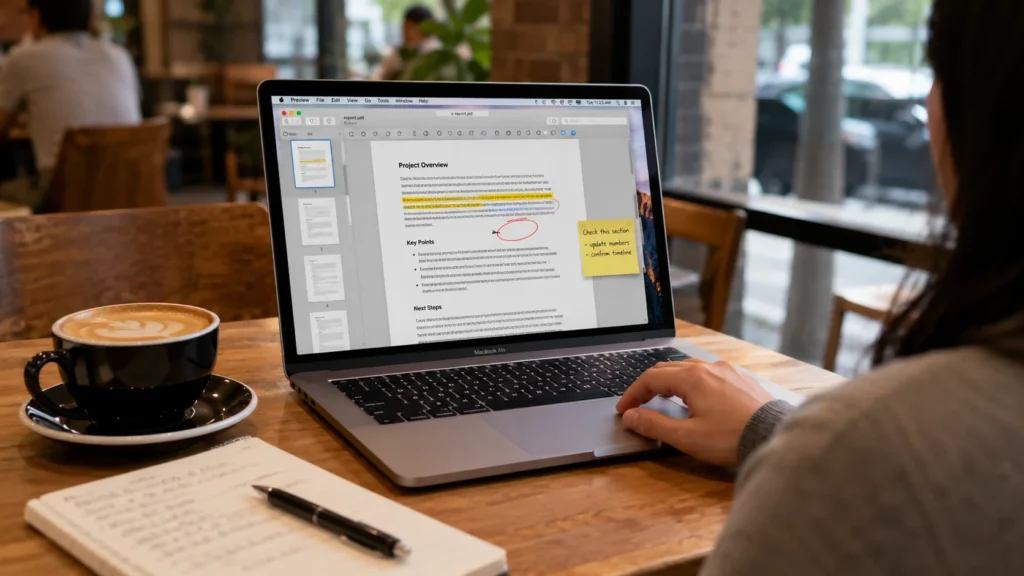
Method 1: Edit a PDF on Mac Using Preview
Preview is the default PDF viewer on many Macs. It is the best free place to start.
Step 1: Open the PDF in Preview
- Find the PDF on your Mac.
- Double-click the file.
- If it opens in another app, right-click the file.
- Choose Open With > Preview.
Step 2: Show the Markup Toolbar
- Open the PDF in Preview.
- Click the Markup button in the toolbar.
- If you do not see it, choose View > Show Markup Toolbar.
The Markup Toolbar gives you tools for text, shapes, sketches, highlights, notes, signatures, and more.
How to Add Text to a PDF on Mac
To add text in Preview:
- Open the PDF in Preview.
- Click the Markup button.
- Click the Text tool.
- A text box appears on the page.
- Type your text.
- Drag the text box where you want it.
- Use the text style options to adjust font, size, and color.
This is useful when you need to add a name, date, short note, label, or missing form text.
Important limitation
Adding a text box is not the same as editing the original PDF text. It places new text on top of the PDF. If you need to change existing wording inside the document layout, use a dedicated PDF editor.
How to Highlight or Annotate a PDF on Mac
Preview is very useful for reviewing PDFs.
You can:
- Highlight text
- Underline text
- Add notes
- Draw arrows
- Add circles or boxes
- Add comments
- Mark important sections
- Use shapes for feedback
To annotate:
- Open the PDF in Preview.
- Click the Markup button.
- Select the tool you need.
- Add your markup to the page.
- Save the file.
This is ideal for schoolwork, article review, business feedback, contracts, checklists, and document comments.
How to Sign a PDF on Mac
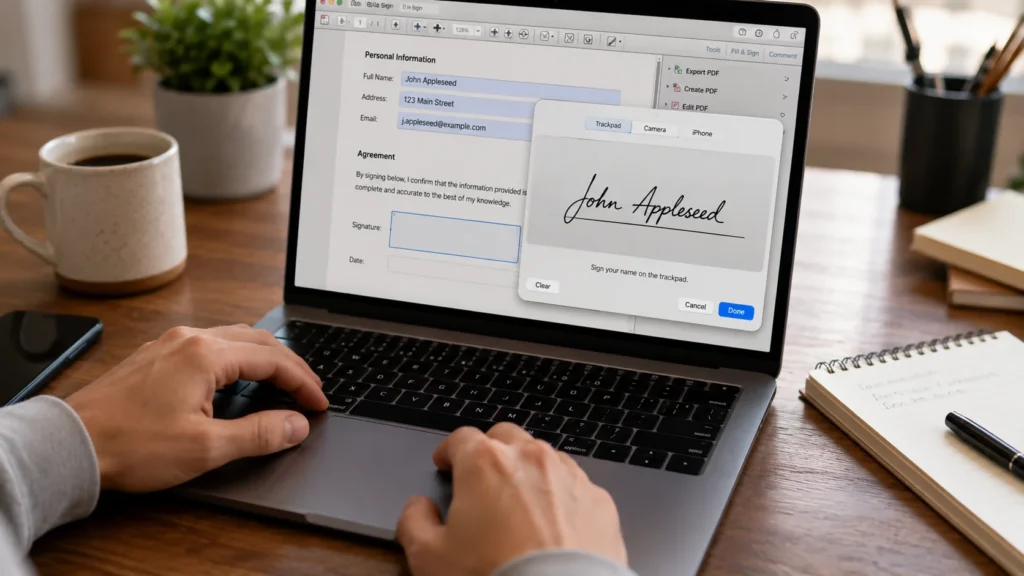
Preview includes a built-in signature tool.
To sign a PDF:
- Open the PDF in Preview.
- Click the Markup button.
- Click the Signature tool.
- Create a signature using your trackpad, camera, iPhone, or iPad if available.
- Click the signature to insert it.
- Drag it to the correct place.
- Resize it if needed.
- Save the PDF.
This is one of the easiest ways to sign a PDF without printing and scanning.
How to Fill Out a PDF Form on Mac
If the PDF has fillable fields:
- Open the PDF in Preview.
- Click inside a form field.
- Type your information.
- Use checkboxes or radio buttons if available.
- Add a signature if needed.
- Save a copy.
If the PDF does not have fillable fields, use the Text tool to place text boxes manually.
How to Delete Pages From a PDF on Mac
Preview can remove pages from a PDF.
- Open the PDF in Preview.
- Choose View > Thumbnails.
- Click the page you want to delete.
- Press the Delete key.
- Save the PDF.
Before deleting pages, make a duplicate copy of the file so you can restore the original if needed.
How to Rearrange PDF Pages on Mac
To move pages around:
- Open the PDF in Preview.
- Choose View > Thumbnails.
- Drag page thumbnails up or down.
- Drop them in the new order.
- Save the PDF.
This is useful when pages are scanned in the wrong order or when you need to reorganize a report.
How to Combine PDFs on Mac
Preview can combine PDF files.
- Open the first PDF in Preview.
- Choose View > Thumbnails.
- Open the second PDF in another Preview window.
- Drag pages from one thumbnail sidebar into the other.
- Place them where you want.
- Save the combined PDF.
You can also drag only selected pages if you do not want to merge the full document.
How to Split a PDF on Mac
To create a new PDF from selected pages:
- Open the PDF in Preview.
- Show thumbnails.
- Select the pages you want.
- Drag them to your desktop or a folder.
- macOS creates a new PDF with those pages.
This is helpful when you need to extract one chapter, receipt, invoice, contract section, or application page.
How to Rotate PDF Pages on Mac
To rotate a page:
- Open the PDF in Preview.
- Show thumbnails.
- Select the page or pages.
- Click the rotate button.
- Save the file.
This is useful for scanned PDFs that appear sideways or upside down.
How to Compress a PDF on Mac
Preview can reduce PDF file size.
- Open the PDF in Preview.
- Choose File > Export.
- Select a PDF format if needed.
- Look for a file size reduction option if available.
- Save the compressed version with a new name.
Compression can reduce quality, especially for images. Always check the compressed file before sending it.
How to Edit Existing Text in a PDF on Mac
This is where many Mac users get confused.
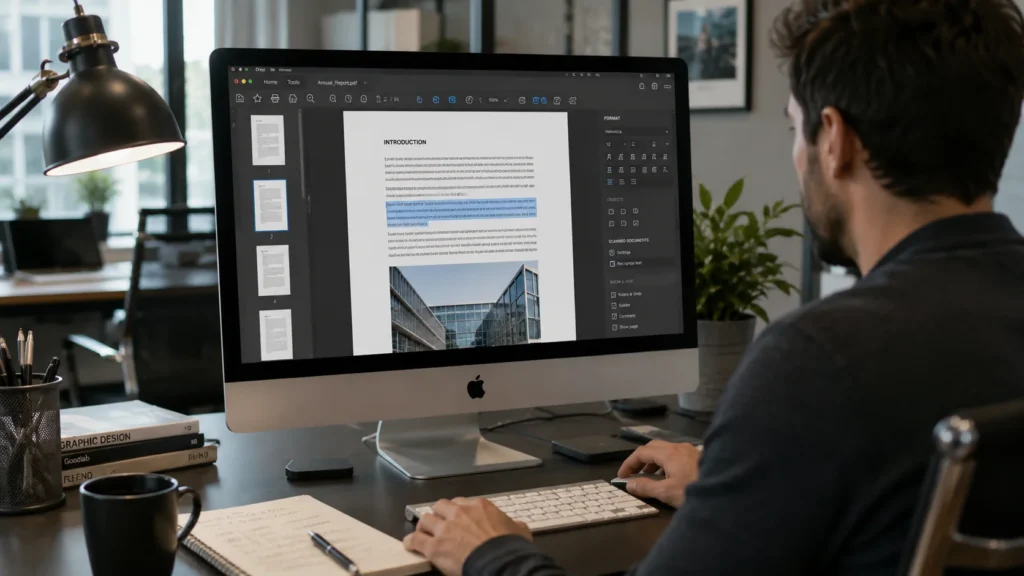
Preview can add text boxes, notes, signatures, and annotations. But if you need to directly edit existing PDF text, such as changing a sentence inside the original document, Preview may not be enough.
For existing text edits, use a dedicated PDF editor such as:
- Adobe Acrobat
- PDF Expert
- Foxit PDF Editor
- Nitro PDF
- Other professional PDF editors
A professional PDF editor can usually:
- Change existing text
- Replace images
- Move objects
- Edit layout
- Run OCR
- Redact text
- Export to Word
- Prepare forms
- Add password protection
If the document is important, compare the edited PDF carefully with the original before sending it.
How to Edit a Scanned PDF on Mac
A scanned PDF is often just an image of text, not real selectable text. That means you cannot easily click and edit the words.
To edit a scanned PDF, you usually need OCR, which stands for optical character recognition. OCR turns scanned text into searchable or editable text.
For scanned PDFs:
- Open the file and check whether you can select the text.
- If you cannot select text, it may be scanned.
- Use an OCR-capable PDF editor.
- Run OCR.
- Review the converted text carefully.
- Edit only after checking for OCR mistakes.
OCR can make errors, especially with handwriting, low-quality scans, small fonts, tables, or unusual formatting.
How to Redact a PDF on Mac
Be careful with redaction.
Do not simply draw a black box over sensitive text. That may hide the information visually, but it may not remove the text from the file.
For true redaction, use a PDF editor with a real redaction tool. This is important for:
- Legal documents
- Medical records
- Financial files
- Tax forms
- Employee records
- Contracts
- Confidential business documents
After redacting, test the file by trying to select, copy, search, or recover the hidden text.
How to Convert a PDF to Word on Mac
If you need heavy editing, converting the PDF to a Word document may be easier.
Options include:
- Adobe Acrobat export tools
- Microsoft Word import
- Online converters
- OCR software for scanned PDFs
Be careful with layout. PDF-to-Word conversion can change fonts, spacing, tables, images, and page breaks.
For private documents, avoid uploading files to unknown online converters.
How to Create or Edit a PDF From Pages on Mac
If the original document was created in Apple Pages, edit the Pages file first and then export a new PDF.
Basic workflow:
- Open the document in Pages.
- Edit the text, images, layout, or formatting.
- Choose File > Export To > PDF.
- Select your export settings.
- Save the new PDF.
This is often better than trying to edit the final PDF directly.
Preview vs Adobe Acrobat on Mac
| Feature | Preview | Adobe Acrobat or Advanced PDF Editor |
| Free on Mac | Yes | Usually paid for advanced features |
| Add text box | Yes | Yes |
| Highlight and annotate | Yes | Yes |
| Sign PDF | Yes | Yes |
| Fill forms | Yes | Yes |
| Rearrange pages | Yes | Yes |
| Merge PDFs | Yes | Yes |
| Edit existing PDF text | Limited | Better |
| OCR scanned PDFs | Limited | Often available |
| Redaction | Limited for sensitive workflows | Better with true redaction tools |
| Create advanced forms | Limited | Better |
| Professional document workflows | Limited | Better |
Best Free Way to Edit a PDF on Mac
The best free method is Preview if your task is simple.
Use Preview when you need to:
- Add a text box
- Fill out a form
- Sign a document
- Highlight text
- Add notes
- Rearrange pages
- Delete pages
- Rotate pages
- Merge PDFs
- Split PDFs
- Export or compress a file
Use a paid or advanced editor when you need to:
- Edit existing text
- Replace images
- Run OCR
- Redact sensitive information
- Convert complex PDFs to Word
- Create fillable forms
- Edit a scanned document
- Prepare professional business documents
Common Problems When Editing PDFs on Mac
Problem 1: I cannot click the text
The PDF may be scanned or flattened. You may need OCR or the original source document.
Problem 2: The form fields do not work
Some PDFs are not built as interactive forms. Use Preview’s text box tool or open the file in a dedicated PDF editor.
Problem 3: My signature moves or looks wrong
Resize the signature and place it carefully. Save a copy and reopen it to confirm placement.
Problem 4: The file size is too large
Try exporting a reduced-size copy in Preview, but check image quality afterward.
Problem 5: Formatting breaks after converting to Word
PDF conversion is not perfect. Complex layouts, tables, and graphics may need manual cleanup.
Problem 6: I need to remove confidential information
Use a true redaction tool, not a shape placed over text.
How to Edit a PDF on Mac Without Acrobat
You can edit many PDFs without Acrobat by using Preview.
Preview can handle:
- Signatures
- Text boxes
- Forms
- Highlights
- Notes
- Shapes
- Page removal
- Page reordering
- Combining files
- Splitting files
- Rotation
- Basic export
But Acrobat or another PDF editor is better when the PDF itself needs deep editing.
How to Edit PDF on Mac for Free: Simple Workflow
Use this simple workflow for most everyday PDFs:
- Duplicate the original PDF.
- Open the copy in Preview.
- Turn on the Markup Toolbar.
- Add text, highlights, notes, or signatures.
- Use thumbnails to rearrange or delete pages.
- Save the edited file.
- Reopen the file to check that changes saved correctly.
- Send or upload the finished PDF.
This works well for forms, school documents, contracts that only need a signature, invoices, application forms, and basic annotations.
Privacy Tips Before Editing PDFs Online
Online PDF editors can be convenient, but they may not be the right choice for private documents.
Be careful with PDFs that include:
- Tax information
- Social Security numbers
- Medical records
- Bank details
- Employee files
- Legal contracts
- Passwords
- Client information
- Confidential business data
For sensitive files, use trusted offline software whenever possible.
FAQs
Can I edit a PDF on Mac for free?
Yes. You can use Preview, which is built into macOS, for basic PDF editing such as adding text boxes, signatures, highlights, notes, shapes, and page changes.
Can Preview edit existing text in a PDF?
Preview is best for markup and adding content on top of a PDF. For directly changing existing PDF text, use a dedicated PDF editor such as Adobe Acrobat or another advanced PDF tool.
How do I add text to a PDF on Mac?
Open the PDF in Preview, click the Markup button, choose the Text tool, type your text, and drag the text box into position.
How do I sign a PDF on Mac?
Open the PDF in Preview, click Markup, choose the Signature tool, create or select a signature, place it on the document, and save the file.
How do I fill out a PDF form on Mac?
Open the PDF in Preview, click inside a form field, type your information, add a signature if needed, and save a copy.
How do I delete pages from a PDF on Mac?
Open the PDF in Preview, show thumbnails, select the page, press Delete, and save the file.
How do I merge PDFs on Mac?
Open PDFs in Preview, show thumbnails, and drag pages from one PDF into another. Save the combined file.
How do I edit a scanned PDF on Mac?
If the PDF is scanned, you usually need OCR software before editing the text. Use an OCR-capable PDF editor and check the results carefully.
Is Adobe Acrobat better than Preview on Mac?
Adobe Acrobat or another advanced PDF editor is better for editing existing text, OCR, redaction, form creation, and professional PDF workflows. Preview is better for free basic edits.
What is the safest way to edit confidential PDFs?
Use trusted offline software, save a copy of the original, avoid unknown online PDF editors, and use true redaction tools for sensitive information.
Conclusion
The easiest way to edit a PDF on Mac is to start with Preview. It is free, built into macOS, and useful for adding text, signatures, highlights, notes, shapes, and simple page edits.
For everyday tasks like signing forms, filling applications, marking up documents, combining PDFs, or deleting pages, Preview is usually enough.
For advanced edits, such as changing existing text, replacing images, editing scanned PDFs, running OCR, or redacting sensitive information, use a dedicated PDF editor like Adobe Acrobat or another professional tool.
The best approach is simple: use Preview for basic edits, use the original source file when possible, and use professional PDF software when accuracy, privacy, or layout control matters.


