



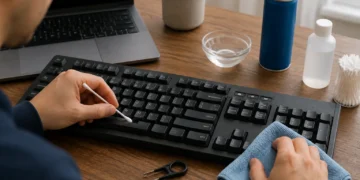


how to fix sticky keyboard keys depends on what caused the problem: dust, crumbs, dried drink residue, oil from your fingers, a worn key switch, or damage under the keycap. In most cases, you can fix sticky keyboard keys by turning off the device, removing loose debris, cleaning around the affected keys with isopropyl alcohol, and letting everything dry fully before using the keyboard again.
The important part is to clean safely. A desktop keyboard can usually handle deeper cleaning than a laptop keyboard. Mechanical keyboards often allow keycap removal, while many laptop keys are delicate and easy to break if you pry them up the wrong way.
How Do You Fix Sticky Keyboard Keys?
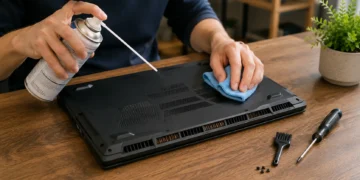
To fix sticky keyboard keys, shut down the keyboard or laptop, unplug it, turn it upside down, gently shake out debris, use compressed air around the sticky keys, clean the edges with a cotton swab lightly dampened with 70% or higher isopropyl alcohol, and let the keyboard dry before testing it.
If the key is still sticky, you may need to remove the keycap on a mechanical or external keyboard and clean underneath. For laptops, be more careful because the scissor mechanism under the key can break easily.
Key Takeaways
- Turn the keyboard or laptop off before cleaning.
- Use isopropyl alcohol, not water, for sticky residue.
- Avoid soaking the keyboard or spraying liquid directly onto keys.
- Compressed air helps remove crumbs and dust.
- Mechanical keyboard keycaps are usually easier to remove than laptop keys.
- Sticky laptop keys need gentler cleaning.
- If a drink spilled into the keyboard, act fast and let it dry completely.
- If several keys stop working, the keyboard may need repair or replacement.
Why Keyboard Keys Get Sticky
Sticky keys usually happen because something gets between the keycap and the mechanism underneath. The problem may feel small at first, but it can get worse if residue attracts more dust and debris.
Common causes include:
- Food crumbs
- Dust buildup
- Coffee, soda, juice, or energy drink spills
- Natural skin oil
- Lotion or hand cream
- Pet hair
- Dirt under the keycap
- Worn mechanical switches
- Damaged laptop key mechanisms
- Moisture trapped under the keyboard
A key can also feel sticky if it is physically damaged. Cleaning helps when the issue is dirt or residue. It may not fix a cracked keycap, broken switch, or damaged laptop scissor clip.
Before You Start: What You Need
You do not need expensive tools for most sticky keyboard problems. A few basic supplies are enough.
| Tool or Supply | Why You Need It | Safe to Use? |
| Isopropyl alcohol | Breaks down sticky residue and dries quickly | Yes, used lightly |
| Cotton swabs | Cleans around key edges | Yes |
| Microfiber cloth | Wipes surface dust and residue | Yes |
| Compressed air | Blows out crumbs and dust | Yes, if used carefully |
| Keycap puller | Removes keycaps on mechanical keyboards | Yes, for compatible keyboards |
| Soft brush | Removes loose debris | Yes |
| Toothpick | Helps remove crumbs carefully | Yes, gently |
| Water | Can cause damage if it gets inside | Avoid for internal cleaning |
| Household cleaner | May damage plastic or electronics | Avoid |
| Paper towel fibers | Can leave lint behind | Use carefully |
Use less liquid than you think you need. The goal is to dampen a cotton swab, not flood the keyboard.
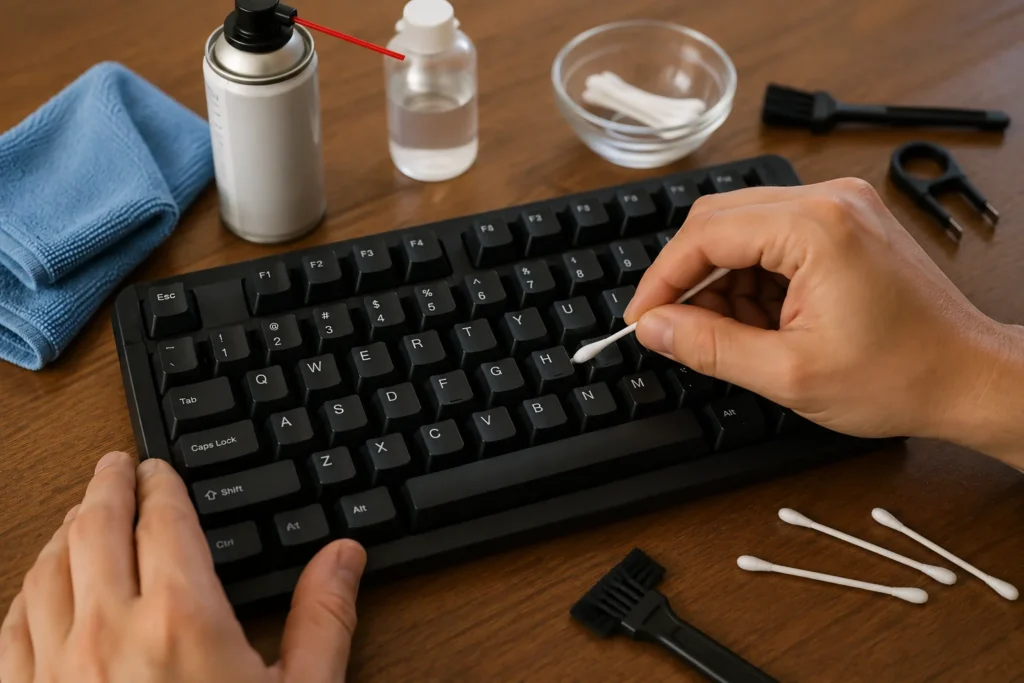
Step-by-Step: How to Fix Sticky Keyboard Keys
Follow these steps in order. Start with the safest method before removing anything.
1. Turn Off and Unplug the Keyboard
If you are cleaning an external keyboard, unplug it. If it is wireless, turn it off and remove the batteries if possible.
Also if you are cleaning a laptop keyboard, shut the laptop down completely and unplug the charger. Do not clean while the laptop is awake, charging, or warm.
This prevents accidental typing, short circuits, and unwanted input.
2. Turn the Keyboard Upside Down
Hold the keyboard upside down and gently shake it. Do not hit it hard. You only want loose crumbs, dust, and hair to fall out.
For laptops, open the screen slightly and tilt the device carefully. Keep the motion gentle so you do not stress the hinge.
3. Use Compressed Air Around the Sticky Keys
Use short bursts of compressed air around the affected key. Hold the can upright and keep the nozzle a short distance away.
Blow air from different angles:
- Left side of the key
- Right side
- Top edge
- Bottom edge
This can remove crumbs trapped under the keycap. If the key feels better after this step, the problem was probably debris rather than sticky liquid.
4. Clean Around the Key With Isopropyl Alcohol
Dip a cotton swab into isopropyl alcohol, then press it against a cloth so it is damp, not dripping.
Gently clean around the sticky key:
- Run the swab along the key edges.
- Press the key lightly while cleaning around it.
- Clean the surrounding keys too.
- Use a fresh swab if it gets dirty.
Isopropyl alcohol helps loosen dried sugar, oil, and grime. It also dries faster than water, which makes it safer for electronics when used carefully.
5. Press the Key Several Times
After cleaning the edges, press the key repeatedly. This helps the alcohol move slightly around the sticky area and loosen residue.
Do not press aggressively. If the key feels stuck, forcing it can damage the mechanism.
6. Let the Keyboard Dry Fully
Wait before turning the keyboard or laptop back on. For light cleaning, 10 to 20 minutes may be enough. If you used more alcohol or cleaned under a keycap, wait longer.
If there was a spill, drying may take many hours or even a full day.
7. Test the Key
Turn the device back on and test the key in a text editor. Press it several times and check whether it:
- Returns normally
- Repeats unexpectedly
- Feels uneven
- Does not register
- Stays pressed
If the key still sticks, move to deeper cleaning if your keyboard type allows it.
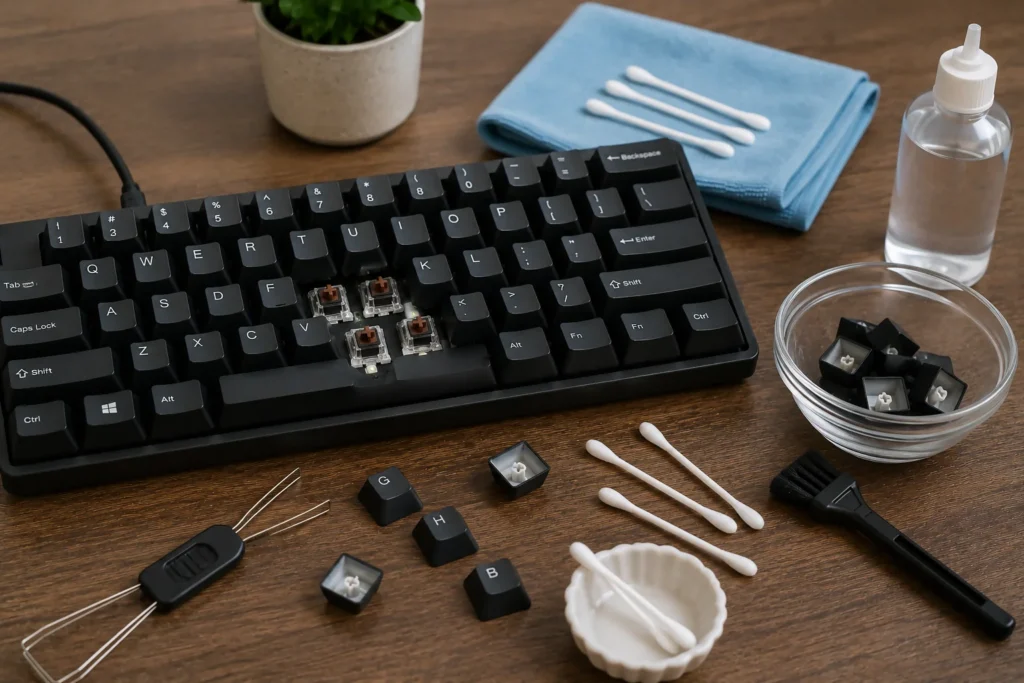
How to Fix Sticky Keys on a Mechanical Keyboard
Mechanical keyboards are usually easier to clean because the keycaps can often be removed safely with a keycap puller.
Steps for Mechanical Keyboards
- Unplug the keyboard.
- Take a photo of the layout before removing keycaps.
- Use a keycap puller to remove the affected keycap.
- Clean the keycap with a damp cloth or mild soapy water.
- Dry the keycap completely.
- Use compressed air around the switch.
- Clean the area around the switch with a lightly dampened alcohol swab.
- Let everything dry.
- Reinstall the keycap.
- Test the key.
If the switch itself feels sticky after cleaning, the switch may have internal residue or wear. Hot-swappable mechanical keyboards may allow switch replacement. Soldered keyboards may need professional repair or a new keyboard.
How to Fix Sticky Keys on a Laptop Keyboard
Laptop keyboards need more care. Many laptop keys use small plastic scissor clips that can break if you remove the key incorrectly.
For laptop keyboards, try this first:
- Shut down and unplug the laptop.
- Tilt the laptop carefully.
- Use compressed air around the sticky key.
- Clean around the key edges with a lightly dampened alcohol swab.
- Press the key gently several times.
- Let it dry fully.
Avoid pulling off laptop keys unless you know the exact model and removal method. Some laptop keycaps snap back on easily. Others break or never sit right again.
If the key is still sticky after surface cleaning, look up the laptop model’s key removal instructions or take it to a repair shop.
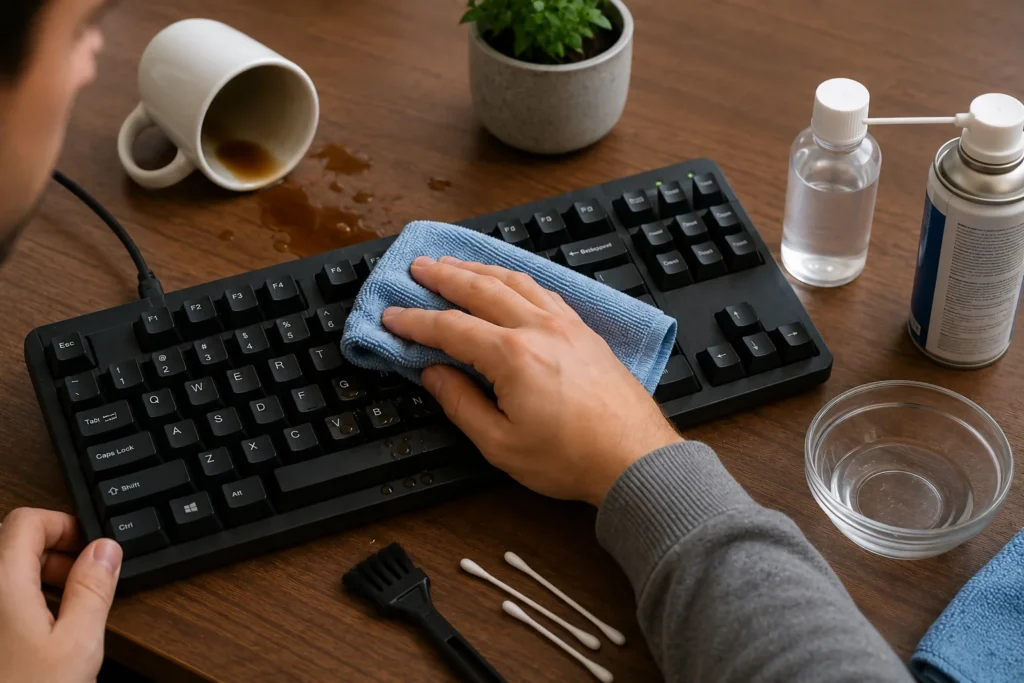
How to Fix Sticky Keyboard Keys After a Spill
Drink spills are more serious than dust or crumbs. Sugary drinks are especially bad because they leave sticky residue under the keys.
If you spill liquid on a keyboard:
- Turn it off immediately.
- Unplug it or shut down the laptop.
- Disconnect power.
- Turn the keyboard upside down.
- Blot liquid with a microfiber cloth.
- Do not use heat from a hair dryer.
- Let it dry fully.
- Clean sticky areas with isopropyl alcohol.
- Test only after drying.
For external keyboards, you may be able to remove keycaps and clean more deeply. For laptops, a spill can reach the internal components. If the spill was large, sugary, or involved a laptop, professional cleaning is safer.
What Not to Do When Cleaning Sticky Keyboard Keys
A sticky key is annoying, but rushing can make things worse.
Avoid these mistakes:
- Do not spray cleaner directly onto the keyboard.
- Do not pour alcohol or water into the keys.
- Do not use bleach or harsh household cleaners.
- Do not pry laptop keys with force.
- Do not use a hair dryer on high heat.
- Do not turn on a wet keyboard too soon.
- Do not use metal tools around key mechanisms.
- Do not keep pressing a key that feels jammed.
Most keyboard damage happens when someone uses too much liquid or too much force.
When Should You Remove the Keycap?
You should remove the keycap only if the keyboard is designed for it or if you are comfortable with the risk.
Keycap removal is usually safer on:
- Mechanical keyboards
- Some external membrane keyboards
- Gaming keyboards with removable keycaps
Keycap removal is riskier on:
- Laptop keyboards
- Low-profile keyboards
- Apple laptop keyboards
- Thin wireless keyboards
- Keyboards with fragile scissor mechanisms
If you are not sure, clean around the key first. Many sticky keyboard keys improve without full removal.
How to Clean Keycaps Separately
If you remove keycaps from a mechanical keyboard, you can clean them separately.
Simple method:
- Put keycaps in a small bowl.
- Add warm water and a tiny amount of mild dish soap.
- Let them soak for 20 to 30 minutes.
- Gently rub dirty spots.
- Rinse with clean water.
- Dry completely for several hours.
- Reinstall only when fully dry.
Do not reinstall damp keycaps. Water can drip into the switch area.
Sticky Keyboard Keys vs Software Sticky Keys
Sometimes “sticky keys” does not mean physically sticky keys. It can also refer to the accessibility feature called Sticky Keys, where modifier keys like Shift, Ctrl, Alt, or Command stay active after being pressed.
If your keys feel physically normal but your keyboard acts strange, check software settings.
On Windows
- Open Settings.
- Go to Accessibility.
- Select Keyboard.
- Turn off Sticky Keys if it is enabled.
On Mac
- Open System Settings.
- Go to Accessibility.
- Select Keyboard.
- Turn off Sticky Keys if enabled.
If the keyboard feels physically sticky, software settings are not the main issue. If the keyboard behaves like a modifier key is stuck, check both the physical key and the accessibility settings.
How to Prevent Sticky Keyboard Keys
Prevention is easier than cleaning dried residue.
Good habits include:
- Keep drinks away from the keyboard.
- Avoid eating over the keyboard.
- Wash hands before long typing sessions.
- Clean the keyboard surface weekly.
- Use compressed air occasionally.
- Cover the keyboard when not in use.
- Use a keyboard cover only if it does not trap heat or affect typing.
- Clean spills immediately.
- Do not use lotion right before typing.
A two-minute cleaning routine every week can prevent most sticky keyboard problems.
Common Problems and Best Fixes
| Problem | Likely Cause | Best Fix |
| One key feels sticky | Crumb or dried residue | Compressed air and alcohol swab |
| Several nearby keys stick | Spill or food debris | Deeper cleaning, possible keycap removal |
| Laptop key sticks | Debris under scissor mechanism | Gentle air and edge cleaning |
| Mechanical key sticks | Dirty keycap or switch issue | Remove keycap and clean switch area |
| Key repeats letters | Debris or switch fault | Clean first, replace switch if needed |
| Key does not press down | Object under keycap | Remove debris carefully |
| Key does not register | Electrical or switch damage | Repair or replace keyboard |
| Keyboard acts like Shift is stuck | Software Sticky Keys or stuck modifier | Check settings and clean modifier key |
When Cleaning Is Not Enough
Cleaning may not fix the problem if the keyboard has internal damage.
You may need repair or replacement if:
- The key does not register after cleaning.
- Multiple keys stopped working after a spill.
- The keyboard types random characters.
- A laptop keycap will not snap back.
- The key switch feels broken.
- The keyboard smells burnt or looks corroded.
- Liquid reached inside the laptop.
- The keyboard keeps failing after repeated cleaning.
For a cheap external keyboard, replacement may cost less than repair. For a laptop, repair may be worth it because the keyboard is part of the device.
FAQs
How do I fix sticky keyboard keys without removing them?
You can fix many sticky keyboard keys without removing them by turning off the device, using compressed air, cleaning around the key with a lightly dampened isopropyl alcohol swab, pressing the key gently, and letting it dry.
Can I use water to clean sticky keyboard keys?
Avoid using water inside the keyboard. Water dries slowly and can damage electronics. Use isopropyl alcohol lightly because it evaporates faster and helps remove residue.
Can I remove laptop keys to clean underneath?
Sometimes, but it is risky. Laptop keys often use fragile clips. Try compressed air and alcohol edge cleaning first. If you need to remove a key, check the exact laptop model’s instructions.
Why is my keyboard sticky after spilling soda?
Soda contains sugar, which dries into a sticky residue under the keys. You may need isopropyl alcohol cleaning, keycap removal, or professional repair if the spill reached deeper parts.
How long should I let a keyboard dry after cleaning?
For light alcohol cleaning, wait at least 10 to 20 minutes. For spills or deeper cleaning, wait several hours or longer. Do not power on a wet keyboard.
Is compressed air safe for keyboards?
Yes, compressed air is generally safe when used in short bursts and held upright. Do not spray too close or for too long in one spot.
Why does one key keep repeating?
A repeating key may have debris under it, sticky residue around the mechanism, or a failing switch. Clean it first. If it still repeats, the switch or keyboard may need replacement.
Should I replace my keyboard if keys are sticky?
Not always. Most sticky keys can be cleaned. Replace the keyboard if cleaning does not help, if liquid caused internal damage, or if several keys fail.
Conclusion
how to fix sticky keyboard keys is mostly about patience and safe cleaning. Start simple: turn the device off, remove loose debris, use compressed air, clean around the key with a small amount of isopropyl alcohol, and let the keyboard dry.
If you have a mechanical keyboard, removing the keycap can make cleaning easier. If you have a laptop, be gentle and avoid prying up keys unless you know the correct method. Sticky keys are usually fixable, but too much liquid or force can turn a small problem into a broken keyboard.


